


Contents
- What is Website QA Testing?
- QA Testing vs User Testing: What's the Difference?
- The Business Impact of Proper QA Testing
- Essential Types of Website QA Testing
- Step-by-Step Website QA Testing Process
- Building an Effective Website QA Testing Checklist
- How to Collect Client Feedback During Website QA
- Website QA Testing Checklist 2026
- Top Website QA Tools Compared
- Common Website QA Testing Challenges and Solutions
- QA Testing Best Practices for Development Teams
- Start Streamlining Your Website QA Process Today
- Frequently Asked Questions
Key Takeaways
- Website QA testing identifies bugs before they reach users.
- QA covers functionality, performance, accessibility, security, and compatibility.
- Testing should occur throughout development, not just before launch.
- Combining manual and automated testing provides the best coverage.
- Structured feedback and issue tracking speed up fixes.
- Final stakeholder approval and post-launch monitoring help maintain quality.
What is Website QA Testing?
Website QA testing is the process of checking a website for bugs, broken functionality, usability issues, performance, accessibility, and cross-browser compatibility before launch. It helps ensure the website works correctly across devices, delivers a consistent user experience, and meets quality standards before being released to users.
Why QA Matters
Website QA is about more than finding bugs before launch. It helps ensure your website is reliable, easy to use, and delivers a consistent experience for every visitor, regardless of their browser or device.
A structured QA process helps teams:
- Detect bugs before they affect users.
- Improve website performance and reliability.
- Ensure compatibility across browsers and devices.
- Identify accessibility issues and support compliance with the Web Content Accessibility Guidelines (WCAG).
- Reduce costly post-launch fixes and rework.
- Build confidence before launching new websites or updates.
By identifying and resolving issues early, website QA helps development teams deliver higher-quality websites while reducing project delays and improving the overall user experience.
"A site that doesn’t work properly is a conversion killer.” - CXL in Website Quality Assurance (QA): The Optimizer’s Guide to Website Testing
QA Testing vs User Testing: What's the Difference?
Quality Assurance (QA) testing and user testing are both essential for delivering a successful website, but they serve different purposes. QA testing focuses on identifying and fixing technical issues before launch, while user testing evaluates how real people interact with the website to uncover usability and experience improvements.
The Business Impact of Proper QA Testing
Issues with a website's usability can damage a company's brand reputation, hurt SEO, and lead to lost leads or revenue. Well-structured QA testing means fewer issues when you launch your website as well as less time spent on post-launch fixes. Research shows that companies with robust QA processes, effective error handling and proper functioning tend to achieve higher user satisfaction, lower maintenance costs, and stronger business outcomes.
The cost of fixing a software defect increases significantly the later it's found. Research from the IBM Systems Sciences Institute, cited by NIST, found that defects identified after release can cost up to 100 times more to fix than those caught during the design phase. This is one of the key reasons why thorough website QA before launch is so important.
Essential Types of Website QA Testing
A solid website QA process includes different types of rigorous testing to ensure every aspect of a website’s functionality, usability, security, and performance meets user expectations and industry standards. Each testing type targets specific areas of a website, helping deliver a seamless and error-free user experience to website visitors. For more information on AI website QA testing, see this guide.
1. Functionality testing
Functionality testing verifies that all website features work exactly as intended. This includes verifying that interactive elements, forms, links, and user workflows function correctly, meet the specified requirements and provide a high-quality user experience.
- Click every link (including external links), button, and form to ensure they function properly in the user's browser, as well as for mobile users
- Validate navigation menus, calls-to-action (CTAs), and the website's speed and dynamic elements behave as expected
- Test using real user scenarios to uncover hidden or edge-case issues
2. Cross-browser testing
Cross-browser testing makes sure that your website performs consistently across different devices, their web browsers and versions; preventing layout shifts and broken functionalities.
- Test the website on all major browsers (Chrome, Firefox, Edge, Safari), including their mobile versions
- Check for layout inconsistencies, font and style issues, and feature failures
- Use a mix of manual spot checks and automated browser testing tools
3. Performance testing
Performance testing gauges website responsiveness, load times, and resource consumption, ensuring fast and smooth experiences even under heavy traffic or limited bandwidth conditions.
- Measure page speed and resource usage on various devices and network speeds. Google's Core Web Vitals, assesses loading performance, responsiveness, and visual stability. Google's recommended thresholds are Largest Contentful Paint (LCP) of 2.5 seconds or less, Interaction to Next Paint (INP) of 200 milliseconds or less, and Cumulative Layout Shift (CLS) of 0.1 or less.
- Use tools like Google Lighthouse or WebPageTest to identify bottlenecks in existing functionalities
- Optimize images, scripts, caching, and server response times based on analysis
4. Security testing
Security testing evaluates your website for vulnerabilities that could lead to data breaches, unauthorized access, or compliance failures, protecting both the business and its users. Teams should follow guidance from the Open Worldwide Application Security Project (OWASP), which publishes widely adopted best practices for web application security.
- Scan all forms, authentication flows, and integrations for vulnerabilities like XSS and CSRF
- Test for weak password policies and outdated software components
- Ensure SSL certificates, data encryption, and GDPR/privacy regulations are properly implemented
5. Accessibility testing
Accessibility testing confirms that users with disabilities can navigate and interact with your site effectively, meeting legal requirements and promoting inclusiveness. Teams should verify that the site meets the Web Content Accessibility Guidelines (WCAG), which helps create a more inclusive user experience and supports compliance with recognised web accessibility standards.
- Utilize automated checkers, such as Axe or WAVE, to identify common accessibility issues
- Manually test keyboard navigation, screen reader support, and color contrast ratios
- Ensure all interactive elements are accessible and labeled properly
6. Mobile responsiveness testing
Mobile responsiveness testing ensures that the website’s layout and functionality adapt seamlessly to various screen sizes, orientations, and device types, providing an optimal experience across smartphones and tablets.
- Visually and functionally check the site on multiple mobile devices
- Test orientation changes, tap targets, and mobile-specific navigation features
- Use browser simulators and conduct real-device checks to validate responsiveness using search engine results
Step-by-Step Website QA Testing Process
A strong QA workflow covers multiple stages designed to ensure that a website performs flawlessly, looks professional, and provides a smooth user experience. Here’s an in-depth look at how to run a thorough QA process:
1. Pre-testing preparation
Preparation is critical to a successful QA process. It begins by gathering detailed requirements based on user needs and business goals, which serve as quality criteria throughout the testing process. Establishing a testing or staging environment that closely mimics the production site is crucial for replicating real-world conditions without impacting live users. This includes setting up the same server configurations, databases, and network parameters.
Sample data should be prepared to simulate realistic user interactions and navigation paths. Identify a diverse group of testers, including internal team members, project stakeholders, and select clients, to provide comprehensive coverage.
Finally, decide on the website QA tools to be used for visual bug tracking, test management systems, or automation scripts, ensuring all stakeholders have access and training to use them effectively.
2. Test execution phase
During ongoing testing, sticking to the test plan and checklist is very important. Each test case is methodically performed, with results carefully recorded to track progress and identify issues. To achieve comprehensive coverage, testers from different backgrounds, like developers, designers, clients, and even actual end-users, contribute unique perspectives and catch different types of issues.
Both manual testing of real user journeys and automated test scripts are employed to optimize efficiency and breadth. Whenever a bug or usability problem is found during website testing, it’s logged immediately with detailed notes.
3. Bug documentation and reporting
Clear, actionable bug documentation is crucial for resolving issues efficiently. Feedback tools like BugHerd allow testers to provide precise feedback anchored to the exact UI element. This feedback automatically includes relevant technical data like the operating system, browser version, and exact URL, reducing any back-and-forth. Bugs and feedback are transformed into well-defined tasks that can be assigned, prioritized, and tracked in a centralized platform accessible to the entire team. This transparency helps project managers monitor open issues, developers to understand the context fully, and clients to see progress clearly, creating a more efficient workflow.
4. Regression testing
As bugs are fixed and new features rolled out, regression testing ensures that these changes have not inadvertently broken existing website functionality. Rigorous re-testing of prior bug fixes and critical workflows confirms stability and consistency. Each regression test is documented with results reported back to the QA team. Once regression testing is completed successfully and all issues are closed, final approvals are gathered from stakeholders. The website is then prepared for launch, confident that it meets established quality standards and performance expectations.
5. Stakeholder review & sign-off
Before launching the website, ask key stakeholders to complete a final review of the latest changes. Confirm that all critical issues have been resolved, feedback has been addressed, and the website meets the agreed requirements. Formal sign-off helps ensure everyone is aligned and reduces the risk of last-minute changes after launch.
6. Post-launch monitoring
After the website goes live, continue monitoring for issues such as broken links, performance problems, browser compatibility issues, and unexpected bugs. Regular post-launch testing helps identify problems early, maintain a high-quality user experience, and ensure new updates don't introduce regressions.
“Before BugHerd, clients would send screenshots with scribbles we couldn't decipher or dozens of emails with issues we were often unable to recreate. Now, feedback turns into clear tasks our team can resolve quickly.” - Sasha Shevelev, Webcoda

Building an Effective Website QA Testing Checklist
Creating an effective website QA testing checklist is essential to ensure that all aspects of a website are thoroughly evaluated before launch. This checklist acts as a comprehensive guide, covering every critical area from functionality and performance to security and user experience.
An effective checklist also provides clarity and structure for testers, whether they are developers, QA professionals, or non-technical clients. Ultimately, the checklist ensures that the final product meets business goals and provides a seamless user experience.
Functional testing checklist items
Functional website testing focuses on verifying that all elements of a website behave as expected. This includes testing every link, button, and menu item to confirm they respond correctly when clicked, and that they lead users to the appropriate pages.
Make sure website forms only accept the right type of information. For example, email fields should only accept valid email addresses, and phone number fields should only accept phone numbers.
Performance and security checklist
Performance website testing ensures that websites load quickly and perform well across different network speeds and device types, as slow load times can drive visitors away. Page load times should ideally stay under acceptable limits, for example, less than two seconds on a typical LTE mobile connection. Check that there are no broken links, missing images, or 404 error pages, as these create a poor user experience.
User experience testing points
User experience (UX) website testing ensures that visitors to the web pages have a smooth, intuitive, and accessible interaction. Clear and logical site navigation lets users find information easily without confusion or dead ends. Fonts must be readable with appropriate sizes and color contrasts to support accessibility standards. The site’s design should be responsive, adapting fluidly across all devices and screen sizes from desktop monitors to smartphones.
How to Collect Client Feedback During Website QA
Collecting clear, actionable client feedback is one of the most important parts of website QA. A structured process helps reduce confusion, minimise revision rounds, and ensure developers have everything they need to resolve issues quickly.
1. Review the website on a staging environment
Ask clients to review a staging version of the website before launch. This allows them to test functionality, content, and design without affecting the live site.
2. Ask clients to provide feedback directly on the page
Encourage clients to leave feedback on the exact element where they found an issue instead of sending emails or annotated screenshots. This makes it much easier for developers to understand what needs to be fixed.
3. Capture technical details with every issue
Every bug report should include key information such as the page URL, browser, operating system, device, and screen resolution. Capturing this information automatically helps developers reproduce and resolve issues faster.
4. Centralize feedback in one place
Store all website QA feedback in a single location so project managers, designers, developers, and clients are working from the same source of truth. This helps prevent duplicate reports and keeps everyone aligned.
5. Prioritize, assign, and track issues
Categorise feedback based on severity and assign tasks to the appropriate team members. Tracking progress ensures issues are resolved before launch and gives stakeholders visibility into the QA process.
6. Verify fixes before publishing
After issues have been resolved, retest the affected pages and ask stakeholders to confirm the changes before approving the website for launch.
Website QA Testing Checklist 2026
Try BugHerd's free interactive Website QA Checklist, which includes launch-critical checks across functionality, design, content, accessibility, SEO, AEO, performance, and browser compatibility. You can save your progress and generate a shareable completion summary for your team or clients. For a quick reference, use the copy-and-paste checklist below.
✅ Functionality
- Test all forms and confirmation messages
- Check buttons and calls-to-action
- Verify navigation menus
- Test search functionality (if applicable)
- Confirm third-party integrations work correctly
✅ Cross-browser & Device testing
- Test in Chrome, Safari, Firefox, and Edge
- Test on desktop, tablet, and mobile devices
- Check responsive layouts at different screen sizes
- Verify touch interactions on mobile
✅ Visual QA
- Check fonts, colours, and spacing
- Verify images and videos display correctly
- Look for layout inconsistencies
- Review hover states and animations
✅ Content
- Proofread all copy
- Remove placeholder content
- Verify contact information
- Check links and downloadable files
✅ Accessibility
- Add alt text to images
- Verify keyboard navigation
- Check colour contrast
- Ensure headings follow a logical structure
✅ Performance
- Optimize images
- Check page load speed
- Review Core Web Vitals
- Test on slower network connections
✅ SEO
- Verify page titles and meta descriptions
- Check heading hierarchy
- Test canonical tags
- Verify XML sitemap and robots.txt
- Confirm structured data where applicable
✅ Final sign-off
- Confirm analytics and tracking are working
- Review priority user journeys
- Complete stakeholder review
- Log and resolve all critical issues
- Approve the website for launch
Top Website QA Tools Compared
“We’ve seen a 56% acceleration in when client changes come back to us, and that's because with BugHerd, it's easier for clients to do it. We also have an 88% reduction in the amount of time that we put towards reconciling feedback, which is huge.” - Keenan Beavis, Longhouse Branding & Marketing
Common Website QA Testing Challenges and Solutions
Cross-browser compatibility issues
- Problem: Features that work in one browser may break in another due to inconsistent rendering engines.
- Solution: Use automated cross-browser testing tools and always validate in the most common client browsers (Chrome, Firefox, Safari, Edge). Document oddities and offer workarounds or graceful fallbacks.
Mobile testing complexities
- Problem: With a huge range of device screen sizes, orientation changes, and input methods, testing for every scenario is daunting.
- Solution: Test on both device emulators and real hardware. Use flexible layouts, avoid fixed pixel widths, and validate that touch/click targets are large enough and spaced appropriately.
Team collaboration and communication
- Problem: Feedback can get buried in email chains, and vague bug reports slow down resolution and increase frustration.
- Solution: Use a visual feedback and bug reporting tool like BugHerd that bridges the gap between non-technical clients and dev teams, organizes all feedback as actionable tasks, and links each issue to the precise location on the page. This saves hours of reconciliation and reduces the time to resolution massively.
QA Testing Best Practices for Development Teams
Follow these guidelines to make QA testing smoother, faster, and more effective, especially for client projects:
Integrating QA into development workflow
- Start QA testing early, don’t wait until the end of the project
- Integrate QA milestones into the main project schedule, not just a single 'test' week
- Make it easy for all stakeholders, not just developers, to flag issues
- Use tools that connect directly to existing task/project systems (eg Jira, Trello, Asana, ClickUp, etc).
Stakeholder involvement in testing process
- Involve clients, designers, and content teams in QA with feedback tools that don’t require technical knowledge
- Use workflows where feedback is submitted via simple 'point and click' mechanisms rather than complex forms
- Make transparency a priority, let everyone see the progress from feedback to resolution
Measuring QA testing effectiveness
- Track metrics such as time to bug resolution, the number of issues caught pre versus post-launch, rework rates, and client satisfaction scores
- Use feedback data to continually refine future QA checklists and processes
- Share results with stakeholders to illustrate the tangible impact of QA investments
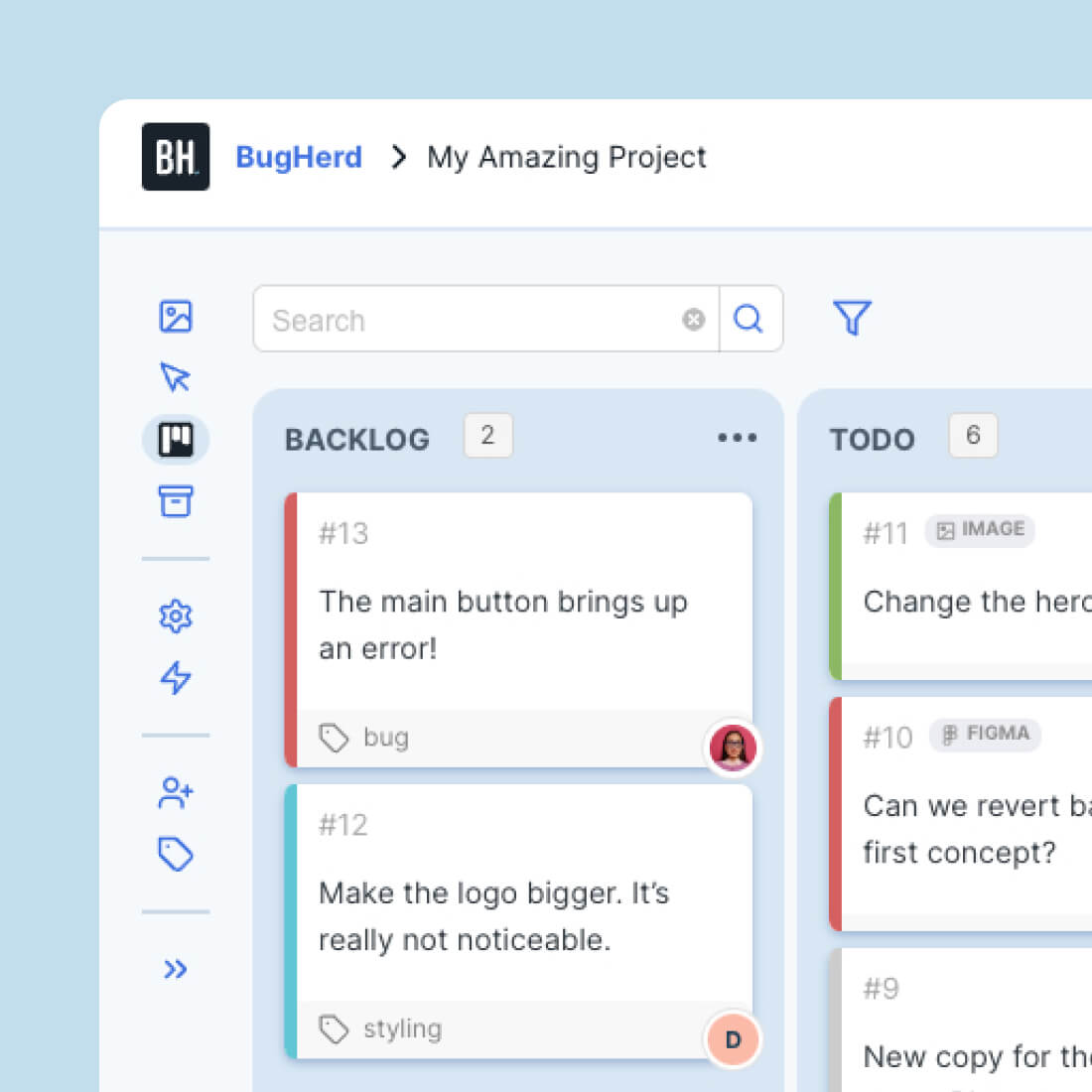
"BugHerd centralizes feedback from multiple teams, making it easy to track, assign, and resolve tasks. The Kanban board is especially helpful for staying organized." - Anonymous G2 review
Start Streamlining Your Website QA Process Today
Traditional QA workflows leave agency teams buried in email threads, spreadsheets, and endless rounds of clarification. As a leading website QA tool for agencies, BugHerd replaces this chaos with a visual, point-and-click feedback workflow that brings clients, stakeholders, and developers together in one place. Every piece of feedback becomes a trackable task, complete with the technical details your team needs to resolve issues faster.
Ready to streamline your QA and launch websites with confidence? Try BugHerd for free, or book a 1:1 demo today.
Want to see how BugHerd works in practice?
Read how Luminary, one of Australia's leading digital agencies, streamlined QA and client feedback across complex website projects using BugHerd. They reduced the time spent reconciling client feedback by 80%, saving 15–25 hours per project!
Frequently Asked Questions
How long does website QA testing take?
Website QA testing typically takes a few days to four weeks, depending on the size and complexity of the website. Small brochure websites can often be tested in a day or two, while larger websites with custom functionality require more comprehensive testing before launch.
Is BugHerd good for QA testing?
BugHerd is designed specifically for website QA, making it easy for testers, clients, designers, and developers to report, track, and resolve issues in one place.
Every report automatically includes a screenshot, URL, browser, operating system, and screen resolution, giving developers the context they need to reproduce and fix issues quickly. BugHerd also has deep two-way integrations with project management and development tools, helping teams fit QA into their existing workflows.
How much does website QA testing cost?
Website QA testing costs vary depending on the project's complexity, the testing approach, and the tools used. Manual testing may only require staff time, while dedicated QA platforms and automated testing tools typically charge monthly or per-user subscription fees. Table in the blog Top Website QA Tools for Web Dev Agencies and Teams will provide you with costs for a variety of website QA tools.
Can non-technical team members participate in QA testing?
Yes. Non-technical stakeholders can play an important role by reviewing websites for usability, content, design, and functionality issues. Many website QA tools are designed to make it easy for anyone to report feedback without technical knowledge.
What browsers should I test my website on?
To ensure compatibility and user satisfaction, at a minimum, test your website on the latest versions of Chrome, Safari, Firefox, and Edge, as well as mobile browsers such as Safari on iOS and Chrome on Android. Prioritize the browsers and devices your audience uses most.
How often should I perform website QA testing?
Website QA testing should be carried out throughout the development process, before every major release, and after significant updates. Regular testing helps identify issues early and reduces the risk of bugs reaching production.
What's the ROI of investing in proper QA testing?
Investing in website QA testing helps reduce costly post-launch fixes, improve user experience, and minimise project delays. Finding and resolving issues before launch can also increase client satisfaction and reduce the time spent managing revisions and support requests. Use this ROI calculator to help you quantify the savings when using a website QA tool.
How do I manage website QA feedback from multiple team members in one place?
Use a website QA tool that centralizes feedback, tasks, and comments in a shared workspace. This helps teams prioritize issues, avoid duplicate reports, and track progress from review through to resolution.
What tool makes it easy for non-developers to report website QA issues with enough technical context for developers?
Visual feedback tools such as BugHerd, Marker.io, and Usersnap allow non-technical users to report issues directly on a webpage while automatically capturing technical details like the URL, browser, and device.
What website QA tool works on staging sites without requiring testers to install anything?
Several website QA tools support testing on staging sites without requiring testers to install software. BugHerd and MarkUp.io all allow stakeholders to review and comment directly on staging websites through a web browser.
How do I collect website QA feedback and turn it into tasks for the development team?
Use a website QA platform that converts feedback into actionable tasks. Many tools integrate with project management software or include built-in task boards to help developers prioritize and resolve issues efficiently.
What is the best website QA tool for agencies managing client website projects?
The best website QA tool depends on your workflow. Agencies often look for visual feedback, task management, browser testing, integrations, and client collaboration when choosing a website QA platform.
What tool automatically captures URL, browser, and screen resolution when someone reports a website QA issue?
Several website QA tools automatically capture technical details with every report, including BugHerd, Marker.io, and Usersnap. This information helps developers reproduce and resolve issues more quickly.

Marina Domoney
Marina Domoney is Marketing Communications Lead at BugHerd and a senior B2B marketer with 20+ years’ experience in SaaS and website delivery workflows. She’s worked closely with agencies, creative teams, and developers across countless web projects, giving her practical expertise in design and website feedback, approvals, and client collaboration.
Try BugHerd on your site
See feedback in context
Click anywhere to leave feedback directly on your website.






But don't just take our word for it.
BugHerd is loved by 10,000+ companies,
350,000+ users across 172 countries.
4.8/5
4.7/5
4.5/5
5/5
8.7/10
Sam Duncan 📱📏 🌱
@SamWPaquet
"@bugherd where have you been all my life??
We just migrated our bug tracking over from Asana and have at least halved our software testing time🪳👏📈. "
Ashley Groenveld
Project Manager
“I use BugHerd all day every day. It has sped up our implementation tenfold.”
Sasha Shevelev
Webcoda Co-founder
"Before Bugherd, clients would try to send screenshots with scribbles we couldn't decipher or dozens of emails with issues we were often unable to recreate."
Mark B
Developer
“A no-brainer purchase for any agency or development team.”
Kate L
Director of Operations
"Vital tool for our digital marketing agency.”
Paul Tegall
Delivery Manager
"Loving BugHerd! It's making collecting feedback from non-tech users so much easier."
Daniel Billingham
Senior Product Designer
“The ideal feedback and collaboration tool that supports the needs of clients, designers, project managers, and developers.”
Chris S
CEO & Creative Director
“Our clients LOVE it”
Emily VonSydow
Web Development Director
“BugHerd probably saves us
at least 3-4hrs per week.”