

Content
- What Are Website QA and Test Management Tools?
- What Types of Website QA Testing are Tools Available?
- What are the Common Mistakes to Avoid When Choosing Website QA Software?
- Comparison of the Top Website QA Testing Tools in 2026
- Which are the Top Website QA Tools in 2026?
- Which Website QA Software is Best for Teams and Agencies?
- Frequently Asked Questions About Website QA Software
What are the Best Website QA Tools?
The best website QA tools depend on what type of testing you need. For visual feedback and bug tracking, BugHerd stands out as the easiest way to collect and manage issues directly on a live site. For cross-browser and device testing, tools like BrowserStack and TestMu AI are popular choices.
If you need automated testing, frameworks such as Playwright, Cypress, and Selenium are widely used by development teams. Meanwhile, tools like Applitools (visual testing) and Axe by Deque (accessibility testing) cover more specialized needs.
For WordPress sites, WP Umbrella covers performance, visual regression and security testing in one place, running checks after every update and around the clock once the site is live.
Ultimately, the right tool depends on whether you’re focused on visual feedback and collaboration or code-based automated testing.
Key Takeaways
- Website QA tools help teams catch bugs early and ensure websites work across browsers, devices, and user scenarios before launch.
- Different QA tools specialize in different testing types, including functional, automated, performance, accessibility, and visual testing.
- Choosing the right QA tool depends on your workflow, team skills, and the types of tests you need to run.
- Automation tools like Playwright and Cypress speed up testing, while tools like BrowserStack help verify cross-browser compatibility.
- Visual feedback tools such as BugHerd simplify collaboration between clients, designers, and developers during the QA process.
- Testing doesn't stop at launch: tools like WP Umbrella keep checking performance, uptime and security on live WordPress sites as part of their ongoing maintenance.
- Avoid common mistakes when selecting QA software, such as ignoring integrations, scalability, and usability for non-technical stakeholders.
- The best QA strategy combines multiple tools to cover functionality, usability, performance, and accessibility.
What Are Website QA and Test Management Tools?
Website QA and test management tools are software solutions that help teams plan, track, and manage the testing of websites and web apps. They ensure everything works correctly before launch (across browsers, devices, and user scenarios).
These tools centralize tasks like bug tracking, test management, and performance checks, making it easier for teams to collaborate, catch issues early, and deliver higher-quality websites.
What Types of Website QA Testing Tools are Available?
The main types of website QA testing tools available include:
- Visual feedback and website annotation tools: Allow teams and clients to provide website feedback and report bugs directly on a live or staging website with screenshots and technical details.
- Functional testing tools: Verify that website features and workflows work correctly according to requirements.
- User experience (UX) and usability testing tools: Evaluate how easy and intuitive a website is for real users to navigate and interact with.
- Test management and bug tracking tools: Help teams organize test cases, track testing progress, and manage reported bugs.
- Automated testing tools: Automatically run predefined tests to check functionality and catch regressions during development.
- Cross-browser and cross-device testing tools: Ensure websites work consistently across different browsers, operating systems, and devices.
- Performance and load testing tools: Measure how fast a website loads and how well it performs under heavy traffic.
- Accessibility testing tools: Check whether a website meets accessibility standards so people with disabilities can use it.
- Visual regression testing tools: Detect unintended visual changes in a website’s design or layout after updates.
- Security testing tools: Identify vulnerabilities and potential security risks in a website or web application.
How to Run Website QA Faster
To run website QA faster you must remove friction from your workflow. Here’s how to do it:
- Centralize feedback in one place
Avoid comments across emails, Slack, and docs. Use a single tool to collect, track, and resolve issues faster. - Use visual feedback tools
Let clients and stakeholders click directly on the website to leave feedback. This removes guesswork and reduces back-and-forth. - Automate repetitive tests
Automate regression, functional, and performance tests so your team can focus on higher-value work. - Standardize your QA process
Create checklists and workflows so every project follows the same efficient testing approach. - Test early and often
Don’t wait until the end! Run QA throughout the project to catch and fix issues sooner. - Improve collaboration between teams
Make it easy for developers, designers, and clients to communicate clearly and resolve issues quickly.
By combining the right tools with a streamlined process, you can run website QA faster without sacrificing quality.
Need a Website QA Checklist?
Even with the right tools, successful website QA starts with a clear testing process. To help web teams and agencies launch with confidence, BugHerd's Website QA Checklist covers the key areas every website should be tested against before going live.
The checklist includes checks for functionality, design, content, accessibility, SEO, AEO, performance, and browser compatibility, helping teams catch issues early and avoid costly post-launch fixes.
Whether you're running QA on a small brochure site or a complex web project, it's a practical resource to keep your testing consistent and thorough.
👉 Download the free Website QA Checklist
What to Look for in Website QA Tools
Here's what to look for in website QA tools:
- Comprehensive test coverage
- Ease of use (for all stakeholders)
- Automation capabilities
- Integrations with your workflow
- Scalability and performance
- Clear reporting and bug tracking
Choosing the right website QA tool comes down to how well it fits your workflow, team, and testing needs. It will help your team catch issues early, collaborate effectively, and ship higher-quality websites faster.
What are the Common Mistakes to Avoid When Choosing Website QA Software?
Here are some common mistakes to avoid when choosing a website QA tool:
- Overlooking reporting and collaboration features: Choosing tools that make it difficult to share bugs, feedback, or testing results with the team
- Choosing tools without clear testing needs: Selecting software before defining what types of testing (functional, performance, accessibility, etc.) your team actually requires.
- Ignoring team usability: Picking a tool that is too complex for non-technical stakeholders such as designers, clients, or project managers.
- Overlooking integrations: Failing to ensure the QA tool integrates with existing workflows like Jira, CI/CD pipelines, or project management tools.
- Focusing only on price: Choosing the cheapest option without considering features, scalability, and long-term value.
- Not considering automation capabilities: Missing opportunities to save time by using tools that support automated testing and regression checks.
- Ignoring scalability: Selecting a tool that works for small projects but can’t support larger teams or growing test coverage.
- Skipping trial testing: Not taking advantage of free trials or demos to evaluate how the tool performs in real workflows.
Choosing the right website QA software depends on your testing needs and who’s involved - whether that’s internal teams, clients, or stakeholders. It’s important to pick a tool that fits your workflow, supports your requirements, and helps your team collaborate effectively.
Website QA Tools Compared - BugHerd vs the alternatives
The table below compares the top website QA testing tools based on G2 rating, best-for-use case, strengths and pricing. But before diving into the full comparison, here are the standout tools by category.
BugHerd is the top choice for visual feedback and agencies, making it easy to pin feedback directly on live or staging websites, and streamline client collaboration. For cross-browser testing, BrowserStack stands out, while Playwright leads in functional testing. Cypress and Mabl are strong options for automated testing, and Applitools excels in visual regression testing. For more specialized needs, TestRail is best for test management, Axe by Deque for accessibility testing, and WebPageTest for performance testing.
For live WordPress sites, WP Umbrella covers performance, security testing, and visual regression after updates.
Which are the Top Website QA Tools in 2026?
Below you'll find information on the top website QA tools in 2026 so you can make an informed decision on which one will suit your team best.
#1. BugHerd
BugHerd is the best tool for collecting and managing visual website feedback from clients and teams. Where most QA tools focus on developer-driven automated testing, BugHerd bridges the gap between non-technical stakeholders and developers - users pin comments directly onto any live or staging page, and BugHerd automatically captures the technical context (browser, OS, screen size, URL) so developers can reproduce and fix issues without back-and-forth. It is not designed for automated testing scripts - for that, see Playwright or Cypress below.
Who is BugHerd designed for?
BugHerd is designed for agencies, creative teams, and web development and QA teams managing multiple client websites. It's also designed for project managers who want a client‑friendly system that turns visual feedback straight into tasks and can be actioned and resolved quickly.
What are the key features of BugHerd?
The key features of BugHerd are:
- Visual point‑and‑click feedback directly on a web page.
- Feedback captured via video to record multi-step interactions, broken animations, or complex user flows that are difficult to describe with text alone.
- Automatic screenshot & user tech details capture including browser version, OS, screen resolution, viewport size, and selector data.
- Task tracking via a built‑in Kanban board to assess, assign, prioritize, and action feedback. You can even give clients visibility into this board so they can see real-time progress.
- Deep two-way integrations with project management tools such as Jira, Asana, Trello, ClickUp, and Monday.com; as well as Slack, Microsoft Teams, and GitHub.
- No client login required. Clients are sent a simple link and can start leaving feedback immediately without creating an account or remembering a password.
- Ongoing feedback collection: Visitors can QA your website and leave comments even after your website project has finished. This ensures that your website is always up-to-date and accurate
Learn more about BugHerd's website QA tool for agencies.
What are the Pros and Cons of BugHerd?
BugHerd Pros:
- Easiest visual QA tool for non-technical clients
- No login required for guests/clients
- Turns visual feedback into technical tasks automatically
- Deep 2-way sync with major PM tools
- Works perfectly on staging and live sites
- Reduces "back-and-forth" email chains significantly
- Video feedback helps explain complex bugs
BugHerd Cons:
- Mobile app is less feature-rich than the desktop experience
- Not designed for automated testing or to perform parallel testing
How much does BugHerd cost?
- Standard: $42/month
- Studio: $67/month
- Premium: $125/month
- Custom pricing for larger teams
Find out more about what's included in each of the BugHerd pricing plans
Does BugHerd offer a free trial?
BugHerd offers a free 7-day trial where you can test all features. No credit card is required. You can also book a 1:1 demo to see how it fits your specific workflow.
“BugHerd is crucial to our QA process.” — Brandon S., G2 review
#2. MarkUp.io
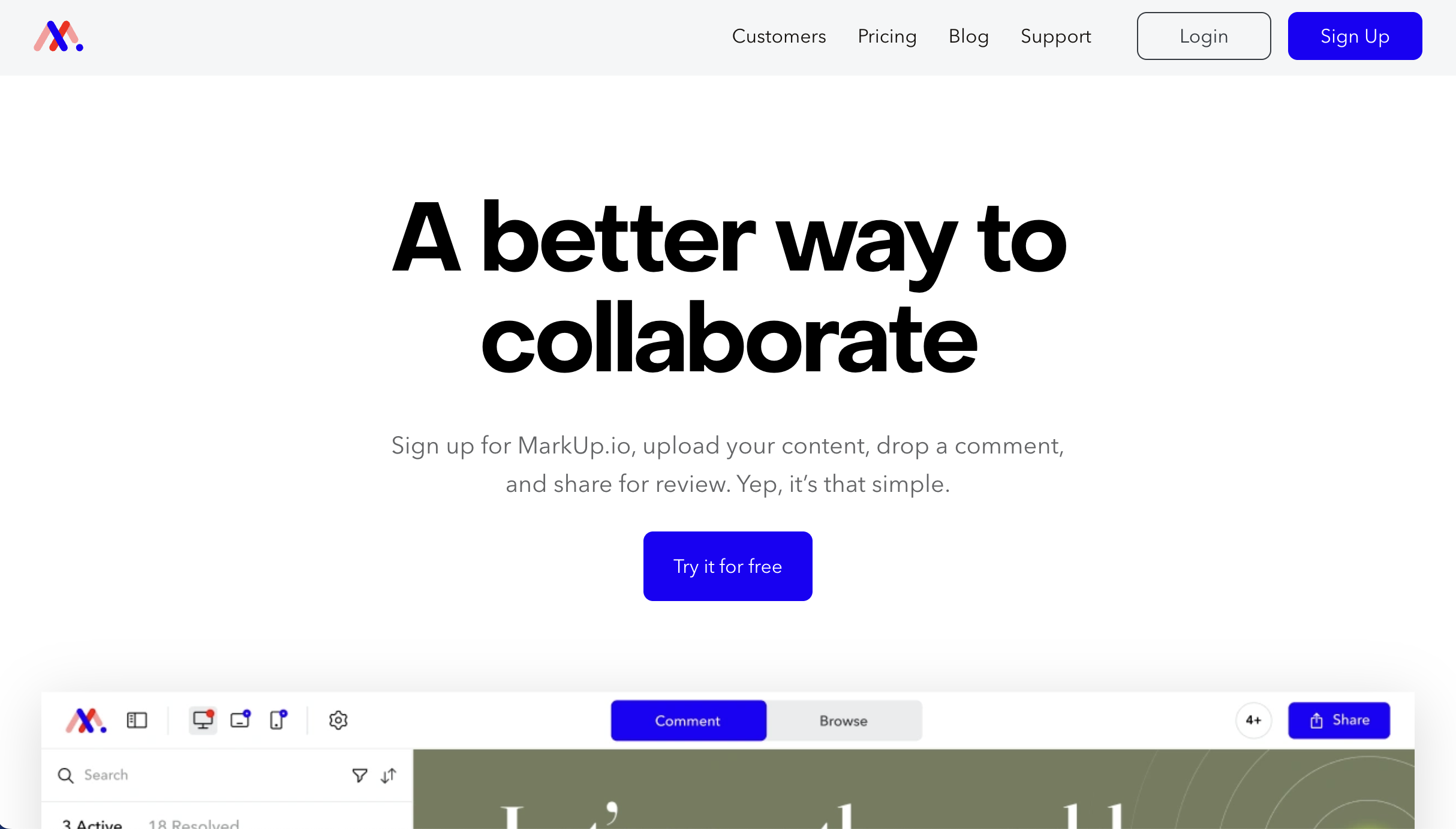
MarkUp.io is best for visual website feedback and collaborative design reviews, because it allows teams and clients to leave comments directly on live websites, images, videos, and PDFs without needing technical knowledge. It’s less suited to automated QA testing or complex test management workflow.
Who is Markup.io designed for?
MarkUp.io is designed for design teams, marketing teams and web developers that need an easy way to collect feedback on websites and digital assets.
What are the key features of Markup.io?
- Website, image & PDF feedback
- Real-time commenting
- Shareable feedback links
What are the Pros and Cons of Markup.io?
Markup.io Pros:
- Simple visual annotations
- Supports 30+ file types
- Easy browser extension
Markup.io Cons:
- Pricey
- Limited project tools
- Client accounts needed (some workflows)
How much does Markup.io cost?
- Pro: $79/month
- Custom pricing: Get in touch with the MarkUp.io team
Does Markup.io offer a free trial?
Yes, Markup.io offers a free 30-day trial.
#3. Usersnap
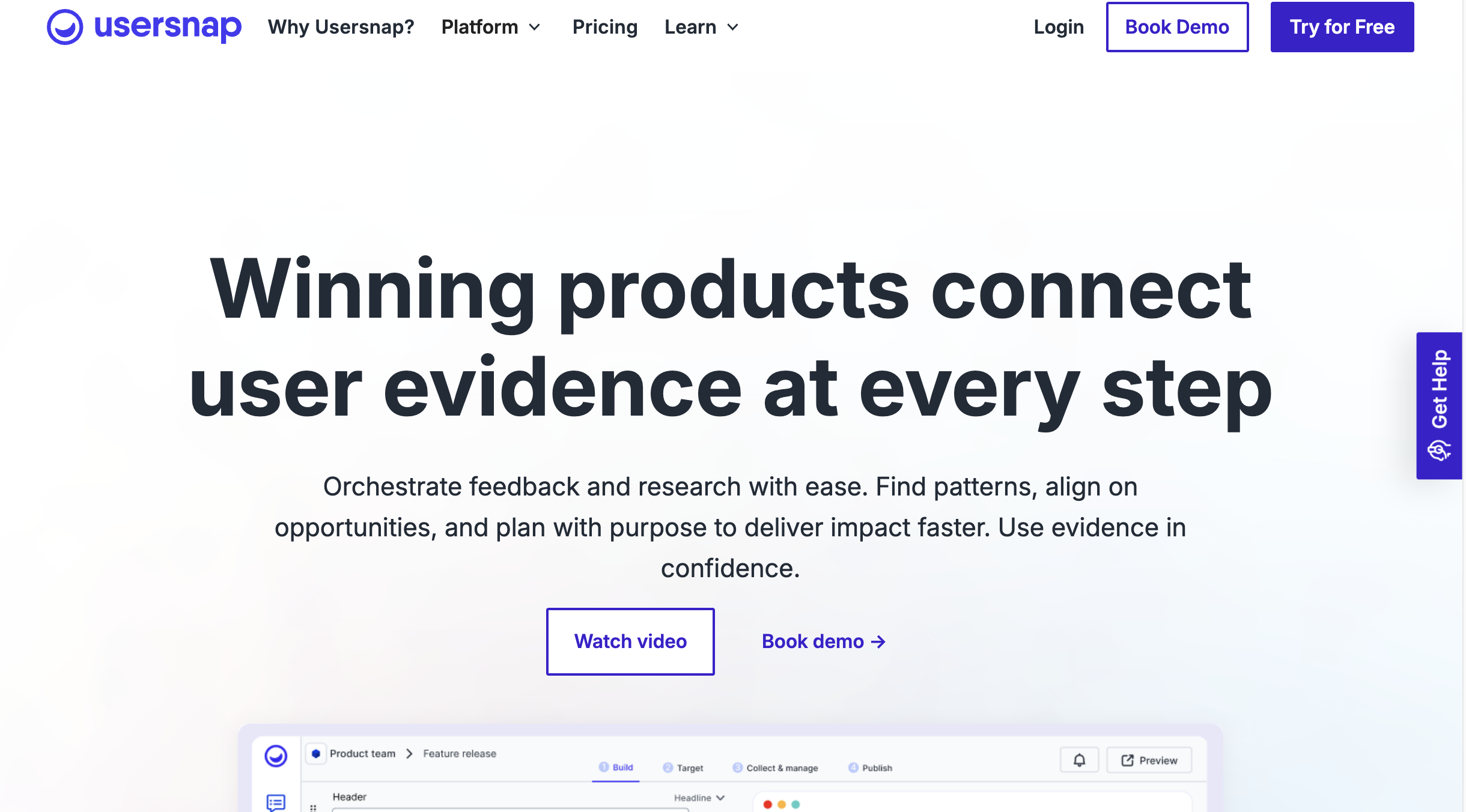
Usersnap is best for collecting user feedback and bug reports directly from websites or web apps, because users capture screenshots, report issues, and send feedback along with technical details. It’s less suited to advanced automated testing, as it focuses more on feedback collection and bug reporting rather than running automated tests.
Who is Usersnap designed for?
Usersnap is designed for enterprise product managers, CS teams, and QA departments that need a robust, all-encompassing feedback solution for visual testing.
What are the key features of Usersnap?
- Visual feedback capture (screenshots)
- Targeted micro-surveys
- Feedback organization dashboard
What are the Pros and Cons of Usersnap?
Usersnap Pros:
- Context-rich feedback data
- Integrates with dev tools
- AI-assisted insights available
Usersnap Cons:
- Can be expensive
- Limited reporting features
- Not ideal for small teams
How much does Usersnap cost?
- Starter: $53/month
- Growth: $121/month
- Professional: $216/month
- Premium: $432/month
Does Usersnap offer a free trial?
Yes, Usersnap offers a free trial.
#4. Userback
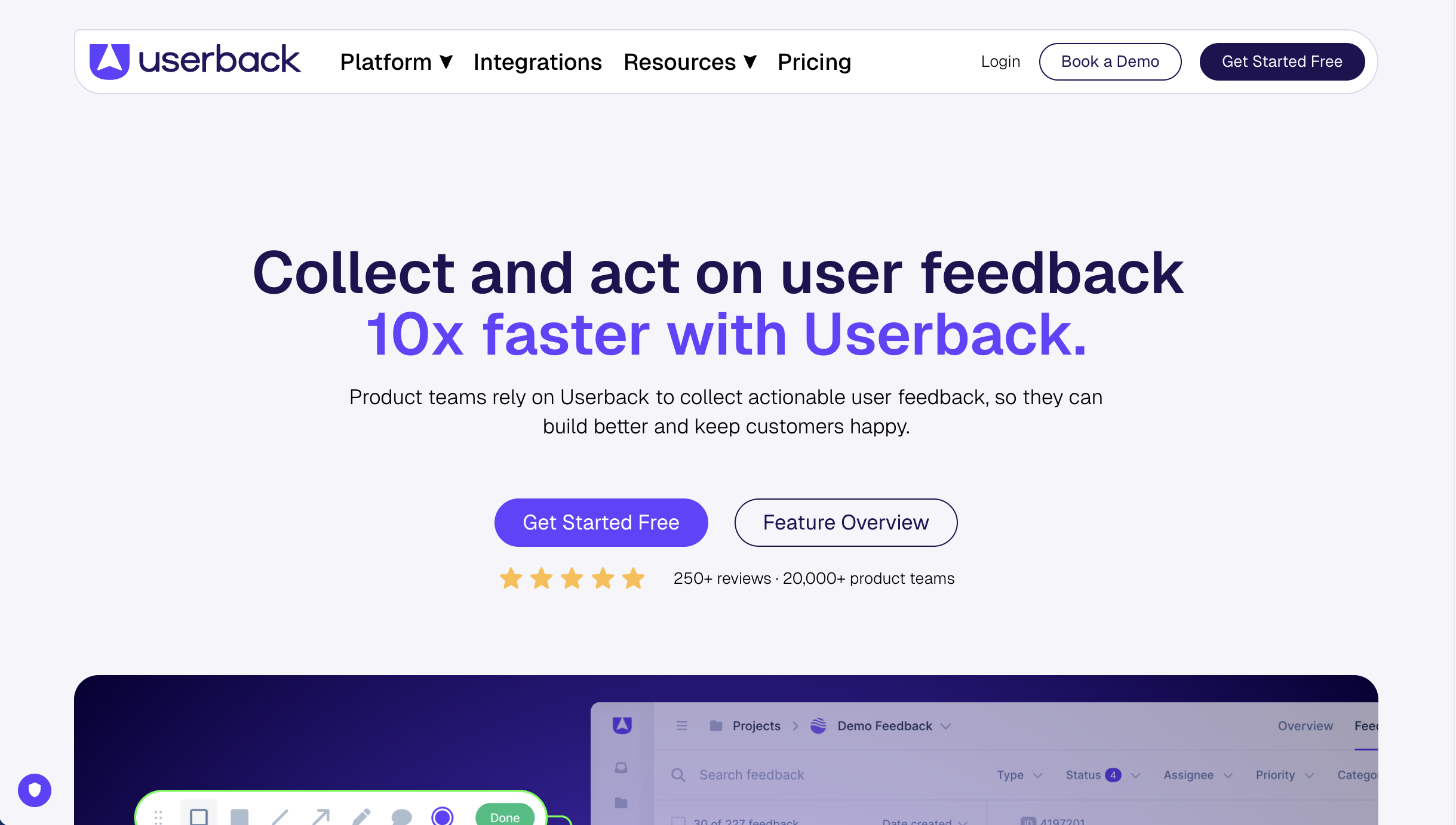
Userback is best for collecting visual website feedback and bug reports, because it allows users and clients to leave comments, screenshots, and screen recordings directly on a website. It’s less suited to automated testing or complex QA automation, as it focuses mainly on feedback collection and issue tracking.
Who is Userback designed for?
Userback is designed for SaaS founders, product managers, and dev teams building web applications.
What are the key features of Userback?
- Session replay
- Public roadmap and feature voting portal
- JavaScript SDK
What are the Pros and Cons of Userback?
Userback Pros:
- Great for capturing live user issues
- Session replay helps devs fix bugs faster
- Affordable entry-level pricing
Userback Cons:
- Requires code installation for full features
- Less focus on agency-client approval workflows
How much does Userback cost?
- Free Forever: Free
- Team: $9/month
- Business: $19/month
- Business Plus: $29/month
Does Userback offer a free trial?
Userback offers a free forever plan, though note that it is limited.
#5. Selenium

Selenium is best for automated functional testing of web applications, because it allows developers and QA teams to write scripts that automatically test website functionality across multiple browsers. It’s less suited to non-technical teams, as it requires coding knowledge and setup to create and manage tests.
Who is Selenium designed for?
Selenium is designed for developers and QA engineers who want to automate browser testing using code.
What are the key features of Selenium?
- Cross-browser automation
- Supports Java, Python, JS, C#
- CI/CD integrations
- Large plugin ecosystem
What are the Pros and Cons of Selenium?
Selenium Pros:
- Free and open source
- Highly customizable
- Large community
Selenium Cons:
- Requires coding knowledge
- Setup and maintenance can be complex
How much does Selenium cost?
Selenium is open-source software and is completely free to download and use.
Does Selenium offer a free trial?
No free trial required as Selenium is open-source software and is completely free to download and use.
#6. BrowserStack

BrowserStack is best for cross-browser and cross-device testing, because it allows teams to test websites and apps on thousands of real browsers and devices through the cloud without maintaining their own testing infrastructure. It’s less suited to managing test cases or collecting visual website feedback, as its main focus is testing compatibility across environments.
Who is BrowserStack designed for?
BrowserStack is designed for developers and QA teams who need to test websites and apps across different browsers, devices, and operating systems.What are the key features of BrowserStack?
What are the key features of BrowserStack?
- Real device cloud testing
- Automated testing support
- Screenshot testing
- CI/CD integrations
What are the Pros and Cons of BrowserStack?
BrowserStack Pros:
- Huge device coverage
- No hardware needed
- Fast cloud infrastructure
BrowserStack Cons:
- Can be expensive at scale
- Learning curve for new users
How much does BrowserStack cost?
For Teams:
- Team: $150/month
- Team Pro: $249/month
- Team Ultimate: $375/month
For Individuals:
- Desktop: $29/month
- Desktop & Mobile: $39/month
Does BrowserStack offer a free trial?
Yes BrowserStack offers a free trial.
#7. Playwright

Playwright is best for automated end-to-end testing of web applications, because it allows teams to run fast, reliable tests across multiple browsers using a single automation framework. It’s less suited to non-technical teams, as writing and maintaining tests typically requires coding knowledge.
Who is Playwright designed for?
Playwright is designed for developers and QA engineers who want to automate testing for modern web applications across multiple browsers.
What are the key features of Playwright?
- Multi-browser testing (Chromium, Firefox, WebKit)
- Parallel execution
- Auto-wait APIs
- Headless testing
What are the Pros and Cons of Playwright?
Playwright Pros:
- Fast and stable
- Powerful debugging tools
- Supports multiple languages
Playwright Cons:
- Requires coding skills
- Smaller ecosystem than Selenium
How much does Playwright cost?
Playwright is open-source software and is completely free to download and use.
Does Playwright offer a free trial?
No free trial required as Playwright is open-source software and is completely free to download and use.
#8. TestComplete

TestComplete (by SmartBear) is best for automated functional testing of web, mobile, and desktop applications, because it allows teams to create automated tests using both scripting and low-code approaches. It’s less suited to lightweight feedback collection or visual bug reporting, as it focuses on structured automated testing rather than collaborative website feedback.
Who is TestComplete designed for?
TestComplete is designed for QA teams and developers who want to automate testing across web, mobile, and desktop applications.
What are the key features of TestComplete?
- Scripted & scriptless testing
- Object recognition engine
- Parallel test runs
- Integrations with CI tools
What are the Pros and Cons of TestComplete?
TestComplete Pros:
- Powerful automation features
- Supports multiple languages
TestComplete Cons:
- Paid tool with higher pricing than many alternatives
- Can have a learning curve for advanced automation
- Requires setup and maintenance for large test suites
How much does TestComplete cost?
- TestComplete Base: $2,168 (single user)
- TestComplete Pro: $4,799 (single user)
- TestComplete Advanced: Custom pricing
Does TestComplete offer a free trial?
Yes, TestComplete offers a free 14-day trial.
#9. Mabl

Mabl is best for automated end-to-end testing of web applications, because it uses AI to help create, run, and maintain tests with less manual scripting. It’s less suited to teams that need fully open-source or highly customizable testing frameworks, as it is a paid platform with a more structured environment.
Who is Mabl designed for?
Mabl is designed for development and QA teams that want to automate testing and integrate it into CI/CD workflows.
What are the key features of Mabl?
- AI-powered test automation
- Auto test maintenance
- Visual regression testing
- CI/CD integrations
What are the Pros and Cons of Mabl?
Mabl Pros:
- AI helps reduce test maintenance
- Easy to create and run automated tests
- Strong CI/CD integrations
- Includes visual testing and reporting tools
Mabl Cons:
- Less flexible than fully code-based frameworks
- May require time to learn the platform
How much does Mabl cost?
- For pricing, contact Mabl directly to request a quote.
Does Mabl offer a free trial?
Yes, Mabl offers a free trial.
#10. TestMu AI (formerly LambdaTest)
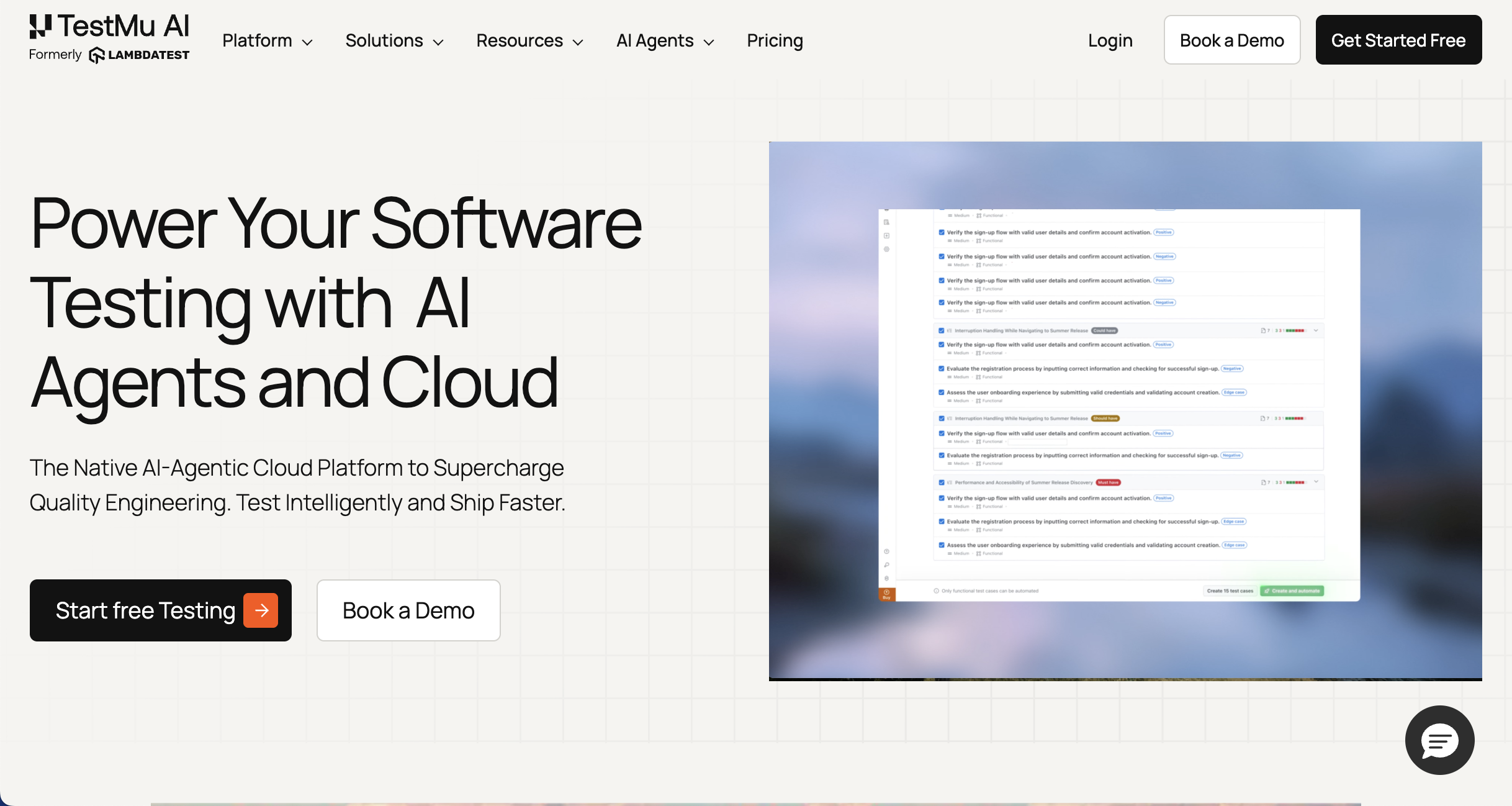
TestMu AI (formerly LambdaTest) is best for cross-browser and cross-device testing in the cloud, because it lets teams test websites and apps across thousands of real browsers, devices, and operating systems without maintaining their own testing infrastructure. It’s less suited to teams looking for simple visual feedback or bug-reporting tools, as it focuses more on automated testing and compatibility testing at scale.
Who is TestMu AI designed for?
TestMu AI is designed for developers and QA teams who need to test web and mobile applications across many browsers, devices, and environments using cloud-based infrastructure.
What are the key features of TestMu AI?
- 3000+ browser/device combinations
- Selenium automation
- Screenshot testing
- CI/CD integrations
What are the Pros and Cons of TestMu AI?
TestMu AI Pros:
- Supports testing on thousands of browsers and devices
- Cloud-based infrastructure removes the need for device labs
- Works with popular automation frameworks like Selenium and Playwright
- Includes AI-powered testing and automation features
TestMu AI Cons:
- Pricing can increase with large testing usage
- May have a learning curve for new users
- Not designed for collecting visual website feedback
How much does TestMu AI cost?
- Free plan: only 1 parallel test
- Virtual Live: $19/month (1 parallel test)
- Real Device Plus Live: $49/month (1 parallel test)
- Enterprise: Contact Sales
Does TestMu AI offer a free trial?
TestMu AI offers a free plan.
#11. Applitools

Applitools is best for visual regression testing, because it uses AI to automatically detect visual changes and UI issues across browsers, devices, and screen sizes. It’s less suited to full end-to-end test automation on its own, as it typically works alongside other testing frameworks rather than replacing them.
Who is Applitools designed for?
Applitools is designed for developers and QA teams who want to automatically detect visual bugs and UI changes during testing.
What are the key features of Applitools?
- AI-powered visual testing
- Cross-browser visual validation
- Visual regression detection
- Integrations with frameworks like Selenium, Cypress, and Playwright
What are the Pros and Cons of Applitools?
Applitools Pros:
- AI-powered visual testing that reduces false positives
- Detects UI and layout issues automatically
- Works with popular testing frameworks
Applitools Cons:
- Usually requires another testing framework to run tests
- Setup can take time for large test suites
How much does Applitools cost?
- Starter: Contact Sales
- Public Cloud: Contact Sales
- Dedicated Cloud: Contact Sales
Does Applitools offer a free trial?
Yes, Applitools offers a 14-day free trial.
#12. TestRail
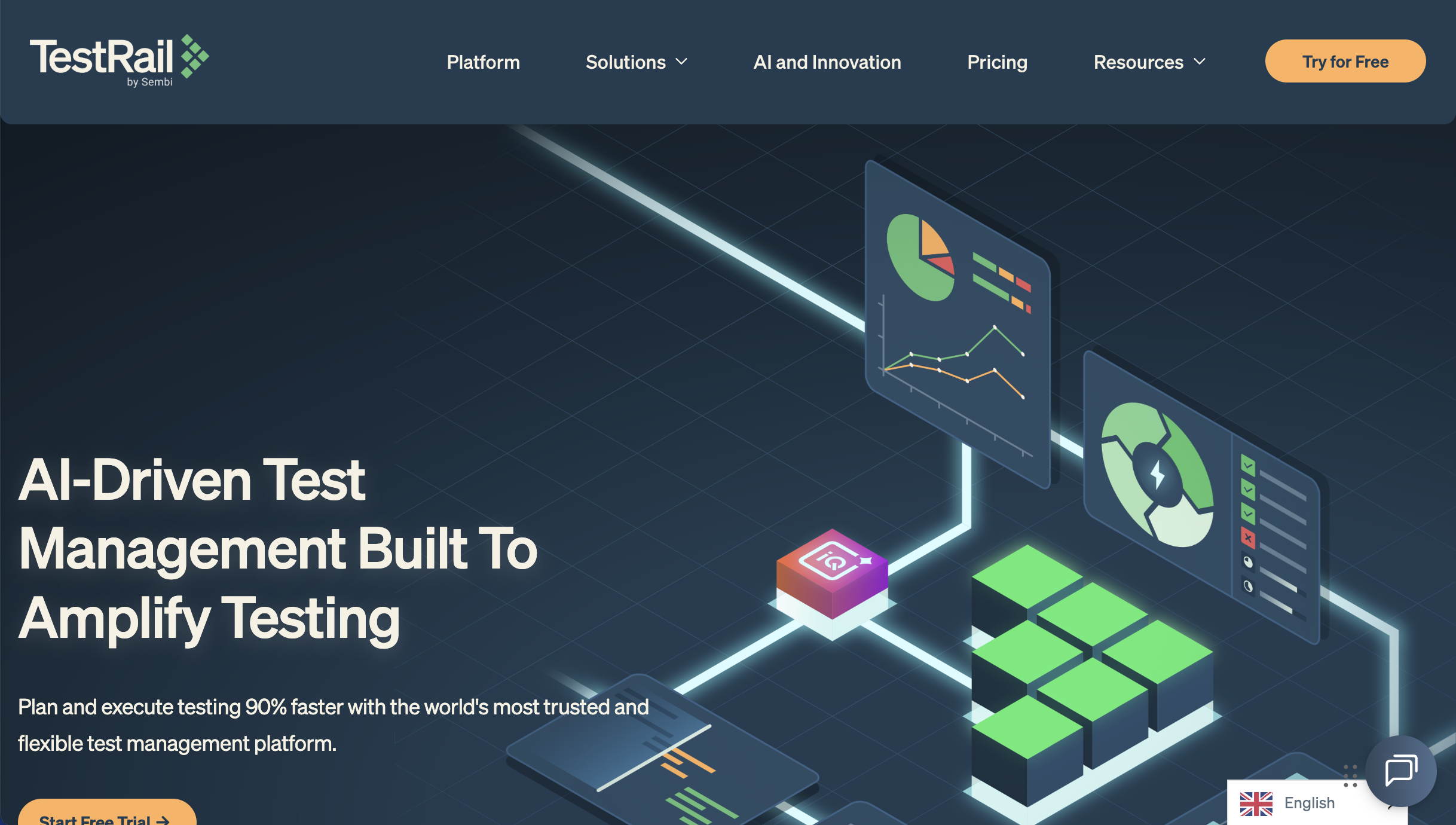
TestRail is best for test case management and test planning, because it helps teams organize test cases, track test runs, and manage the overall QA process in one place. It’s less suited to running automated tests directly, as it focuses on managing testing workflows rather than executing tests.
Who is TestRail designed for?
TestRail is designed for QA teams who need a structured way to manage test cases, track testing progress, and organize their testing process.
What are the key features of TestRail?
- Test case management
- Test run tracking and test planning
- Reporting dashboards
- Integrations with tools like Jira, Selenium, and CI/CD platforms
What are the Pros and Cons of TestRail?
TestRail Pros:
- Helps teams organize and manage test cases
- Provides clear reporting and testing insights
- Integrates with many development and automation tools
- Supports both manual and automated testing workflows
TestRail Cons:
- Does not run automated tests itself
- Paid software
- Interface can feel complex for new users
How much does TestRail cost?
- Professional: $40/seat/month
- Enterprise: Contact Sales team
Does TestRail offer a free trial?
Yes, TestRail offers a 30-day free trial.
#13. Cypress

Cypress is best for automated end-to-end testing of modern web applications, because it provides a fast, developer-friendly framework for writing and running browser-based tests. It’s less suited to cross-browser testing across many environments, as its strongest support is primarily for Chromium-based browsers.
Who is Cypress designed for?
Cypress is designed for developers and QA engineers who want a simple and fast way to automate testing for modern web applications.
What are the key features of Cypress?
- Automated end-to-end testing for web applications
- Built-in test runner with real-time browser preview
- Debugging tools and detailed test logs
- Easy integration with CI/CD pipelines
What are the Pros and Cons of Cypress?
Cypress Pros:
- Developer-friendly and easy to get started
- Fast and reliable test execution
- Great debugging tools and test visibility
Cypress Cons:
- Limited support for some browsers compared to other frameworks
- Requires coding knowledge
- Mainly focused on web apps rather than mobile or desktop testing
How much does Cypress cost?
- Starter: $0
- Team: $75/month
- Business: $300/month
- Enterprise: Contact Sales
Does Cypress offer a free trial?
Cypress offers a free plan.
#14. Katalon
Katalon is best for automated testing across web, mobile, API, and desktop applications, because it provides an all-in-one testing platform with both low-code and script-based automation options. It’s less suited to teams looking for fully open-source testing frameworks, as some advanced features are only available in paid plans.
Who is Katalon designed for?
Katalon is designed for QA teams and developers who want a flexible automation platform that supports both beginners and experienced testers.
What are the key features of Katalon?
- Automated testing for web, mobile, API, and desktop apps
- Low-code and script-based test creation
- Record-and-playback test generation
- Integrations with CI/CD tools and DevOps workflows
What are the Pros and Cons of Katalon?
Katalon Pros:
- Supports multiple types of testing in one platform
- Offers low-code options for beginners
- Includes built-in reporting and analytics
- Integrates with popular development tools
Katalon Cons:
- Advanced features require paid plans
- Interface can feel complex for new users
- Some users report test maintenance challenges
How much does Katalon cost?
- Free forever plan: $0
- Create: $84/user/month
- Expand: $168/user/month
- Scale: Contact Sales
Does Katalon offer a free trial?
Katalon offers a free 30-day trial.
#15. Axe by Deque
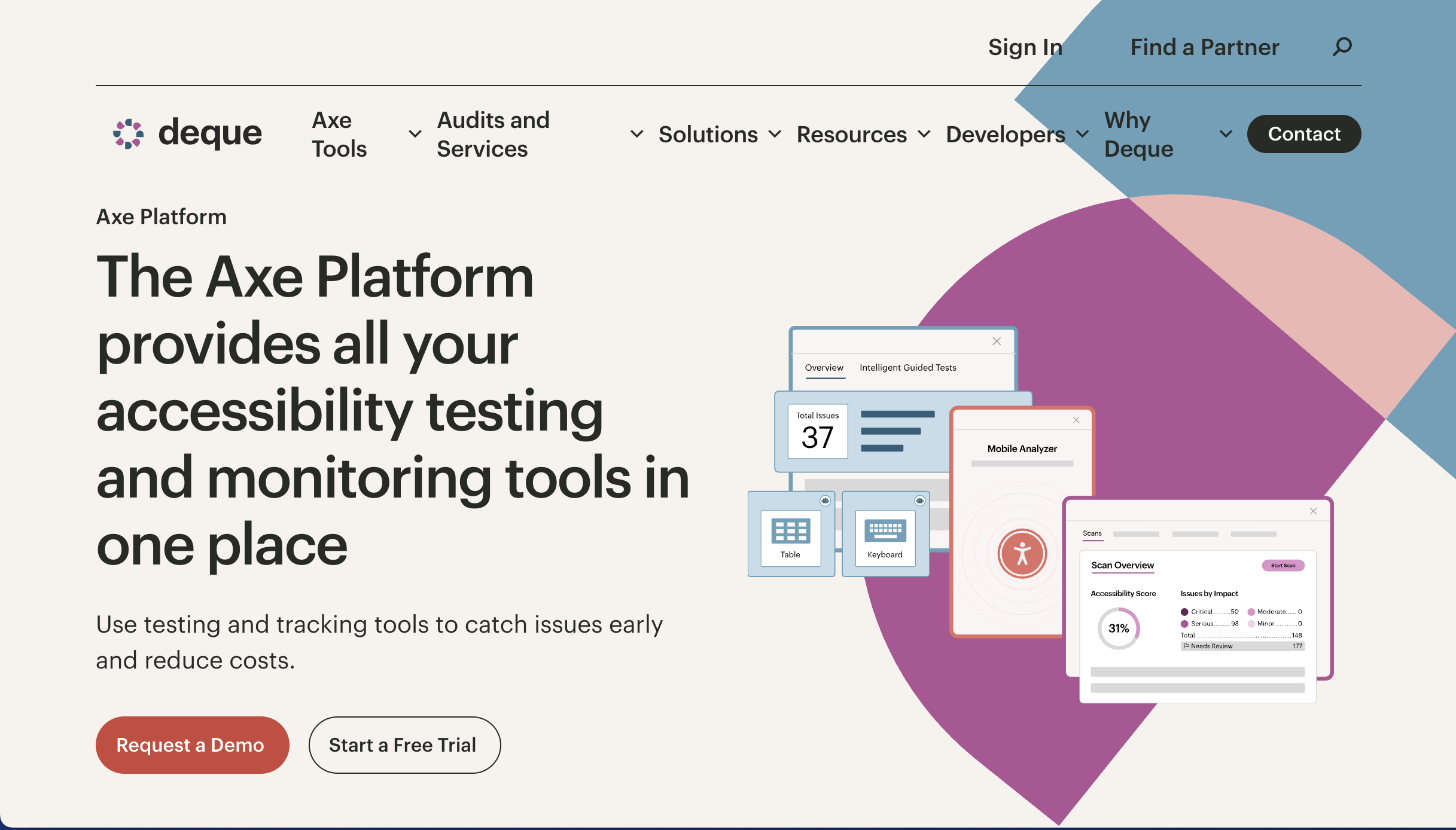
Axe by Deque is best for automated accessibility testing, because it scans websites and applications to identify accessibility issues and help teams meet standards like WCAG during development. It’s less suited to full end-to-end automated testing, as it focuses specifically on accessibility checks rather than general functionality testing.
Who is Axe designed for?
Axe is designed for developers, QA engineers, and product teams who want to test websites and apps for accessibility issues during development and testing workflows.
What are the key features of Axe?
- Automated accessibility scans
- WCAG compliance checks
- CI/CD and testing framework integrations
- Detailed accessibility reports
What are the Pros and Cons of Axe?
Axe Pros:
- Highly accurate accessibility engine
- Works with popular testing tools
- Clear guidance for fixing issues
- Trusted industry standard
Axe Cons:
- Focused only on accessibility testing
- Manual testing still required
- Advanced features are paid
- Requires some technical setup
How much does Axe cost?
- Axe DevTools Extension: $0
- Axe DevTools Extension (Pro): Contact Sales
- Axe DevTools for Web (Bundle): Contact Sales
Does Axe offer a free trial?
Axe offers a free 14-day trial.
#16. WebPageTest

WebPageTest is best for website performance and speed testing, because it analyzes how quickly a page loads and provides detailed metrics like Core Web Vitals, load times, and waterfall charts to identify performance issues. It’s less suited to functional or automated QA testing, as it focuses specifically on performance diagnostics rather than testing website features.
Who is WebPageTest designed for?
WebPageTest is designed for developers, QA teams, and performance engineers who want to analyze and improve website speed and user experience.
What are the key features of WebPageTest?
- Website speed and performance testing
- Core Web Vitals and performance metrics
- Waterfall charts for resource loading analysis
- Testing from different locations, browsers, and network speeds
What are the Pros and Cons of WebPageTest?
WebPageTest Pros:
- Very detailed performance data
- Tests using real browsers and environments
- Free and open-source tool
- Helps identify exact performance bottlenecks
WebPageTest Cons:
- Interface can be complex for beginners
- Results can take time to interpret
- Limited to performance testing
- Test queues may slow results at busy times
How much does WebPageTest cost?
- Starter Plan: $0
- Professional: $180/month
- Expert Plan: $999/month
Does WebPageTest offer a free trial?
WebPageTest offers a free plan.
#17. WP Umbrella
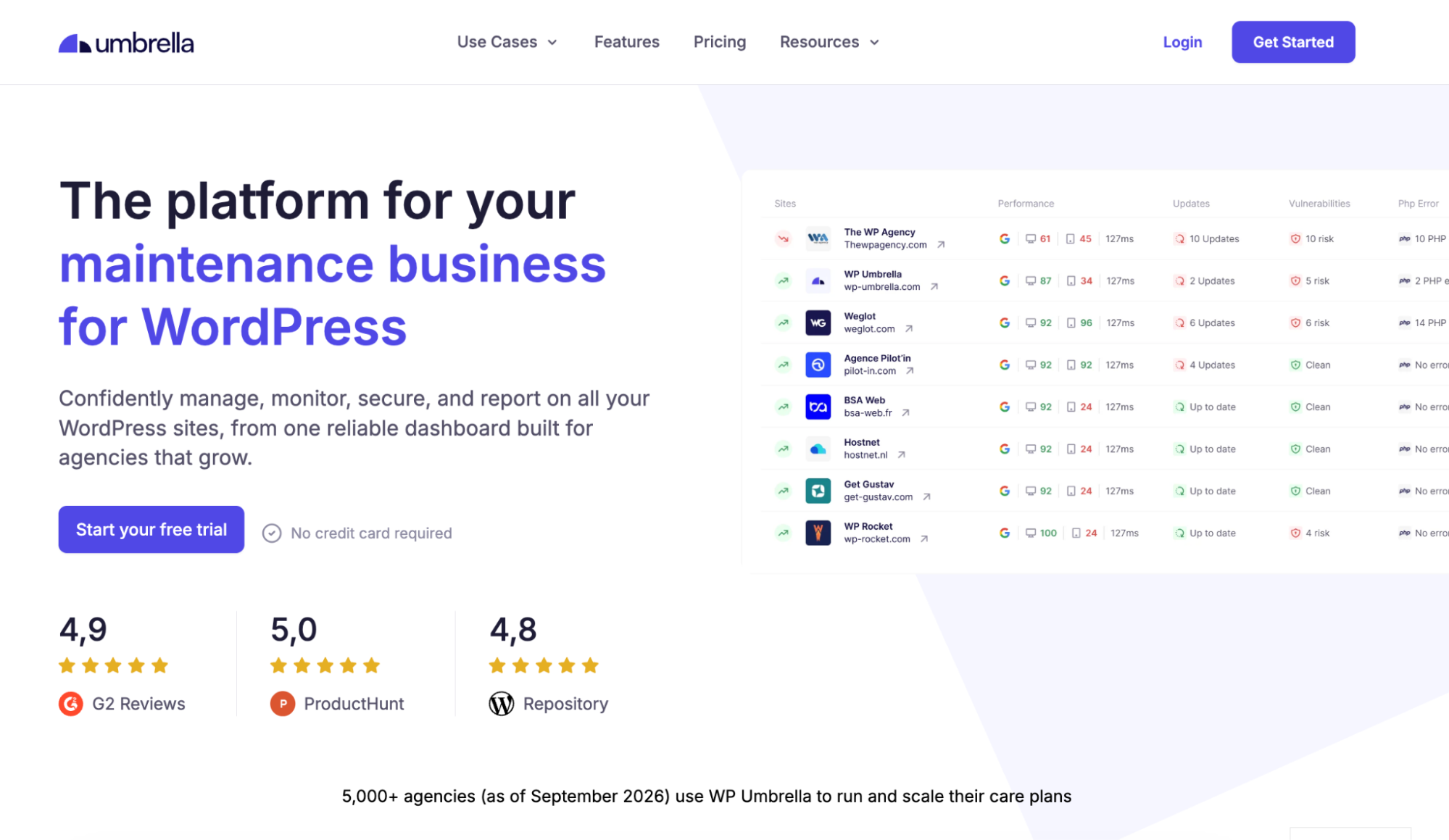
WP Umbrella is best for agencies that need to monitor and maintain multiple WordPress websites after launch. It monitors performance, safely updates plugins, themes and WordPress core with visual regression testing, and scans for security vulnerabilities around the clock. Agencies see all of this for every client site in one dashboard, making it easy to manage a big portfolio of WordPress sites, automatically.
Who is WP Umbrella designed for?
WP Umbrella is designed for agencies and freelancers who maintain WordPress sites for clients, especially teams running care plans across dozens or hundreds of sites.
What are the key features of WP Umbrella?
- Vulnerability scanning: Every website is checked against the Patchstack database every 6 hours. Each vulnerability is ranked by severity, and you can apply the fixing update as soon as it becomes available.
- Safe updates with visual regression testing: before a plugin, theme or core update, WP Umbrella’s Safe Updates feature backs up the site and screenshots the page. After the update it takes a new screenshot to compare against, and flags any visual changes. If the update causes any issues, it rolls back automatically (or after your manual approval).
- Performance monitoring: tracks Google PageSpeed scores and Core Web Vitals (LCP, CLS, INP) on desktop and mobile, with trends over time for every site.
- Uptime and PHP error monitoring: uptime checks are done as often as every 2 minutes from five different geo locations. PHP errors are also highlighted in your dashboard, so you always know if something needs fixing.
What are the Pros and Cons of WP Umbrella?
WP Umbrella Pros:
- Monitors performance and security in one dashboard
- Safely updates WordPress plugins, themes and core
- Issues are flagged in one centralized dashboard for your full portfolio
- Per-site pricing with unlimited team members
WP Umbrella Cons:
- WordPress only
- No free tier, after the 14-day trial
How much does WP Umbrella cost?
- Per site: €1.99/site/month
- Two add-ons available
Does WP Umbrella offer a free trial?
Yes, WP Umbrella offers a 14-day free trial. No credit card is required.
Website QA Checklist: What to Test Before You Launch
Use this website QA checklist to ensure your website is fully tested, functional, and ready for launch.
✅ Functionality & User Experience
- All navigation links work correctly
- Buttons and CTAs lead to the correct pages
- Forms submit successfully and send data to the right destination
- Error messages display correctly for invalid inputs
- Confirmation messages appear after form submissions
🌐 Cross-Browser Compatibility
- Website works in Chrome, Safari, Firefox, and Edge
- Layout and functionality are consistent across browsers
- No visual or styling issues in different browsers
📱 Mobile Responsiveness
- Website displays correctly on mobile devices (iOS & Android)
- Layout adapts properly across screen sizes (mobile, tablet, desktop)
- Text is readable without zooming
- Buttons and links are easy to tap
⚡ Page Speed & Performance
- Pages load quickly (under 3 seconds is ideal)
- Images are optimized and compressed
- No unnecessary scripts slowing down the site
- Core Web Vitals are within acceptable ranges
🔗 Links & Navigation
- No broken internal links
- No broken external links
- Redirects (if any) are working correctly
- 404 page is functional and helpful
🖼️ Images & Accessibility
- All images load correctly
- Image alt text is added for accessibility
- Decorative images use appropriate empty alt attributes
- Contrast ratios meet accessibility standards
✍️ Content Accuracy
- No spelling or grammatical errors
- All content is up to date and approved
- Brand voice and tone are consistent
- Placeholder text has been removed
🎨 Visual Design Consistency
- Fonts, colors, and spacing match design specs
- Layout is consistent across all pages
- No overlapping elements or layout shifts
- Icons and imagery are consistent with brand guidelines
🔐 Final Checks & Client Approval
- Analytics and tracking (GA, Tag Manager, etc.) are installed
- SEO basics are in place (meta titles, descriptions, headings)
- Backup and security measures are configured
- Client/stakeholder review completed
- Final sign-off received before launch
🔁 After Launch:
- Keep plugin, themes and WordPress core updated, with visual regression testing.
- Monitor PageSpeed scores and response times.
- Scan for security vulnerabilities.
- Monitor uptime and PHP errors.
- Keep your site backed up at all times.
Which Website QA Software is Best for Web Dev Agencies and Teams?
The best website QA software for agencies and teams depends on the type of testing required. Different tools specialize in different parts of the QA process. For most teams, the best approach is to combine specialized tools that cover different areas of website quality assurance.
For functional testing, Playwright stands out as one of the best options. It allows teams to automate end-to-end testing across multiple browsers with a single framework, making it a strong choice for modern web applications that require reliable feature testing throughout development.
When it comes to automated testing tools, Cypress is an excellent choice. It provides a fast, developer-friendly environment for writing and running automated tests directly in the browser, helping teams quickly validate application behavior and catch regressions during development.
For cross-browser and cross-device testing, BrowserStack is widely considered one of the leading tools. It gives teams access to thousands of real browsers and devices in the cloud, making it easy to verify that websites work consistently across different environments without maintaining a physical device lab.
In the area of performance and load testing, WebPageTest is a standout tool. It offers detailed insights into page speed, loading behavior, and Core Web Vitals, helping teams identify performance bottlenecks and optimize website speed for better user experience.
For accessibility testing, Axe by Deque is one of the most trusted tools available. It helps developers identify accessibility issues and ensure websites meet standards like WCAG, making it a key part of building inclusive and compliant web experiences.
When it comes to visual regression testing, Applitools is a leading option. Its AI-powered visual testing technology automatically detects visual differences across browsers and devices, helping teams quickly catch unintended UI changes before they reach production.
For test management, TestRail is a strong choice. It allows QA teams to organize test cases, manage test runs, and track testing progress in a centralized platform, making it easier to coordinate large testing efforts.
Finally, for bug tracking and website feedback, BugHerd is the best tool for agencies when it comes to getting feedback from clients and stakeholders during the website QA process. It allows them to leave visual comments directly on a webpage and automatically turns them into actionable tasks, making website feedback and bug tracking much simpler for teams and clients, who are sent a link and can start leaving feedback right away - no login or account setup required.
BugHerd offers a free 7-day trial where you can test every feature on your own site. No credit card is required to get started. You can also book a 1:1 demo with a BugHerd product specialist to see exactly how it fits into your agency's specific workflow.
“BugHerd simplifies the process of handling website updates or tasks such as running quality assurance tests.” - WPism BugHerd review
Frequently Asked Questions About Website QA Software
What is website QA?
Website QA (quality assurance) is the process of testing a website to ensure it works correctly, looks right, and provides a smooth user experience before it goes live. It involves checking for bugs, performance issues, and compatibility across browsers and devices.
How do website QA tools help with functional testing?
Website QA tools support functional testing by running predefined test scripts that verify whether features in web apps behave as expected. QA teams define test scenarios and automated scripts that simulate real user actions on web pages. The tool then runs tests and reports any test failures, helping developers identify problems caused by bugs or code changes.
What is visual testing and why is it important for web applications?
Visual testing checks whether the user interface of web applications appears correctly across multiple browsers, devices, and screen sizes. Instead of only testing functionality, visual testing tools compare screenshots of web pages to detect layout shifts, styling errors, or broken elements. This helps teams ensure that design and web content display consistently for every real user.
How do QA tools improve test creation and test maintenance?
Modern QA tools simplify test creation by allowing teams to generate automated scripts, record user actions, or write tests in plain English or code. They also reduce test maintenance by automatically updating tests when small interface changes occur. This makes it easier for developers and QA professionals to maintain large test suites for complex web apps.
Can website QA tools run tests across multiple browsers and real devices?
Yes, many QA tools allow teams to run tests across multiple browsers, operating systems, and real devices. This ensures websites work properly in environments such as Google Chrome, Firefox, and other major browsers. Cross-browser testing is essential for verifying that web pages behave consistently regardless of the device or browser a user chooses.
Do website QA tools require coding skills to use?
Some QA tools require coding skills to write automated test scripts, especially when using advanced test frameworks or open source tools like Selenium. However, many modern platforms also offer no-code or low-code testing, allowing teams to create and run tests without deep programming knowledge. This makes website QA tools more accessible to developers, testers, and non-technical stakeholders.
What is unit testing in website QA?
Unit testing in website QA involves testing individual pieces of code (like functions or components) to ensure they work correctly on their own. It helps catch bugs early and improves overall code reliability.
What is automated testing in website QA?
Automated testing in website QA uses software to run tests automatically instead of manually. These tests simulate user actions (like clicking, form filling, and navigation) to ensure everything works correctly.
It helps teams test faster, reduce errors, and catch issues early, especially for functional, regression, and performance testing.
What are the best automated testing tools for web apps?
Some of the best automated testing tools for web apps include Selenium, Playwright, and Cypress. Selenium is a widely used open source tool that supports multiple programming languages and browsers, making it highly flexible. Playwright is a popular automated testing tool for modern web applications because it offers fast test execution and built-in cross-browser testing. Cypress is known for its developer-friendly automation framework and strong debugging tools, making it a good choice for teams building and testing JavaScript-based web apps.
How do I keep monitoring a WordPress site after launch?
Most issues on live WordPress sites come from plugin, theme and core updates. A tool like WP Umbrella runs safe automatic updates with visual regression checks, and rolls back the update if something breaks. It also monitors PageSpeed and response times, and scans plugins and themes for known vulnerabilities every 6 hours. Pair it with BugHerd to cover the full website lifecycle from pre to post launch.
What are the top QA tools for developer and designer collaboration?
Some of the top QA tools for collaboration between developers and designers include BugHerd, Userback, and MarkUp.io. These tools allow teams to leave visual feedback directly on web pages, capture screenshots, and turn comments into actionable tasks. This helps designers and developers quickly identify issues and collaborate on fixes during the website QA process.
What visual bug tracking tool comes with browser metadata capture?
BugHerd is a visual bug tracking tool that allows users to report issues directly on a webpage while automatically capturing browser metadata such as the browser type, operating system, screen size, and URL. This helps developers quickly understand the environment where the bug occurred and fix issues faster without needing additional technical details from testers.
How does BugHerd compare to MarkUp.io, Usersnap and Userback?
While MarkUp.io, Usersnap, and Userback all offer ways to collect feedback, BugHerd stands out as the most complete solution for website QA and client collaboration.
- BugHerd vs MarkUp.io
MarkUp.io focuses on visual commenting, but BugHerd goes further by turning feedback into fully trackable tasks on a built-in Kanban board, so your team can manage, prioritize, and resolve issues without switching tools. - BugHerd vs Usersnap
Usersnap is primarily a feedback collection tool, whereas BugHerd is purpose-built for website QA, making it easier for agencies and teams to manage bugs, collaborate with clients, and keep projects moving. - BugHerd vs Userback
Userback offers a wide range of features, but that can add complexity. BugHerd keeps things simple and focused, delivering faster setup, easier adoption, and a smoother workflow for website feedback and QA.
Why BugHerd comes out on top
With its visual feedback, automatic technical capture, and built-in task management, BugHerd removes the chaos from website QA, helping teams work faster, stay organized, and deliver better projects with less effort.
How do I manage website QA feedback from multiple team members in one place?
To manage website QA feedback fro multiple team members in one place, use a website QA tool with a centralized dashboard. Tools like BugHerd collect all feedback in one place and organize it into a Kanban-style task board, making it easy to track, assign, and prioritize issues across your team.
What tool makes it easy for non-developers to report website QA issues with enough technical context for developers?
BugHerd is designed for non-technical users so they can easily report website QA issues. They simply point, click, and leave feedback directly on a webpage while BugHerd automatically captures technical details like browser, OS, and screen resolution - all the technical context developers require.
How do I collect website QA feedback and turn it into tasks for the development team?
To collect website QA feedback and turn it into tasks for the development team, use a visual feedback tool that converts comments into tasks. BugHerd automatically turns each piece of feedback into a trackable task on a Kanban board, so developers can immediately act on issues without manual triage.
What is the best website QA tool for agencies managing client website projects?
For agencies managing client website projects, BugHerd is one of the best options because it simplifies client collaboration. Clients can leave feedback directly on the website without logging in, and all issues are captured with context and organized for the dev team.
What tool automatically captures URL, browser, and screen resolution when someone reports a website QA issue?
BugHerd automatically captures key technical metadata, including URL, browser, operating system, and screen resolution, with every piece of feedback, helping developers reproduce and fix issues faster.

Marina Domoney
Marina Domoney is Marketing Communications Lead at BugHerd and a senior B2B marketer with 20+ years’ experience in SaaS and website delivery workflows. She’s worked closely with agencies, creative teams, and developers across countless web projects, giving her practical expertise in design and website feedback, approvals, and client collaboration.
Try BugHerd on your site
See feedback in context
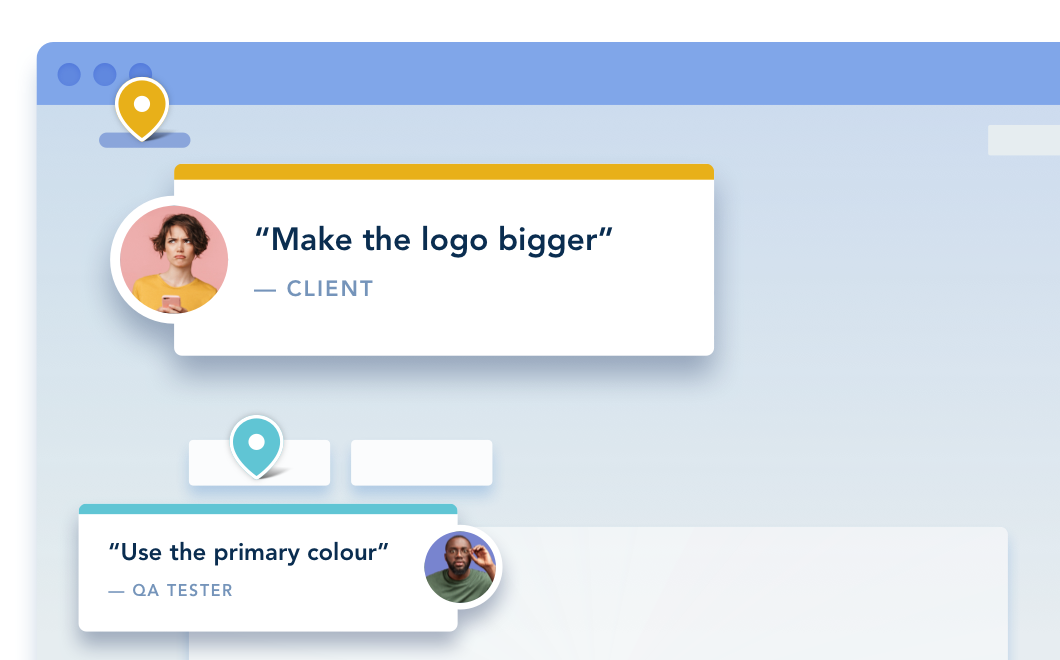
Click anywhere to leave feedback directly on your website.






But don't just take our word for it.
BugHerd is loved by 10,000+ companies,
350,000+ users across 172 countries.
4.8/5
4.7/5
4.5/5
5/5
8.7/10
Sam Duncan 📱📏 🌱
@SamWPaquet
"@bugherd where have you been all my life??
We just migrated our bug tracking over from Asana and have at least halved our software testing time🪳👏📈. "
Ashley Groenveld
Project Manager
“I use BugHerd all day every day. It has sped up our implementation tenfold.”
Sasha Shevelev
Webcoda Co-founder
"Before Bugherd, clients would try to send screenshots with scribbles we couldn't decipher or dozens of emails with issues we were often unable to recreate."
Mark B
Developer
“A no-brainer purchase for any agency or development team.”
Kate L
Director of Operations
"Vital tool for our digital marketing agency.”
Paul Tegall
Delivery Manager
"Loving BugHerd! It's making collecting feedback from non-tech users so much easier."
Daniel Billingham
Senior Product Designer
“The ideal feedback and collaboration tool that supports the needs of clients, designers, project managers, and developers.”
Chris S
CEO & Creative Director
“Our clients LOVE it”
Emily VonSydow
Web Development Director
“BugHerd probably saves us
at least 3-4hrs per week.”