

Table of Contents
- Key Takeaways
- Who is this PDF Annotation Guide for?
- What is a PDF Annotation?
- What is a PDF Annotation Tool?
- Why Should I Use a PDF Annotation Tool?
- What Features Does a Good PDF Annotation Tool Have?
- What's the Easiest Way to Get Feedback on PDFs Quickly?
- What are the Best PDF Annotation Tools in 2026?
- What are the Common Mistakes in PDF Annotation Workflows?
- Which PDF Annotation Tool is Best for Agencies?
- FAQs About PDF Annotation
Key Takeaways
- PDF annotation works best when feedback is added directly on the document, not shared via email or chat.
- Clear annotations reduce confusion, rework, and slow approval cycles.
- A dedicated PDF annotation tool keeps comments organized and tied to the right page and version.
- The best workflows turn PDF feedback into trackable tasks.
- BugHerd helps teams move faster by turning PDF annotations into actionable work.
Who is this PDF Annotation Guide for?
If you create, manage, approve, or review documents, this guide is for you; especially if your team is working through multiple review rounds.
This includes:
- Agencies and creative teams reviewing client deliverables
- Marketing teams collaborating on brochures, pitch decks, and PDF documents
- Legal and compliance teams reviewing contracts and policy files
- Project managers trying to keep approvals moving
- Teams working with external stakeholders who need an easy way to give feedback
- Anyone annotating research papers, reports, or technical documentation
If your current process involves files being emailed back and forth, people writing feedback in Slack, or trying to explain “the third paragraph on page 7”… you’re in the right place.
What is a PDF Annotation?
A PDF annotation is the practice of adding feedback, notes, or markups directly onto a PDF document.
Instead of taking a screenshot of a section of a PDF, adding it to a spreadsheet with an explanation next to it "The logo in this section is wrong" … you can annotate PDF pages directly by clicking the exact location and:
- pinning a comment (like a sticky note)
- highlighting text
- underlining key points
- using strikethrough text
- adding text via text boxes
- using shapes and arrows to emphasize key points
- using a drawing tool or freehand drawing tool
In other words: PDF annotation keeps your feedback attached to the right page, the right line, and the right context; creating a clear annotated document that’s easy for others to action.
What is a PDF Annotation Tool?
A PDF annotation tool is software that lets you open a PDF file and mark up changes directly on it. Many also enable you to manage all the feedback collected via a task board, as well as integrate directly with project management or collaboration tools that you already use.
A good PDF annotator makes it easy to:
- leave feedback anywhere on a PDF
- annotate any images, diagrams, etc within the PDF
- manage and action all annotations and feedback so nothing is missed
More advanced PDF annotators will enable you to also:
- edit PDF text or add text (depending on permissions)
- insert images, shapes, and highlights
- save changes and download the updated file
Instead of writing feedback in an email, spreadsheet or even via Slack, you just:
- upload the PDF
- open it in the app / browser
- click on the exact spot
- use the comment tool to add feedback
- save and share a link
Why Should I Use a PDF Annotation Tool?
You should use a PDF annotation tool because it makes feedback clearer, faster, and far easier to implement. Most teams (especially creative agencies) prefer a PDF annotator because it’s quicker and easier for reviewers, especially when feedback is coming from clients or project stakeholders.
Most document workflows still rely on:
- emails with vague comments
- screenshots with arrows
- Google Docs “notes” pasted out of context
- multiple PDF documents with unclear versioning
That creates chaos!
A PDF annotation tool solves this by keeping annotations tied to the right content - with comments, and markups visible to everyone.
Here’s what it fixes immediately:
1. It keeps feedback in context
Reviewers can add a comment exactly where they see an issue on the PDF.
2. It reduces back-and-forth questions
No more “Which section are you talking about?” or “Which version of the PDF file is this?”
3. It prevents scattered feedback
Instead of feedback living across Slack, email, and Google Drive, everything stays with the document.
4. It speeds up review rounds
When annotations are clear, teams spend less time interpreting feedback and more time editing.
5. It makes approvals easier for non-technical reviewers
Stakeholders can use intuitive tools to annotate without needing to learn complex software.
Bottom line: Manual PDF markups don’t scale. A dedicated annotation tool helps you move faster and avoid expensive rework.
What Features Does a Good PDF Annotation Tool Have?
A good PDF annotation tool should make it easy to leave feedback and even easier to action it, no matter how much feedback comes in. Different annotation tools have different features and it really depends on your overall project outcome and workflow as to what features your need and which ones you don't.
Here are some key features that PDF annotation tools offer:
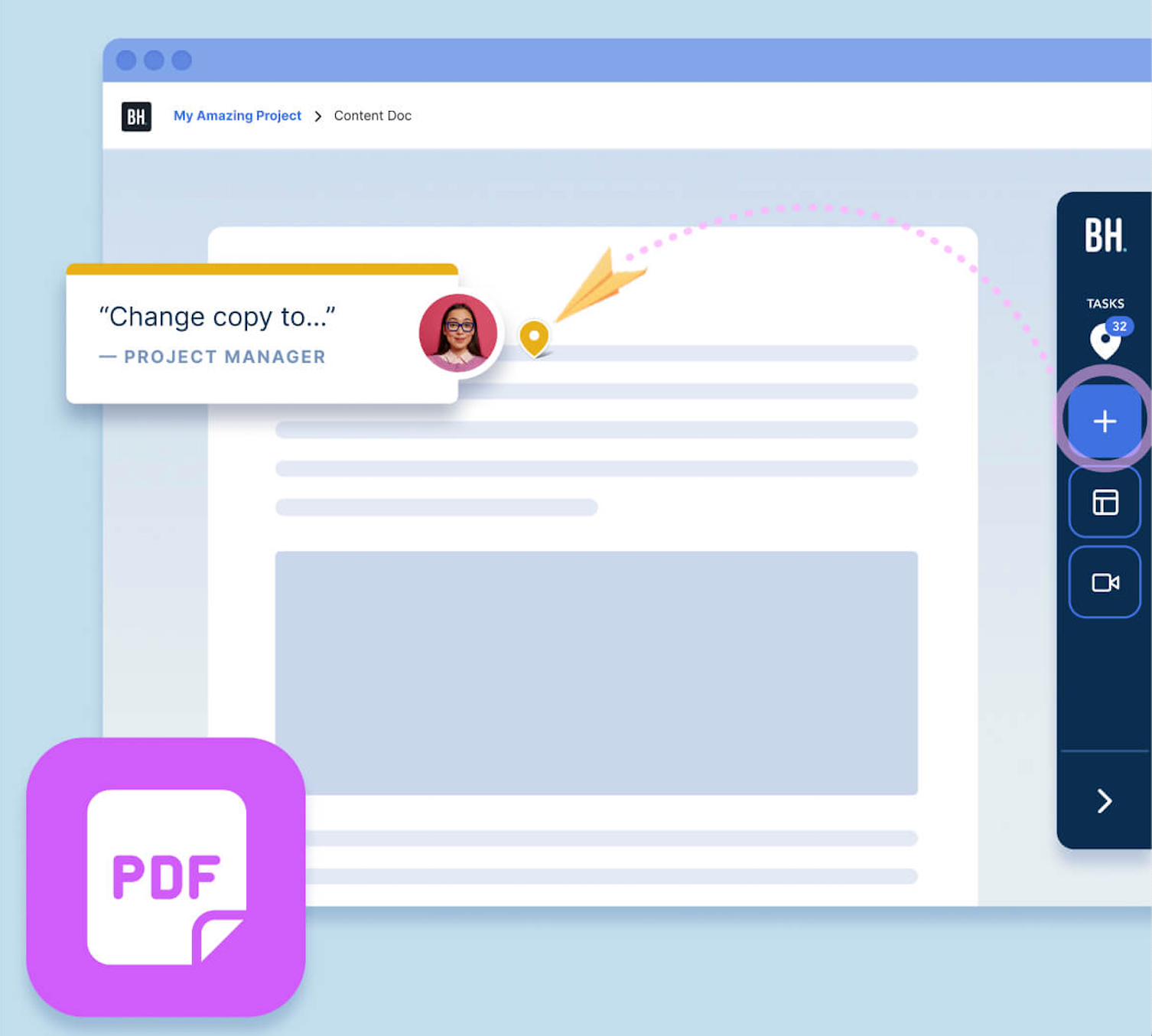
1) Sticky notes/comments pinned right on the spot where an issue occurs
Sticky notes are still one of the fastest ways to add notes without cluttering the page. A strong annotation tool makes it easy to:
- add comments to text, images, tables, etc within the PDF
- reply in threads
- resolve comments when done
2) Task tracking or workflow management
The best tools go beyond annotations and help manage the work. Annotations flow into an in-built task board automatically so your team can easily assign, prioritize and manage them to completion.
3) Integrations with project management and collaboration tools
Integrations with project management and collaboration tools you already use are essential because they turn PDF feedback into action. Instead of copying comments into Jira, Trello, Asana, or Slack manually, the right PDF annotation tool lets teams send annotations straight into their existing workflow, making it easier to assign tasks, track progress, and follow up without losing context or slowing down the review process.
4) Simple markup tools
Look for the ability to:
- highlight important text
- strikethrough text
- underline key points
- text boxes
- shapes and arrows
5) A freehand drawing tool
A drawing tool is essential for when you need to draw directly on layouts.
6) Support for PDF forms
If you review PDF forms, your tool should support:
- fill fields
- sign / signatures
- form edits (depending on the workflow)
7) Easy editing & saving
You should be able to edit, save, and download without friction. Good tools make it obvious where the save icon is and how to export the annotated file.
What's the Easiest Way to Get Feedback on PDFs Quickly?
The easiest way to get feedback on PDFs quickly is to use a clear workflow and a single PDF annotation tool, not a mix of email, chat, and scattered files.
Here’s a simple workflow that works for agencies and in-house teams alike:
Step 1: Get alignment before anyone starts creating
Before the first PDF export goes out:
- confirm who’s reviewing
- confirm who signs off (avoid 10 decision makers)
- decide where feedback lives (not email threads)
- choose one annotation tool early (BugHerd works well because feedback becomes tasks)
Step 2: Create your first review-ready PDF version
Export a clean PDF document:
- include consistent page numbers
- ensure fonts and images are embedded
- lock down what needs to be reviewed (copy, layout, design, forms)
This prevents “feedback on the wrong draft” issues later.
Step 3: Get feedback using PDF annotations (not manual screenshots)
Upload the PDF file to your chosen platform/tool and share a link. Reviewers/clients should be able to:
- add sticky notes
- add comments
- highlight text
- use shapes and arrows to emphasize key points
- underline key points
This produces one clear annotated document.
Step 4: Assign, action, and track changes
The missing piece in most PDF annotation workflows is accountability. The best systems convert comments into tasks so you can:
- assign owners
- prioritize
- track progress
- resolve feedback cleanly
Step 5: Repeat review rounds quickly
When you keep everything in one place, you can run review rounds without the “which PDF is final?” problem. This can turn multi-week approvals into a process that takes days.
What are the Best PDF Annotation Tools in 2026?
The best PDF annotation tools in 2026 go beyond basic commenting by helping teams centralize feedback, reduce review cycles, and turn annotations into clear, trackable actions. Below, we’ve rounded up some of the top options to help you compare features, workflows, and use cases.
What are the Common Mistakes in PDF Annotation Workflows?
Even the best teams slow down approvals with avoidable mistakes. Here are the most common issues and how to fix them.
1. Lacking a structured review process
If there’s no process, feedback becomes noise.
Fix: Use a workflow where every comment has a clear owner, status, and priority.
2. Relying on email threads for document feedback
Email makes feedback hard to track, easy to miss, and impossible to manage at scale.
Fix: Annotate PDF documents directly using one annotation tool so comments stay tied to the right page.
3. Making it hard for stakeholders to leave feedback
If reviewers have to install an app, create an account, and learn complex tools, feedback slows down.
Fix: Use a tool that works PDF online in the browser and supports link-based access.
4. Using the wrong PDF annotation tool
Some tools are great PDF readers but weak for collaboration.
Fix: Choose a PDF annotator designed for feedback workflows, not just viewing.
5. Losing track of versions and page references
This is the silent killer: reviewers mark up the wrong PDF file and now the team is editing outdated content.
Fix: Centralize files, control versions, and ensure page numbers are consistent.
Which PDF Annotation Tool is Best for Agencies?
BugHerd is the best PDF annotation tool for agencies because it’s built for fast, client-friendly feedback workflows that can also be used for feedback on websites, images, Figma files, etc.
Teams can upload PDF documents, let clients annotate pages with sticky notes, highlights, shapes, and comments, and instantly turn every annotation into an actionable task. Those tasks can be assigned to designers or developers, tracked through a built-in Kanban board, and shared via a simple link with no complicated setup.
BugHerd is ideal when PDF annotation is part of a larger delivery workflow where feedback needs to be actioned quickly and clearly, but it’s less suited to teams that only need a basic PDF reader with minimal markup and no workflow management.
BugHerd offers a free 7-day trial where you can check out all of the features. No credit card is required.
You can also book a 1:1 demo with a BugHerd product specialist where all of your questions will be answered on the spot.
"The best thing about BugHerd is the image capture review with all annotations. This helps my team to easily navigate to that particular page, saving plenty time. 2nd is integration with different tools which helps us to manage the notifications and data collection for reporting. I do appreciate the customer support that I have received over the years which is fantastic and quick." - Abdullah U. Operations Manager, G2 review
FAQs About PDF Annotation
How do I provide feedback on PDFs without confusing the team?
To provide feedback on PDFs without confusing the team, use a PDF annotation tool that pins comments directly to PDF pages, exactly on the spot where an issue occurs. Use a PDF tool that automatically turns feedback into tasks and pushes them into a task board (either built-in or pushed to a PM tool you already use - you'll need to sync the two tools for this). BugHerd does all this and is the perfect PDF annotation tool for agencies and web development teams.
What is the easiest way to collect feedback from clients on a PDF document?
The easiest way to collect feedback from clients on a PDF document is to send them a link to the page that they need to annotate using a PDF annotation tool, such as BugHerd. With BugHerd, clients don't need to set up an account or create a login. They click on the link and simply start annotating.
Which tool should I pick if I’m currently using Google Drive for PDF feedback?
Google Drive is great for storing files, but it isn’t a dedicated annotation workflow tool. Keep Google Drive for storing only files, but use a proper annotation tool, such as BugHerd, for feedback and approvals.
Can I edit PDF text as part of PDF annotation?
Yes, you can edit PDF text as part of PDF annotation. Some tools allow you to edit PDF text, while others focus only on markups. If you need to edit content, choose a tool that supports text editing (eg. Adobe Acrobat, Foxit PDF Editor or Nitro PDF), otherwise use annotations and update the source file in InDesign, Word, etc.
What’s the difference between a PDF annotator and a PDF reader?
A PDF reader is mainly for viewing. A PDF annotator includes tools for markup: sticky notes, highlights, text boxes, drawing tools, shapes, and comments.

Shilpa Wason
Shilpa Wason is Head of Growth at BugHerd, where she helps scale SaaS products through experimentation, data-driven strategy, and clear storytelling. She focuses on website feedback, growth marketing, and conversion optimisation, translating complex problems into practical insights that help teams build better websites and make confident decisions.
Try BugHerd on your site
See feedback in context
Click anywhere to leave feedback directly on your website.






But don't just take our word for it.
BugHerd is loved by 10,000+ companies,
350,000+ users across 172 countries.
4.8/5
4.7/5
4.5/5
5/5
8.7/10
Sam Duncan 📱📏 🌱
@SamWPaquet
"@bugherd where have you been all my life??
We just migrated our bug tracking over from Asana and have at least halved our software testing time🪳👏📈. "
Ashley Groenveld
Project Manager
“I use BugHerd all day every day. It has sped up our implementation tenfold.”
Sasha Shevelev
Webcoda Co-founder
"Before Bugherd, clients would try to send screenshots with scribbles we couldn't decipher or dozens of emails with issues we were often unable to recreate."
Mark B
Developer
“A no-brainer purchase for any agency or development team.”
Kate L
Director of Operations
"Vital tool for our digital marketing agency.”
Paul Tegall
Delivery Manager
"Loving BugHerd! It's making collecting feedback from non-tech users so much easier."
Daniel Billingham
Senior Product Designer
“The ideal feedback and collaboration tool that supports the needs of clients, designers, project managers, and developers.”
Chris S
CEO & Creative Director
“Our clients LOVE it”
Emily VonSydow
Web Development Director
“BugHerd probably saves us
at least 3-4hrs per week.”