

Content:
- What Are Website Commenting Tools?
- What Features Matter Most When Choosing a Website Commenting Tool?
- What are the Most Common Mistakes When Choosing a Website Commenting Tool?
- What Types of Commenting Tools are There?
- How Do the Top Website Commenting Tools in 2026 Compare To Each Other?
- What are the Best Website Commenting Tools in 2026?
- Which Website Commenting Tool is Best for Agencies and Web Teams?
- Frequently Asked Questions About Website Commenting Tools
Key Takeaways
- Website commenting tools replace messy emails and screenshots with in-context feedback pinned to live pages.
- The best tools auto-capture technical details (browser, OS, URL, screen size, etc) so issues get fixed faster.
- Built-in task boards turn comments into trackable work - no copy/paste into another system.
- Integrations with tools like Jira and GitHub keep feedback flowing straight to developers.
- Tools that allow client feedback (no login) reduce friction and speed up approvals.
- For agencies and web teams, BugHerd is the top choice because it combines client-friendly commenting with developer-ready tasks in one workflow.
What Are Website Commenting Tools?
Website commenting tools are platforms that allow users to leave digital notes, annotations, and feedback directly on a live website or web application, automatically capturing the technical environment (eg. browser, OS, URL) needed to resolve issues. These platforms are web annotation tools designed specifically for gathering feedback and facilitating detailed feedback exchanges.
These tools act as a transparent collaboration layer that sits on top of your site, replacing scattered email chains and static screenshots. For project managers, QA teams, and developers, this means clearer bug reports, drastic reductions in back-and-forth communication, seamless integration with existing workflows, and significantly faster website launches.
What Features Matter Most When Choosing a Website Commenting Tool?
When choosing a website commenting tool, these are the features that matter most:
- On-page visual annotation
- Automatic capture of technical metadata (selector, browser, OS),
- Video/screen recording capabilities
- Built-in task tracking
- Guest access without login
- Real time annotations for immediate collaboration
- Precise feedback to ensure clarity and reduce misunderstandings
- Seamless integration with a project management tool like Jira, GitHub, or Asana to enhance workflow efficiency.
What are the Most Common Mistakes When Choosing a Website Commenting Tool?
- Choosing on price alone: A free tool that forces you to manually ask clients “which browser are you using?” costs far more in lost developer hours than a $50/month platform that automates that data capture.
- Ignoring budget constraints and more expensive options: Failing to balance your budget with the features you need can lead to missing out on critical capabilities found in more expensive options, or overspending on features you won’t use.
- Ignoring technical context: Tools that only capture screenshots without the underlying code/console data create “unreproducible bugs” that stall development cycles.
- Forcing client logins: If a client has to create an account to leave a comment, they will likely revert to sending emails.
- Overlooking video feedback: Modern websites are dynamic; static screenshots miss interactions, animations, and hover states that only video can capture effectively.
- Skipping integration testing: If the tool doesn’t sync status updates back from Jira to the client view, you risk double-handling communication and confusing stakeholders.
Finally, remember that privacy and security are important considerations when selecting a website annotation tool, especially when handling sensitive client or user data.
What Types of Commenting Tools are There?
Website commenting tools come in a variety of forms, each designed to address specific feedback and collaboration needs. Understanding the main types can help users select the right tool for their website projects, whether they’re focused on visual feedback, technical bug tracking, or streamlined project management.
1. Visual feedback & annotation tools: These tools allow users to annotate web pages directly, drawing arrows, highlighting elements, and adding comments right on the live site or design files. They’re perfect for teams that need clear, contextual feedback, making it easy to pinpoint exactly what needs to be changed. Visual annotation tools are especially popular with creative agencies, designers, and marketing teams who want to provide feedback with just a click.
2. Bug reporting & technical feedback tools: Focused on capturing detailed technical information, these tools are built for developers and QA teams. They automatically collect data like browser type, operating system, and console logs alongside user comments. This ensures that feedback is actionable and reproducible, streamlining the process of fixing issues on web applications and live websites.
3. Content & design review tools: Some website commenting tools are tailored for reviewing static assets such as images, PDFs, and videos, as well as web pages. These tools support version control, annotated screenshots, and approval workflows, making them ideal for creative teams and agencies managing multi-format projects.
4. All-in-one project management feedback tools: These platforms combine website annotation with built-in task boards, allowing users to turn feedback into actionable tasks without leaving the tool. They often integrate with popular project management tools like Jira, Trello, or Asana, so feedback flows seamlessly from initial comment to completed task. This type is best for teams that want to manage feedback and project progress in one place.
5. Specialized & platform-specific tools: Some tools are designed for niche use cases, such as mobile app feedback, WordPress site reviews, or integrations with specific platforms like Google Drive or Microsoft Teams. These tools cater to users with unique requirements, such as reviewing mobile devices, supporting various file types, or providing feedback on updated files.
How Do the Top Website Commenting Tools in 2026 Compare To Each Other?
The table below compares the leading website commenting tools by G2 rating, best use case, key features, pros and cons, pricing, and free trial availability, so you can quickly narrow your options.
Use the table to find the best fit for your workflow, whether you need faster approvals, clearer feedback, or smoother team collaboration.
What are the Best Website Commenting Tools in 2026?
The best website commenting tool for you depends on your workflow. Tools like BugHerd are best for live website feedback, while tools like MarkUp.io suit general file-based collaboration. But they all have one thing in common: the best tools capture feedback easily and streamline the feedback management process.
Below you'll find more information on the top 15 website commenting tools so you can make an informed decision on which one will suit your workflow best.
#1. BugHerd
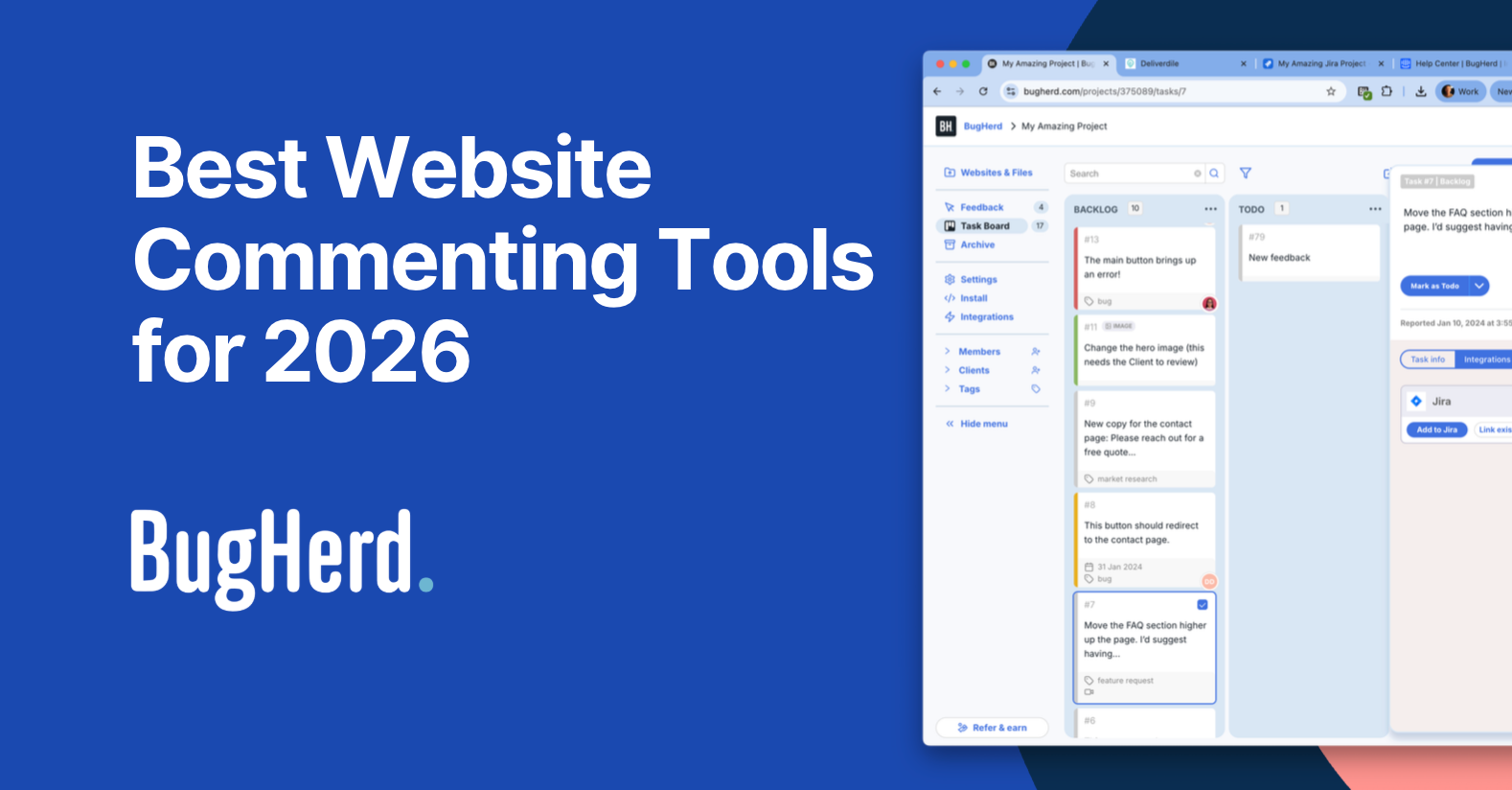
BugHerd is a website commenting tool, best for collecting feedback on live websites because clients can pin comments directly to page elements along with an automatic screenshot and technical context. It’s ideal for agencies and web teams who want faster approvals and fewer revision cycles.
It combines point‑click feedback, automatically captures screenshots and user technical details, and pushes feedback into a Kanban‑style task management board, all in a single workflow.
This is what makes it stand out from other tools. Pins sit directly on live websites, staging sites, or design documents, removing ambiguity and saving designers and developers hours. Deep two-way integrations keep agency workflows in sync, so teams don't have to toggle between different platforms.
BugHerd helps agencies and web development teams deliver polished websites on time and with less back‑and‑forth. Its low‑friction client experience, combined with the automatic screenshot and technical capture, makes user interactions quick and simple, shortens review cycles, and reduces rework.
Who is BugHerd designed for?
BugHerd is designed for agencies, creative teams, and web development teams managing multiple client websites. It's also designed for project managers who want a client‑friendly project management system that turns client feedback straight into tasks so that they can be easily managed and actioned.
What are the key features of BugHerd?
The key features of BugHerd are:
- Visual point‑and‑click feedback tied to exact elements on a web page, PDF, image, Figma file, etc. Clients and stakeholders simply use the arrow icon to click directly on any element and drop a pin/comment (like sticky notes on a page).
- Capture feedback via video and leave feedback on multi-step interactions, animations, and anything else that’s difficult to describe with written words alone.
- Automatic screenshot & user tech details captured, including browser, OS, URL, screen size, resolution, etc.
- Task tracking via a built‑in Kanban board to assess, assign, prioritize, and action feedback. BugHerd also keeps clients updated by allowing them access to the task board (you determine the level of access), for real-time visibility, especially on critical issues.
- BugHerd has deep two-way integrations with all project management tools such as ClickUp, monday.com, Asana, Trello, Jira and more; as well as supporting integrations with collaboration tools like Slack & Microsoft Teams, and developer tools like GitHub. BugHerd also has a fully featured API and Webhook support, enabling custom integrations with any application.
- No client login required. Clients and stakeholders are sent a link and they can start leaving feedback right away without having to set up a login.
- Ongoing public feedback is easy with BugHerd’s public feedback widget, which lets visitors share feedback directly from your live website.
What are the Pros and Cons of BugHerd?
BugHerd Pros:
- The easiest website commenting tool for clients to use
- No login required for clients
- Excellent contextual feedback makes actioning tasks quick and easy
- Deep two-way integrations
- Works on live and staging websites
- Feedback is organized by page
- All-in-one feedback workflow (from capturing to managing feedback)
- Dramatically speeds up feedback loops
- Reduces revision misunderstandings
- Helps teams hit deadlines
BugHerd Cons:
- Limited advanced UX analytics (vs dedicated product analytics tools)
- Best for web feedback, not native mobile apps
- Key features often on higher-tier plans
How much does BugHerd cost?
- Standard: $42/month (5 members - unlimited projects - unlimited guests)
- Studio: $67/month (10 members - unlimited projects - unlimited guests)
- Premium: $125/month (25 members - unlimited projects - unlimited guests)
- Custom: Custom pricing available for large teams
Find out more about what's included in each of the BugHerd pricing plans.
Does BugHerd offer a free trial?
BugHerd offers a free 7-day trial where you can check out all of the features.
You can also book a 1:1 demo with a BugHerd product specialist, where all of your questions will be answered on the spot.
"I recommend BugHerd to anyone who'll listen. I typically have a love/hate relationship with productivity software, but this is a love/love relationship. I'm confident of its capabilities and acts as an extension of superior client service. Hats off to the BugHerd team!!" - Lole T., BugHerd Capterra Review
#2. Usersnap
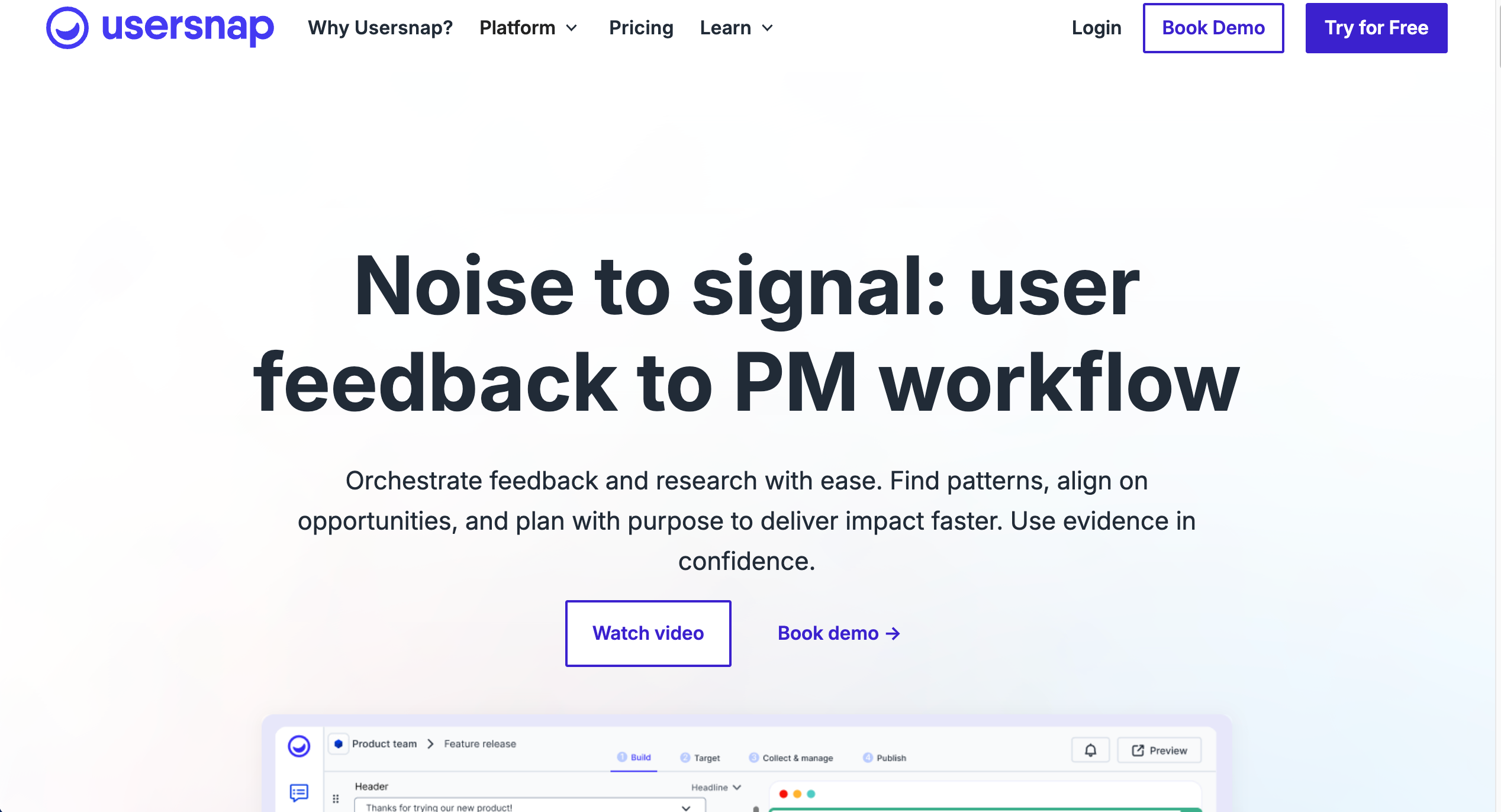
Usersnap is good for enterprise QA and customer feedback because it provides specialized widgets for bug reporting, feature requests, and satisfaction surveys. It is ideal for SaaS companies and product teams that need robust technical reporting and customer sentiment analysis.
Who is Usersnap designed for?
Usersnap is designed for enterprise QA teams, Product Managers, and Customer Success teams who need to gather structured feedback from both internal testers and live end-users.
What are the key features of Usersnap?
- Screen recording & console log recording to capture the full context of a bug.
- CSAT and NPS surveys to measure customer satisfaction directly within the product.
- Deep 2-way integrations with Jira and Azure DevOps to sync status updates.
- Customizable widgets that can be tailored for "Report a Bug" or "Suggest a Feature."
What are the Pros and Cons of Usersnap?
Usersnap Pros:
- Detailed technical reports
- Versatile widget types
- Strong security compliance (SOC2, GDPR)
Usersnap Cons:
- Branding cannot be removed on lower tiers
- Higher cost for enterprise features
- Can be overkill for simple design reviews
How much does Usersnap cost?
- Starter: $49/month
- Growth: $109/month
- Professional: $199/month
- Premium: $389/month
Find out more about what's included in each of the Usersnap pricing plans.
#3. MarkUp.io
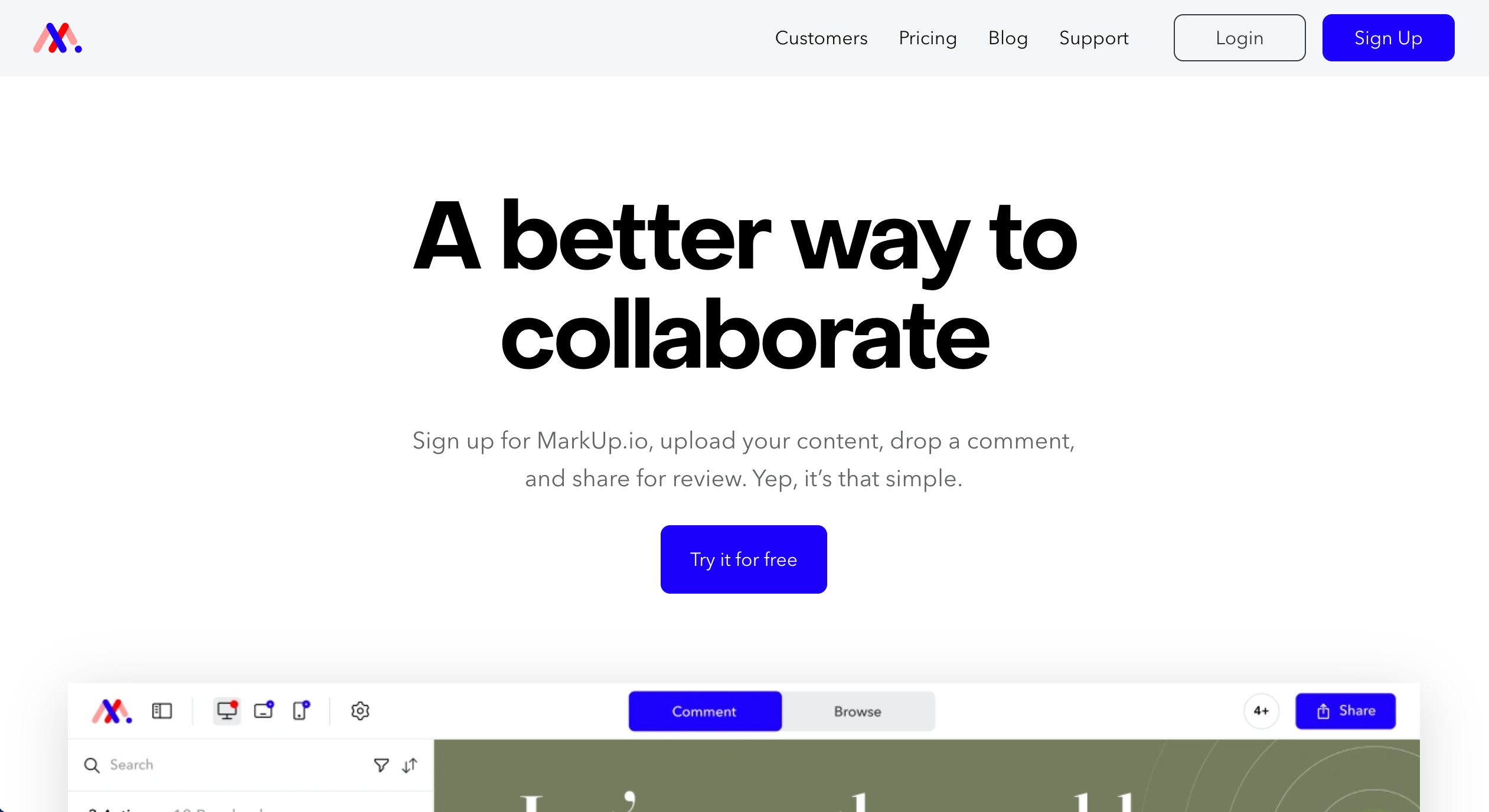
MarkUp.io is ideal for visual feedback on any digital asset because it turns websites, PDFs, and videos into a collaborative canvas. It is good for creative agencies and freelancers who need a fast, simple way to gather feedback on multiple file types without complex setups.
Who is MarkUp.io designed for?
MarkUp.io is designed for designers, marketers, and agencies who need to review a mix of live websites and static creative assets in one place.
What are the key features of MarkUp.io?
- Support for 30+ file types, including live websites, PDFs, images, and videos.
- "Comment" vs "Browse" modes to easily switch between interacting with a site and leaving notes.
- Loom video integration allows for video comments directly on the asset.
- Simple sharing links that require no installation for reviewers.
What are the Pros and Cons of MarkUp.io?
MarkUp.io Pros:
- Free trial
- Intuitive visual interface
- Supports video and PDF feedback alongside websites
- Very fast setup (just enter a URL)
MarkUp.io Cons:
- Live website view is a proxy (can be slower)
- Limited task management features
- No export options on lower plans
How much does MarkUp.io cost?
- Pro: $79/month
- Enterprise: Custom pricing
Find out more about what's included in each of the MarkUp.io pricing plans.
#4. Marker.io
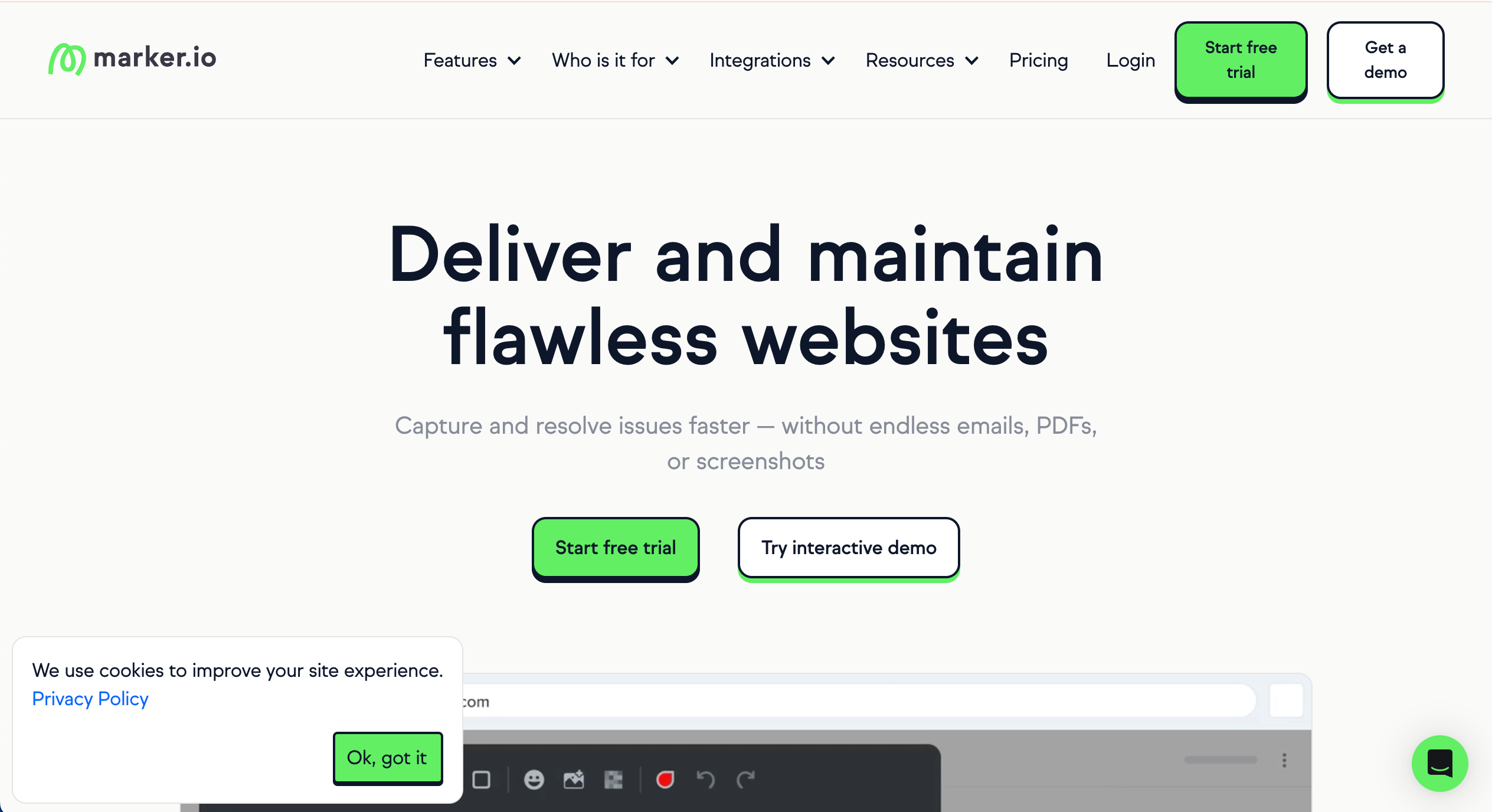
Marker.io is best for developers who live in Jira because it focuses entirely on capturing high-quality bug data and syncing it directly to your existing issue tracker. It is ideal for technical teams who don't want a separate "feedback board" but need better bug reports.
Who is Marker.io designed for?
Marker.io is designed for developers, QA engineers, and project managers who use tools like Jira, Trello, or GitHub as their source of truth.
What are the key features of Marker.io?
- Session replay, which records the last 30 seconds of user activity before a report is submitted.
- Console recording and network logs are automatically attached to every ticket.
- Deep 2-way sync that automatically closes the website comment when the Jira ticket is marked "Done."
- Customizable feedback forms to ensure reporters provide the right info.
What are the Pros and Cons of Marker.io?
Marker.io Pros:
- Integrations with dev tools
- Reduces "cannot reproduce" bugs with session replay
- Keeps developers in their preferred tools
- Excellent technical data capture
Marker.io Cons:
- Requires extension install for best performance
- No built-in task board (relies on external tools)
- Not as client-friendly for non-technical stakeholders
How much does Marker.io cost?
- Starter: $59/month
- Team: $199/month
- Business: Custom pricing
Find out more about what's included in each of the Marker.io pricing plans.
#5. Pastel
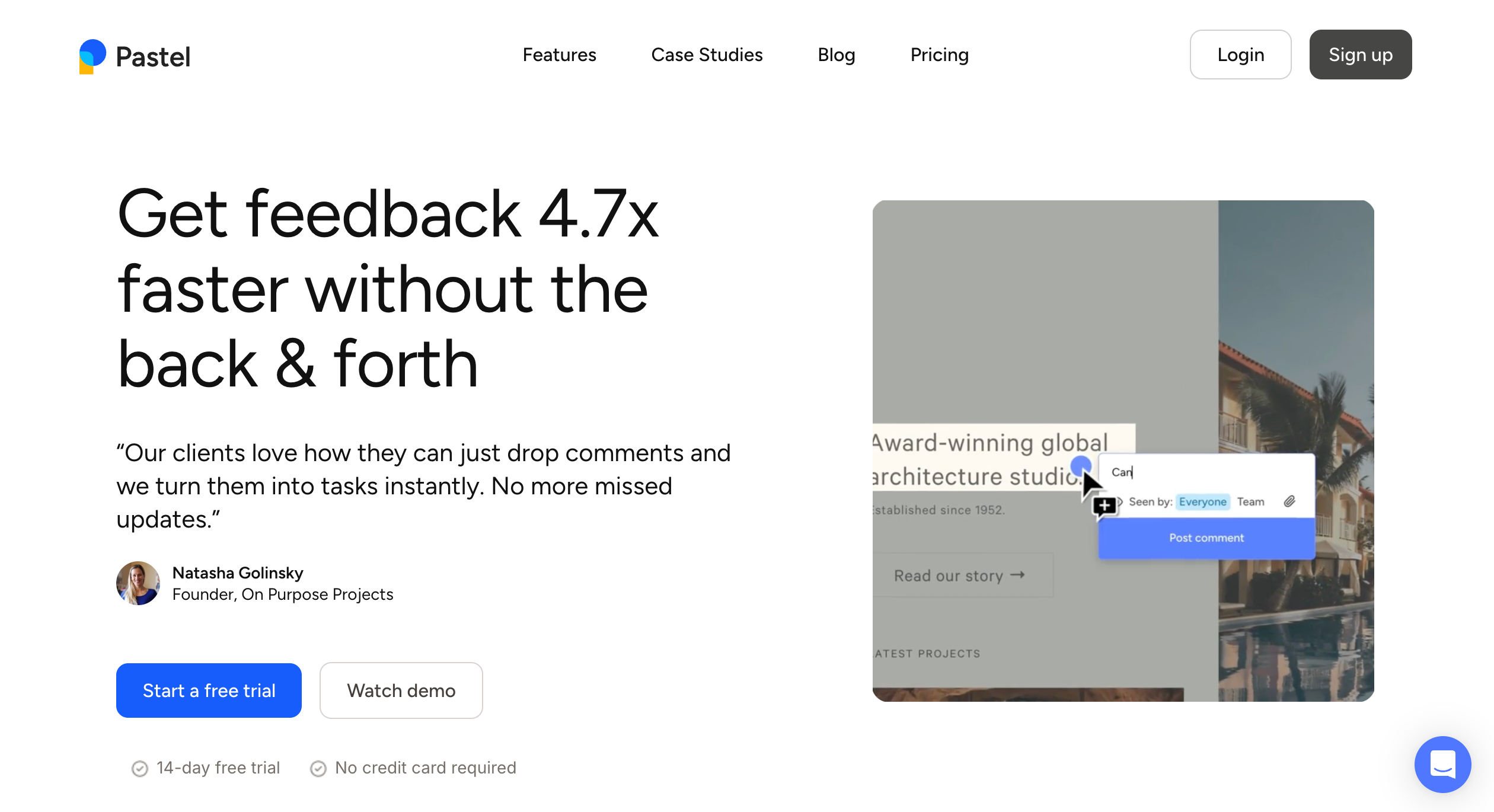
Pastel is best for client reviews with zero setup because it creates a proxy version of your site that clients can comment on without installing anything. It is ideal for agencies needing quick, one-off feedback from clients who are resistant to new technology.
Who is Pastel designed for?
Pastel is designed for marketing agencies and freelancers who need the absolute lowest barrier to entry for their clients to leave feedback.
What are the key features of Pastel?
- No-install proxy technology that works on any URL immediately.
- 72-hour link expiry options for securing client feedback windows.
- Mobile responsive views to check feedback on different device sizes.
- Comment on PDFs/Images alongside websites.
What are the Pros and Cons of Pastel?
Pastel Pros:
- Zero friction for clients (no login/install)
- Free plan
- Simple interface
- Good metadata capture
Pastel Cons:
- Proxy technology can struggle with complex dynamic sites (IFrames)
- Can be slower than loading the site natively
- Limited task management features
How much does Pastel cost?
- Free Forever: $0/month
- Pro: $35/month
- Team: $119/month
- Enterprise: $450/month
Find out more about what's included in each of the Pastel pricing plans.
#6. Ruttl
Ruttl is best for designers who want to edit live content because it allows you to change text, images, and CSS directly on the live webpage. It is ideal for web designers who want to "show, not tell" their developers what needs changing.
Who is Ruttl designed for?
Ruttl is designed for web designers, front-end developers, and agencies who want to prototype changes on a live build.
What are the key features of Ruttl?
- Live CSS editing to tweak fonts, colors, and spacing in real-time.
- Content replacement to swap out images or rewrite text directly on the page.
- Mobile view debugging to see how changes affect responsiveness.
- Bug tracking tab to manage feedback.
What are the Pros and Cons of Ruttl?
Ruttl Pros:
- Allows for "visual coding" and prototyping
- Very affordable pricing
- Reduces the need for "inspect element" screenshots
- Good for polishing design details
Ruttl Cons:
- Interface can be overwhelming for non-technical clients
- Sometimes conflicts with the complex site CSS
- Learning curve for the editing tools
How much does Ruttl cost?
- Free: $0/month
- Starter: $12/month/user
- Pro: $18/month/user
- Business: $90/month/user
Find out more about what's included in each of the Ruttl pricing plans.
#7. Userback
Userback is best for balancing user feedback and bug tracking because it combines a public feedback portal with deep technical bug reporting. It is ideal for SaaS companies that want to manage feature requests and bugs in one place.
Who is Userback designed for?
Userback is designed for product managers, customer support teams, and developers building web applications.
What are the key features of Userback?
- Feedback portal where users can vote on feature requests.
- Session replay to watch exactly what the user did.
- Video annotations for clear visual explanations.
- JavaScript SDK for deep integration into your app.
What are the Pros and Cons of Userback?
Userback Pros:
- Combines bugs and feature requests effectively
- Great for product teams needing a public roadmap
- Video recording is robust
Userback Cons:
- UI can be dense for simple agency work
- Setup requires more technical knowledge than BugHerd
- Portal features may be unnecessary for some teams
How much does Userback cost?
- Free Forever: Free
- Team: $9/month
- Business: $19/month
- Business Plus: $29/month
Find out more about what's included in each of the Userback pricing plans.
#8. Filestage
Filestage is best for strict compliance and approval workflows because it centralizes feedback, versioning, and sign-off across files and stakeholders. It works well when teams need clear approval stages and audit trails for creative or marketing assets.
Who is Filestage designed for?
Filestage is designed for creative agencies managing campaign assets, video producers, brand teams, and marketing team members who require formal approvals in regulated industries.
What are the key features of Filestage?
- Multi‑format review across video, images, PDFs, and documents.
- One-click approval stamps to clearly mark assets as "Approved."
- Version comparison to view two versions of a file side-by-side.
- Review steps to manage stakeholder groups (e.g., Legal, Marketing, Client).
What are the Pros and Cons of Filestage?
Filestage Pros:
- Best audit trail for approvals
- Clear version control prevents mix-ups
- Works for multiple file types
Filestage Cons:
- More focused on files/video than live web bugs
- Higher price point
- Limits on project structure in certain plans
How much does Filestage cost?
- Free: $0/month
- Basic: $129/month
- Professional: $369/month
- Enterprise: Custom pricing
Find out more about what's included in each of the Filestage pricing plans.
#9. PageProof
PageProof is best for marketing teams needing high security because it offers enterprise-grade encryption and smart comparison tools. It is ideal for large organizations that need to review sensitive pre-release content securely.
Who is PageProof designed for?
PageProof is designed for enterprise marketing teams, creative agencies, and packaging designers who need rigorous proofing tools.
What are the key features of PageProof?
- Red pen tool for precise markup on any file type.
- Smart compare to automatically detect changes between versions.
- Adobe CC integration to view proofs directly in design tools.
What are the Pros and Cons of PageProof?
PageProof Pros:
- Extremely secure
- Unlimited reviewers included
- Excellent Adobe integration
PageProof Cons:
- Expensive entry point
- Overkill for small teams
- UI is geared towards print/packaging more than web
How much does PageProof cost?
- Team: $249/month
- Team Plus: $399/month
- Enterprise: Quote upon request
Find out more about what's included in each of the PageProof pricing plans.
#10. Webvizio
Webvizio is best for project managers needing clarity because it combines website feedback with a productivity dashboard, giving you a clear list of tasks across multiple projects. It is ideal for small agencies and freelancers looking for an affordable all-in-one solution.
Who is Webvizio designed for?
Webvizio is designed for project managers, QA testers, and web agencies who want to manage tasks and feedback in a single interface.
What are the key features of Webvizio?
- Task lists and productivity dashboard to see all open issues at a glance.
- Video feedback for recording screen interactions.
- Mobile feedback mode for testing responsiveness.
- Free tier for small teams.
What are the Pros and Cons of Webvizio?
Webvizio Pros:
- Good balance of price and features
- Includes productivity/project management tools
- Clear task assignment
Webvizio Cons:
- Interface can feel cluttered with many tasks
- Not as deep on technical integrations
- Newer player with fewer enterprise features
How much does Webvizio cost?
- Solo: $10
- Starter: $35/month
- Advanced: $95/month
Find out more about what's included in each of the Webvizio pricing plans.
#11. Feedbucket
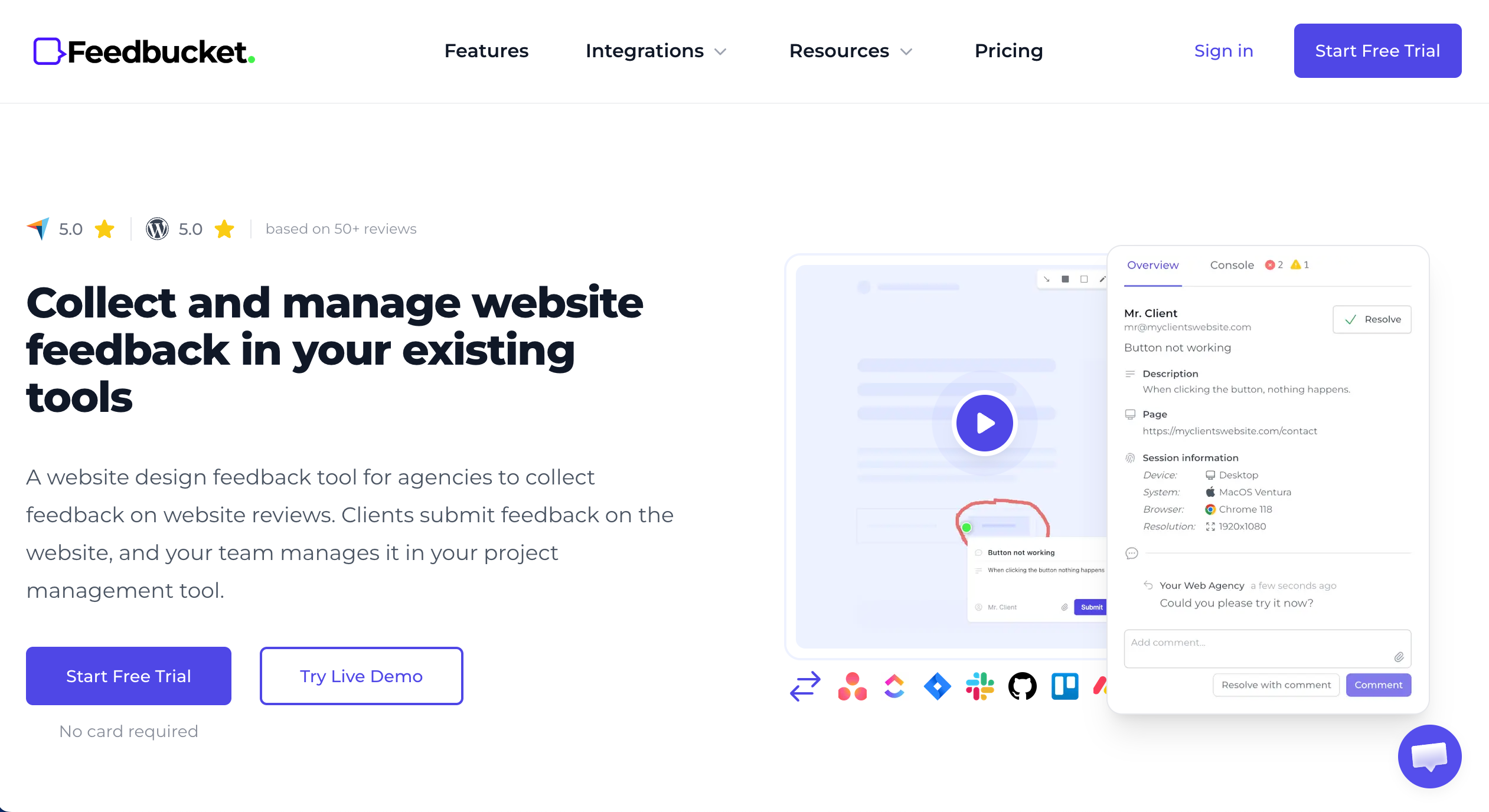
Feedbucket is best for Webflow agencies because it installs easily and allows clients to submit feedback without ever creating an account. It is ideal for developers who want to keep clients out of their project management tools while still getting structured data.
Who is Feedbucket designed for?
Feedbucket is designed for Webflow developers and digital agencies who want a frictionless client experience.
What are the key features of Feedbucket?
- Video recording directly from the widget.
- Native Webflow integration for easy installation.
- 2-way sync with tools like Notion and Trello.
What are the Pros and Cons of Feedbucket?
Feedbucket Pros:
- Removes all friction for clients
- Good video support
- Focuses on the client experience
Feedbucket Cons:
- Less robust task management than BugHerd
- Limited project management features inside the tool
- Visual customization is limited
How much does Feedbucket cost?
- Pro: $39/month
- Business: $89/month
- Enterprise: $259/month
Find out more about what's included in each of the Feedbucket pricing plans.
#12. SureFeedback
SureFeedback (formerly Project Huddle) is best for WordPress agencies because it is a self-hosted plugin that gives you total control over your data and branding. It is ideal for agencies that want to avoid monthly SaaS fees and keep everything inside their WordPress environment.
Who is SureFeedback designed for?
SureFeedback is designed for WordPress agencies and developers who prefer self-hosted solutions.
What are the key features of SureFeedback?
- Self-hosted WP plugin that lives on your server.
- Mockup support for design file reviews.
- One-time payment (typically annual) rather than monthly seats.
What are the Pros and Cons of SureFeedback?
SureFeedback Pros:
- Total data ownership
- Deeply integrated into the WP ecosystem
- Customizable via code
SureFeedbackCons:
- You manage the updates/hosting
- Limited integrations compared to SaaS tools
- Requires WordPress knowledge to maintain
How much does SureFeedback cost?
- Standard: $99/year
- Professional: $139/year
- Ultimate: $169/year
- Ultimate Lifetime: $499
Find out more about what's included in each of the SureFeedback pricing plans.
#13. Punchlist

Punchlist is best for simple copywriting checklists because it treats feedback like a to-do list, stripping away complexity. It is ideal for copywriters, creative directors, and content teams who just need to mark changes as "done."
Who is Punchlist designed for?
Punchlist is designed for creative teams, copywriters, and project managers who need a simple, linear approval process.
What are the key features of Punchlist?
- "Mark as Done" lists for satisfying progress tracking.
- Simple sharing via a single link.
- File and website support in one dashboard.
What are the Pros and Cons of Punchlist?
Punchlist Pros:
- Simple UI
- Very affordable
- Great for non-technical teams
- Fast adoption curve
Punchlist Cons:
- Lacks deep technical debugging data
- Not suitable for complex dev bugs
- Limited integrations
How much does Punchlist cost?
- Studio: $19/month
- Professional: $79/month
- Premium: $139/month
- Enterprise: Custom pricing
Find out more about what's included in each of the Punchlist pricing plans.
#14. GoVisually
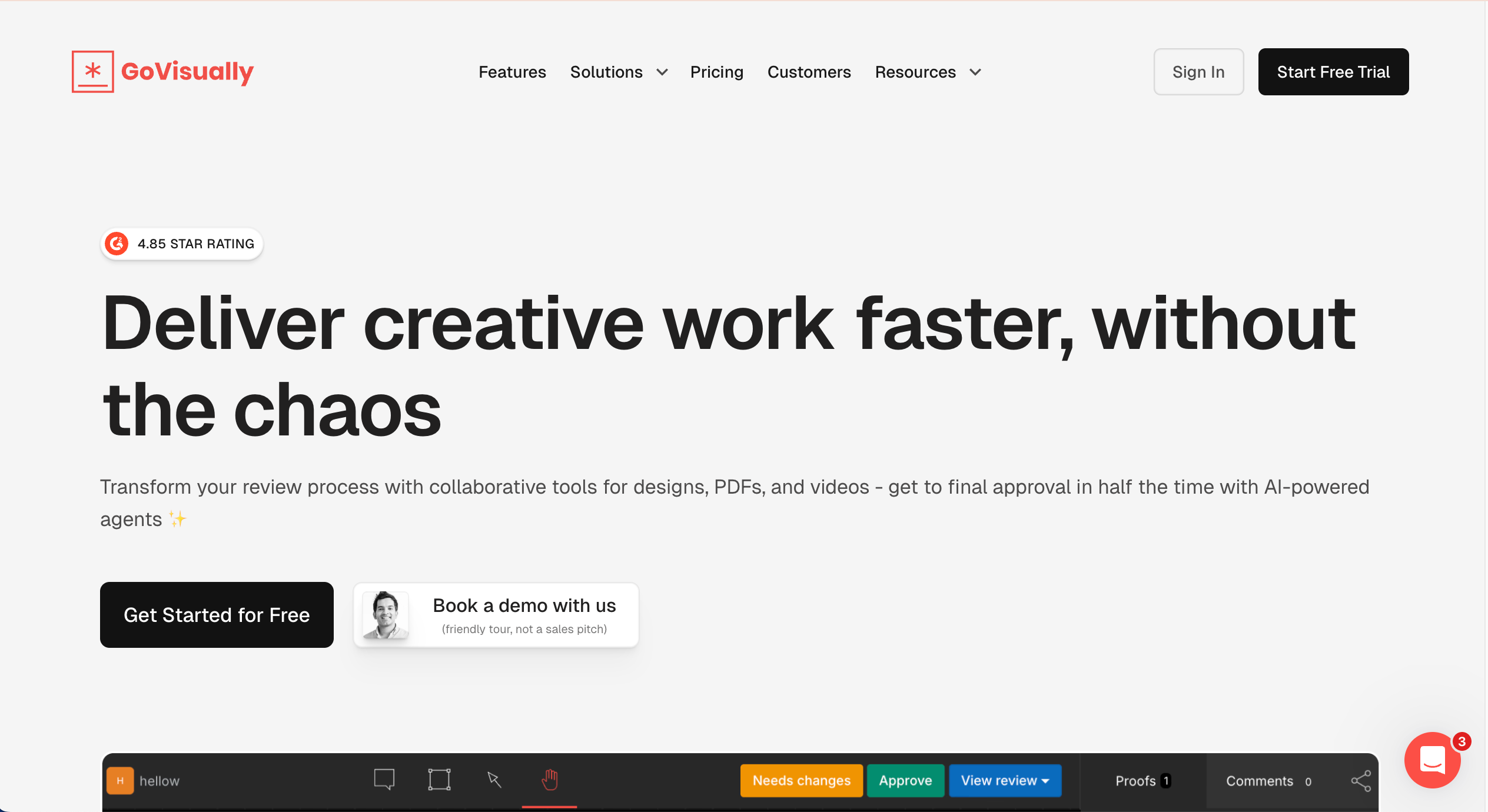
GoVisually is best for reviewing flat design files because it excels at handling PDFs and images. It is ideal for teams that do a mix of print, branding, and digital design work and need a single proofing tool.
Who is GoVisually designed for?
GoVisually is designed for creative directors, graphic designers, and marketing teams.
What are the key features of GoVisually?
- Revision control to manage multiple design rounds.
- Mobile app for approving designs on the go.
- One-click approval to finalize assets.
- Slack integration for team updates.
What are the Pros and Cons of GoVisually?
GoVisually Pros:
- Very easy for creatives
- Handles large file proofs well
- Clear approval status
- Simple for clients
GoVisually Cons:
- Website feedback is less powerful than BugHerd
- Limited live site features
- No deep dev tool integrations
How much does GoVisually cost?
- Lite: $20/month
- Pro: $40/month
- Enterprise: Custom pricing
Find out more about what's included in each of the GoVisually pricing plans.
#15. Superflow
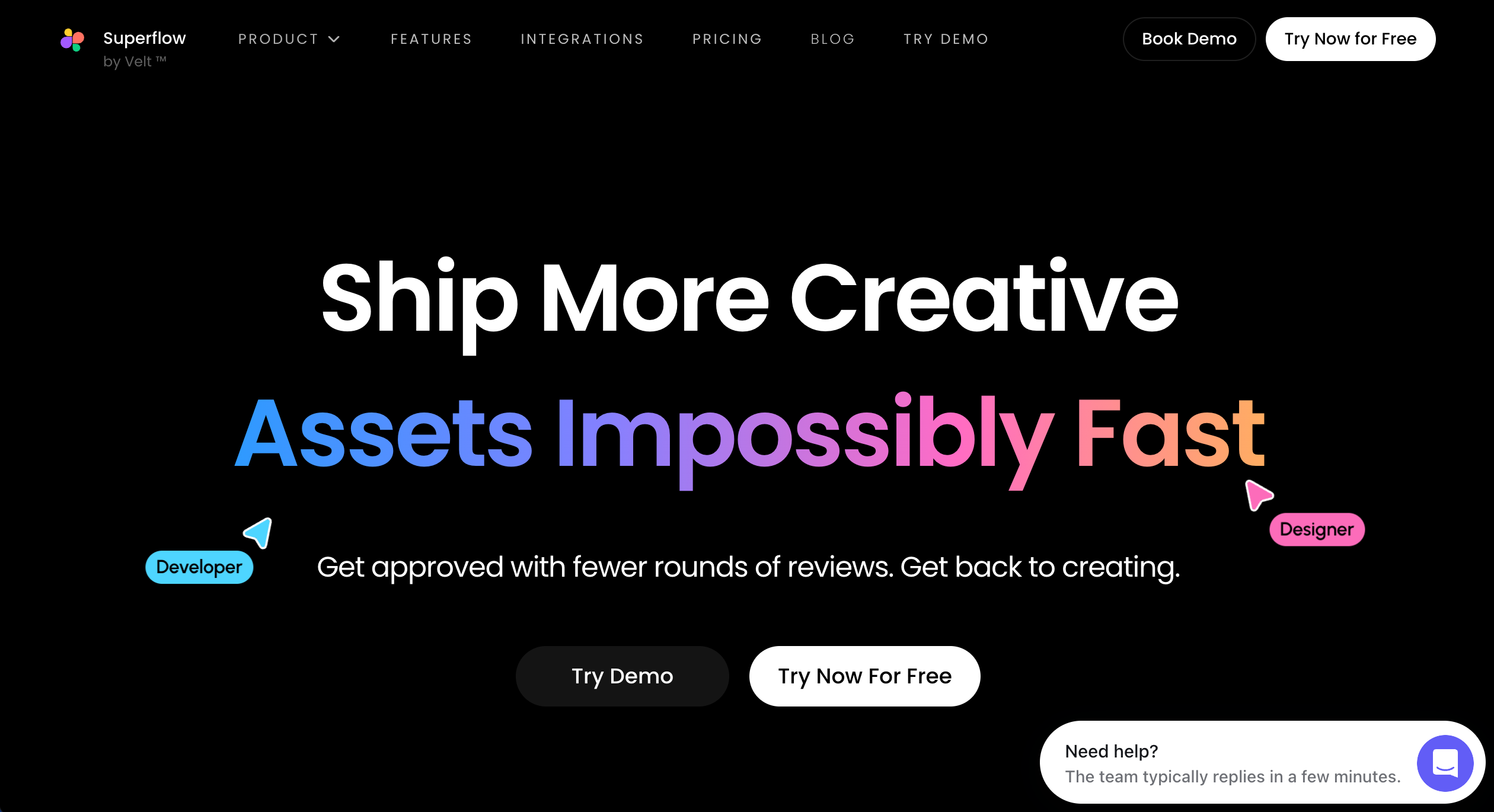
Superflow is best for startups and Gen Z teams because it brings a modern, fast feel to commenting with voice notes and AI. It is ideal for high-growth teams that prefer async communication and speed over formal processes.
Who is Superflow designed for?
Superflow is designed for startups, product teams, and agencies that value speed and modern UX.
What are the key features of Superflow?
- Voice comments and screen recording for rich context.
- AI summaries of feedback tasks to save reading time.
- Figma sync to bridge design and dev.
- "Huddle" mode for live collaborative sessions.
What are the Pros and Cons of Superflow?
Superflow Pros:
- Fast, modern interface
- AI features are genuinely useful
- Great Figma integration
- Voice comments reduce typing
Superflow Cons:
- Newer tool, less enterprise history
- Expensive for small teams
- Still building out deep integrations
How much does Superflow cost?
- Starter: $0/month
- Growth: $299/month
- Scale: $539/month
- Enterprise: Custom pricing
Find out more about what's included in each of the Superflow pricing plans.
Which Website Commenting Tool is Best for Agencies and Web Teams?
BugHerd is best for agencies and web teams because it lets clients pin feedback directly to live websites and design assets while automatically capturing technical context and turning all feedback into actionable tasks on a built-in Kanban board. It's easy for clients to give clear feedback and for teams to act on it so they can deliver web projects on time and to budget.
BugHerd offers a free 7-day trial where you can check out all of the features. No credit card is required.
You can also book a 1:1 demo with a BugHerd product specialist, where all of your questions will be answered on the spot.
"I find BugHerd to be an incredibly user-friendly tool, which made our recent website QA process both effective and enjoyable. BugHerd helped us resolve numerous issues such as broken URLs, design flaws, and form submission problems. Its super easy UI stands out, making it simple for our QA team to submit bugs effortlessly. I recommend BugHerd, rating it a 10 for its efficiency and effectiveness." - Farman K., G2 Review
Frequently Asked Questions About Website Commenting Tools
How do website commenting tools compare to bug tracking software?
Website commenting tools are the front-end of bug tracking. They capture the issue visually. Tools like BugHerd combine both (visual capture + bug tracking board). Tools like Marker.io send data to separate bug trackers like Jira.
Which feedback tools support real-time collaboration?
BugHerd, Usersnap, and Webvizio all support real-time commenting, where team members can see updates instantly without refreshing.
Are website feedback tools ok for non-technical clients?
Good website feedback tools are designed specifically for non-technical clients. Tools like BugHerd and Pastel are specifically designed so clients do not need to log in or learn a new interface; they just point and click.
Are there any free website annotation tools?
Yes, many website annotation tools come with free plans or a free trial. But note that free plans are usually quite limited. BugHerd offers a free 7-day trial. Webvizio also has a free tier for small teams.
What are the best website commenting tools for teams?
The best website commenting tools help teams and clients leave clear, in-context feedback on live sites. BugHerd is a top choice because it turns pinned comments into actionable tasks and captures key technical details automatically. Other solid options include Marker.io, Usersnap, Pastel, and Atarim - all offering visual feedback and collaboration features to suit different workflows.
Are there website feedback tools with task boards?
Yes there are website feedback tools with task boards. BugHerd includes a built-in task board, so comments easily become assignable, trackable tasks without switching tools. Other tools like Atarim and Usersnap integrate with external task boards (e.g., Jira, Trello, ClickUp), but BugHerd’s native board keeps feedback and work together in one place.
Do website commenting tools require installation?
Most modern platforms are easy to set up. You can often install the tool by adding a script tag to your website, then invite clients or teammates using shareable links—no downloads required.
What makes a website commenting tool “all-in-one”?
An all-in-one tool website commenting tool combines website annotation, collaboration, and feedback tracking in one place. With a simple sign-up, teams can start collecting in-context comments quickly and streamline reviews without messy email threads.
"I have been using BugHerd primarily to receive client feedback on website development and to identify any bugs. I appreciate how straightforward it was to start using BugHerd with almost no setup required, offering a seamless experience."- Hubert M., G2 Review

Marina Domoney
Marina Domoney is Marketing Communications Lead at BugHerd and a senior B2B marketer with 20+ years’ experience in SaaS and website delivery workflows. She’s worked closely with agencies, creative teams, and developers across countless web projects, giving her practical expertise in design and website feedback, approvals, and client collaboration.
Try BugHerd on your site
See feedback in context
Click anywhere to leave feedback directly on your website.








But don't just take our word for it.
BugHerd is loved by 10,000+ companies,
350,000+ users across 172 countries.
4.8/5
4.7/5
4.5/5
5/5
8.7/10
Sam Duncan 📱📏 🌱
@SamWPaquet
"@bugherd where have you been all my life??
We just migrated our bug tracking over from Asana and have at least halved our software testing time🪳👏📈. "
Ashley Groenveld
Project Manager
“I use BugHerd all day every day. It has sped up our implementation tenfold.”
Sasha Shevelev
Webcoda Co-founder
"Before Bugherd, clients would try to send screenshots with scribbles we couldn't decipher or dozens of emails with issues we were often unable to recreate."
Mark B
Developer
“A no-brainer purchase for any agency or development team.”
Kate L
Director of Operations
"Vital tool for our digital marketing agency.”
Paul Tegall
Delivery Manager
"Loving BugHerd! It's making collecting feedback from non-tech users so much easier."
Daniel Billingham
Senior Product Designer
“The ideal feedback and collaboration tool that supports the needs of clients, designers, project managers, and developers.”
Chris S
CEO & Creative Director
“Our clients LOVE it”
Emily VonSydow
Web Development Director
“BugHerd probably saves us
at least 3-4hrs per week.”