


Contents
- What are the Best Website Annotation Tools?
- Key Takeaways
- What Are Website Annotation Tools?
- What Types of Website Annotation Tools are Available?
- How to Choose the Right Website Annotation Tool for Your Team
- Website Annotation Tools Compared – BugHerd vs the Alternatives
- Top 15 Website Annotation Tools for Client Feedback (2026)
- Which Website Annotation Tool is Best for Web Dev Agencies and Teams?
- Frequently Asked Questions About Website Annotation Tools
What are the Best Website Annotation Tools?
The best website annotation tools make it simple for teams to collect website feedback from clients, and then manage that feedback. Clients are able to easily annotate live websites, and leave comments for teams to action.
The following annotation tools are the top tools by use case:
- BugHerd: best for agencies and dev teams needing structured annotations with task tracking
- MarkUp.io: best for simple, shareable website annotation and client feedback
- Usersnap / Userback: best for combining annotations with user insights like video and session tracking
- Atarim / Filestage: best for workflows, approvals, and team collaboration at scale
Which tool you choose depends on your workflow, but for most teams, the focus is on fast collaboration, clear context, and efficient feedback management.
For teams specifically looking for feedback on image files and mockups, see our guide to image annotation tools for web projects.
Key Takeaways
- Website annotation tools allow teams to leave feedback directly on live websites, making collaboration faster and clearer than emails or screenshots.
- The best tools combine visual annotation, task management, and integrations to streamline feedback workflows.
- Different tools serve different needs.
- Ease of use for non-technical clients is a critical factor when choosing a tool.
- Cheaper tools may lack features like integrations, task tracking, and context capture, which can slow down projects.
- For agencies and web dev teams, the best solution is one that reduces back-and-forth and turns feedback into actionable tasks.
- BugHerd stands out as the best all-round website annotation tool for agencies and web teams, combining visual feedback, automatic technical context, and built-in task management in one platform.
What Are Website Annotation Tools?
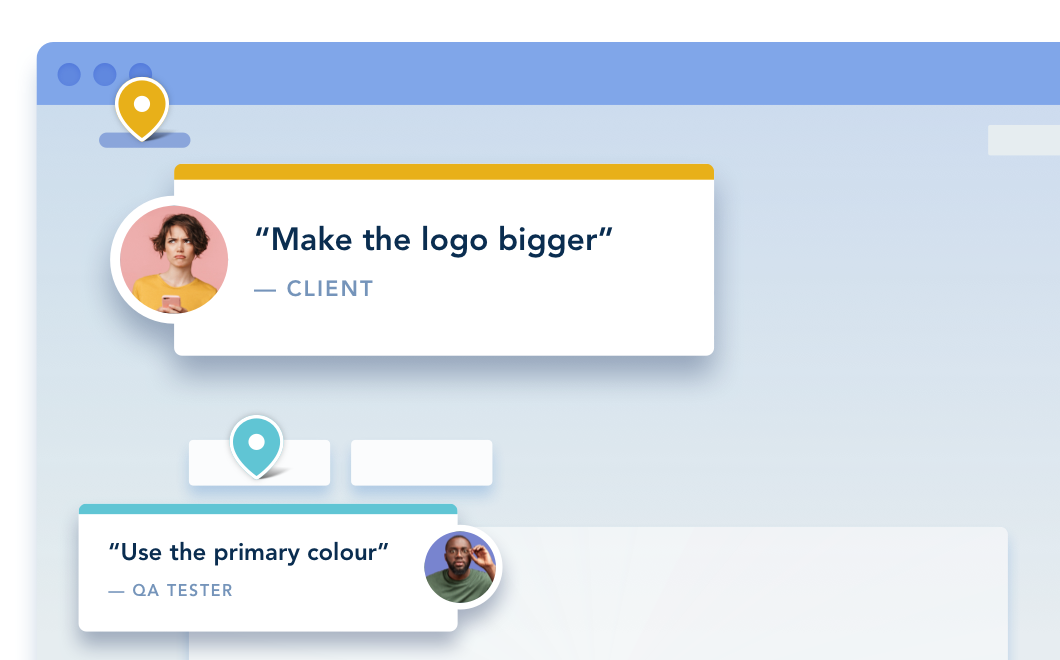
Website annotation tools are tools that let you leave feedback on live or staging websites by clicking on elements and leaving comments right where an issue occurs. Instead of taking screenshots or writing long emails, users can add annotations in context, making feedback clearer and faster to act on.
While other tools (like image annotation tools) are used to annotate images, label data, draw bounding boxes, etc, website annotation tools focus on helping web teams gather feedback from clients and stakeholders during website development projects.
In practice, these tools work as collaboration tools. Designers, developers, and clients can all jump in, annotate pages, and track feedback in one place. Many also support video annotation, basic text annotation, and integrations with project management tools to streamline annotation workflows.
For a detailed walkthrough of the annotation process, see Website Annotation: The Complete Guide.
What Types of Website Annotation Tools are Available?
There are different types of website annotation tools, and each one supports a slightly different way to annotate, collaborate, and manage feedback.
Visual annotation and feedback tools
These are the most common annotation tools. They let users click on a live site, add annotations, and turn them into tasks. They’re built for fast collaboration and are ideal for agencies and web teams.
Lightweight annotation tools
Simple tools designed for basic annotations on websites without complex workflows or setup.
Proofing and approval tools
These tools add structure to annotation workflows, with approval steps, quality control, and support for reviewing different data types like pages, designs, and documents.
Technical and advanced tools
Some advanced tools go beyond basic annotations by capturing extra context like session data, logs, or video annotation. These are useful for developers who need deeper insight.
Cross-purpose annotation tools
While website tools focus on live pages, other annotation tools (like image annotation tools) are used to annotate images, label training data, and support machine learning and computer vision use cases like object detection, bounding boxes, and segmentation tasks.
How to Choose the Right Website Annotation Tool for Your Team
Keep your search simple by comparing annotation tools and their key features based on three metrics: functionality, quality and efficiency, and price.
How you apply these metrics will depend on your industry and project type.
Functionality
First, think about what annotation-related tasks you and your team need to complete on a regular basis. What are the key features you need? What will you be annotating? Consider if you need an image annotation tool, or a video annotation tool? Are you after something that will help with document annotation, or content screen annotation? These considerations will help you decide what the best annotation website platform/annotation software is for you.
Choose an annotation tool with features that make it easier to accomplish those tasks. Many online annotation tools offer an abundance of features, but not all will be relevant to your project.
Make sure to seek out a user-friendly tool if you're gathering feedback from clients who may not be technically savvy.
Projects that involve cross-team collaboration need an annotation tool built with features that support real-time communication.
Quality and Efficiency
Prioritize annotation tools that have an established reputation for quality and efficiency.
Consider the app's versatility, uptime, customer support resources, and any other aspects that will be relevant to your project.
Depending on your needs, here are a few other quality concerns worth thinking about:
- Can you use the app to annotate documents, such as PDFs?
- Does the software require local installation or is it cloud-based?
- Are learning resources, tutorials, or knowledge bases included with the tool?
This is where it helps to check out user reviews and demo videos.
If you're on the fence about an annotation tool that's free to use, there's no reason not to test it out. Even paid tools offer trial periods so that you have a chance to assess the product's features and functionality.
Price
Price is an important factor when choosing a website annotation tool, but the cheapest option isn’t always the best choice. While some free or low-cost annotation tools let you annotate pages and leave basic annotations, they often lack the features needed for efficient annotation workflows, like integrations, task tracking, or strong collaboration tools.
Higher-quality tools help teams annotate with more context, manage tasks, and streamline the overall process, reducing time-consuming back-and-forth across projects. In many cases, investing in the right tool improves collaboration, speeds up feedback cycles, and delivers better results, making it far more valuable than simply choosing the lowest price.
For a detailed walkthrough of the annotation process, see Website Annotation: The Complete Guide

Website Annotation Tools Compared - BugHerd vs the alternatives
The table below compares the top website annotation tools based on G2 rating, best-for-use case, strengths and pricing. But before diving into the full comparison, here are the standout tools by category.
- Best overall website annotation tool for agencies and web teams: BugHerd
- Best lightweight website annotation tools for simple feedback: MarkUp.io
- Best annotation tools for product and UX teams: Usersnap and Userback
- Best tools for structured approvals and review workflows: Filestage and GoVisually
- Best annotation tool for WordPress agencies: Atarim
- Best developer-focused annotation tool with technical context: ReviseFlow
Whether you need simple annotations, stronger collaboration workflows, or advanced feedback and tracking features, the right website annotation tool depends on how your team manages projects, feedback, and approvals.
Top 15 Website Annotation Tools for Client Feedback (2026)
Below you'll find information on the top website annotation tools in 2026 so you can make an informed decision on which one will suit your team best.
#1. BugHerd
BugHerd is the best tool for annotating websites and managing the feedback during web development projects. Designed for agencies, web development teams, and client-facing projects, it allows users to pin feedback directly onto live websites and automatically turns annotations into actionable tasks. Unlike lightweight annotation tools that focus only on comments, BugHerd captures a user's technical context helping developers reproduce and resolve issues faster with less back-and-forth. It’s strongest for website feedback, collaboration, and visual QA, but less suited to teams looking for highly technical testing, deep product analytics, or lightweight one-off commenting.
Who is BugHerd designed for?
BugHerd is designed for agencies and web development teams managing website feedback, and client collaboration. It’s also the perfect tool for non-technical clients because it makes it very easy for them to provide feedback on websites.
What are the key features of BugHerd?
The key features of BugHerd are:
- Visual point‑and‑click annotations directly on a web page.
- Feedback captured via video to record multi-step interactions, broken animations, or complex user flows that are difficult to describe with text alone.
- Automatic screenshot & user tech details capture including URL, browser version, OS, and screen resolution.
- Task tracking via a built‑in Kanban task board to manage and action feedback. Clients are given controlled access to the board so they can see real-time updates.
- Deep two-way integrations with project management tools such as Jira, Asana, Trello, ClickUp, and monday.com; as well as Slack, Microsoft Teams, and GitHub.
- No client login required. Clients are sent a simple link and can start leaving feedback immediately without creating an account or remembering a password.
- Ongoing feedback collection: Visitors to your website can continue to leave feedback even after your website project has finished. This ensures that your website is always up-to-date and accurate.
“BugHerd takes the guesswork out of feedback, keeps everyone aligned, and lets us focus on building better websites.” - Elliott Richmond, Director & Lead Developer at Squareone Software
What are the Pros and Cons of BugHerd?
BugHerd Pros:
- Easiest website annotation tool for non-technical clients
- No login required for guests/clients
- Turns visual feedback into technical tasks automatically
- Deep 2-way sync with major project management tools
- Reduces "back-and-forth" between client and developers
- Video feedback helps explain complex feedback
- Strong collaboration and task management workflows
BugHerd Cons:
- Limited mobile-specific functionality compared to desktop workflows
- Not designed for automated testing or to perform parallel testing
How much does BugHerd cost?
- Standard: $42/month
- Studio: $67/month
- Premium: $125/month
- Custom pricing for larger teams
Find out more about what's included in each of the BugHerd pricing plans
Does BugHerd offer a free trial?
BugHerd offers a free 7-day trial where you can test all features. No credit card is required. You can also book a 1:1 demo to see how it fits your specific workflow.
Learn more about BugHerd as a website annotation tool.
#2. Usersnap

Usersnap is best for collecting user feedback and bug reports on websites, because users can capture screenshots, annotate issues, and submit feedback with technical context. It’s less suited to automated testing, as it focuses on feedback collection rather than test execution.
Who is Usersnap designed for?
Usersnap is designed for product and UX teams that want to collect user feedback directly from websites while also gathering insights like surveys and user behavior.
What are the key features of Usersnap?
- Screenshot capture
- Feedback widgets embedded in websites
- User surveys and feedback forms
- Session tracking and user insights
What are the Pros and Cons of Usersnap?
Usersnap Pros:
- Combines feedback with user insights
- Flexible use cases
Usersnap Cons:
- More complex setup
- Can be expensive
- Not ideal for small teams
How much does Usersnap cost?
- Starter: $53/month
- Growth: $121/month
- Professional: $216/month
- Premium: $432/month
Does Usersnap offer a free trial?
Yes, Usersnap offers a free trial.
#3. Userback

Userback is best for capturing detailed feedback, because users can submit annotated screenshots, video recordings, and session data to provide more context. It’s less suited to simple feedback workflows, as its advanced features can be unnecessary for basic use cases.
Who is Userback designed for?
Userback is designed for product teams and developers that need deeper insight into user issues through visual feedback and behavioral data.
What are the key features of Userback?
- Session replay
- Visual annotations
- Video and session recording
- Feedback widgets for websites
What are the Pros and Cons of Userback?
Userback Pros:
- Good for capturing live user issues
- Strong debugging context
- Affordable entry-level pricing
Userback Cons:
- Requires code installation for full features
- UI can feel busy
How much does Userback cost?
- Free Forever: Free
- Team: $9/seat/month
- Business: $19/seat/month
- Business Plus: $29/month
Does Userback offer a free trial?
Userback offers a free forever plan, though note that it is limited.
#4. Webvizio

Webvizio is best for combining website annotation with task management, because users can leave feedback and manage tasks within the same platform. It’s less suited to lightweight use cases, as it includes more workflow features than simple tools.
Who is Webvizio designed for?
Webvizio is designed for teams that want feedback plus project management functionality.
What are the key features of Webvizio?
- Website annotation
- Task and workflow management
- Team collaboration
What are the Pros and Cons of Webvizio?
Webvizio Pros:
- All-in-one platform
- Flexible workflows
Webvizio Cons:
- Can feel complex
- Less intuitive for clients
How much does Webvizio cost?
- Solo: $10/month
- Starter: $35/month
- Advanced: $57/month
- Enterprise: Contact Sales
Does Webvizio offer a free trial?
Yes, Webvizio offers a free trial.
#5. Feedbucket
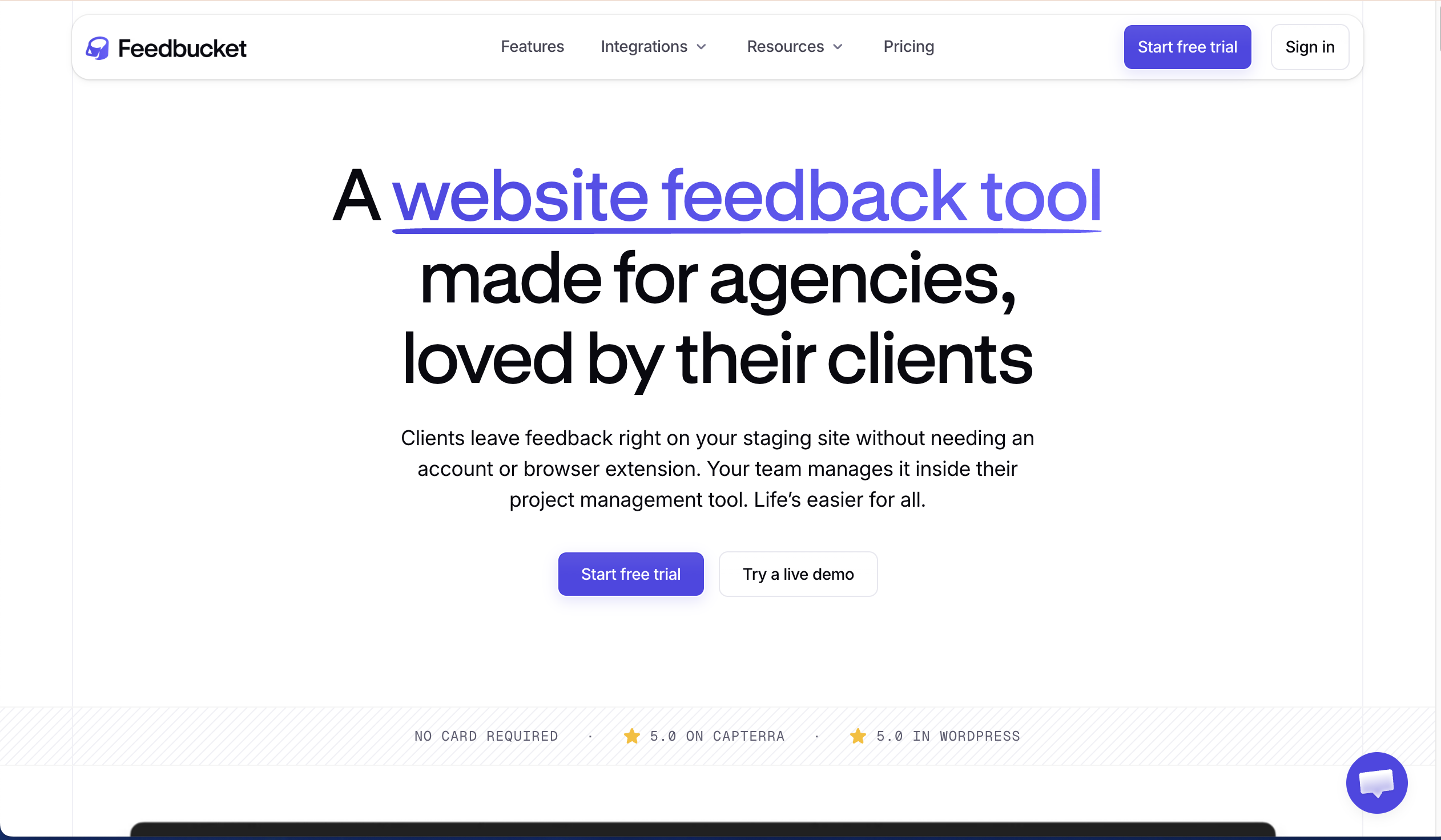
Feedbucket is best for collecting simple feedback, because users can annotate websites without technical complexity. It’s less suited to end-to-end workflows, as it prioritizes simplicity over depth.
Who is Feedbucket designed for?
Feedbucket is designed for teams that need a basic way to collect feedback on websites.
What are the key features of Feedbucket?
- Simple UI for clients
- Basic task tracking
What are the Pros and Cons of Feedbucket?
Feedbucket Pros:
- Easy for non-technical users
- Onboarding is simple
Feedbucket Cons:
- Too basic for agencies
- Limited advanced features and integrations
How much does Feedbucket cost?
- Pro: $49/month
- Business: $89/month
- Custom: Contact Sales
Does Feedbucket offer a free trial?
Yes, Feedbucket offers a free 14-day trial.
#6. Atarim

Atarim is best for managing website feedback within WordPress, because users can annotate websites and manage tasks directly inside the CMS. It’s less suited to teams outside WordPress, as its functionality is platform-specific.
Who is Atarim designed for?
Atarim is designed for WordPress teams that want to manage feedback and tasks directly within client websites.
What are the key features of Atarim?
- WordPress-native annotation
- Task management dashboard
- Client collaboration tools
What are the Pros and Cons of Atarim?
Atarim Pros:
- Easy for non-technical users
- Onboarding is simple
Atarim Cons:
- Deep WordPress integration
- Centralizes feedback, tasks, and client communication in one dashboard
How much does Atarim cost?
- Free: $0/month (very limited)
- Pro: $29/seat/month
- Business: $42/seat/month
- Enterprise: Contact Sales
Does Atarim offer a free trial?
Atarim offers a free plan.
#7. MarkUp.io
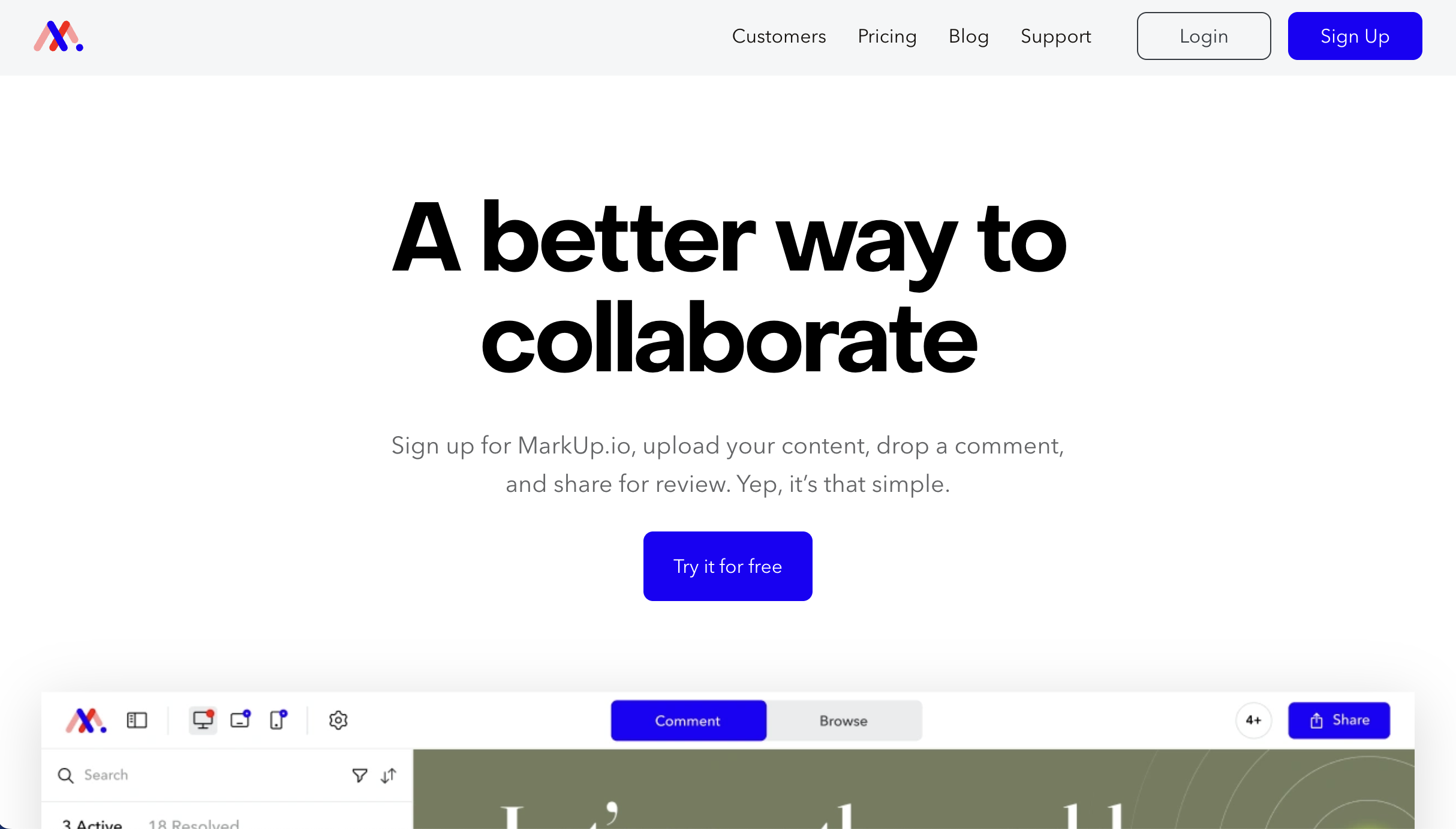
MarkUp.io is best for simple annotations and collaborative design reviews, because users can share a link and annotate live websites without needing to log in. It’s less suited to structured workflows, as it focuses on lightweight commenting rather than task management.
Who is Markup.io designed for?
MarkUp.io is designed for design teams, marketing teams and web developers that need an easy way to collect feedback on websites and digital assets.
What are the key features of Markup.io?
- Link-based website annotation
- No-login commenting for clients
- Basic team collaboration and mentions
What are the Pros and Cons of Markup.io?
Markup.io Pros:
- Simple visual annotations
- Supports 30+ file types
- Easy for clients to use
Markup.io Cons:
- Pricey
- Limited task tracking
- Fewer integrations
How much does Markup.io cost?
- Pro: $79/month
- Custom pricing: Get in touch with the MarkUp.io team
Does Markup.io offer a free trial?
Yes, Markup.io offers a free 30-day trial.
#8. Redpen

Redpen is best for collecting simple visual feedback on websites and assets, because users can leave comments and share feedback via links without requiring accounts. It’s less suited to structured workflows, as it focuses on basic collaboration rather than task tracking.
Who is Redpen designed for?
Redpen is designed for creative teams that need a simple way to gather feedback on assets from clients without friction.
What are the key features of Redpen?
- Visual commenting on websites and assets
- Shareable feedback links
- Collaboration with clients
What are the Pros and Cons of Redpen?
Redpen Pros:
- Easy to use
- Client friendly
- Can be used on PDFs and images
Redpen Cons:
- Limited workflows
- Basic features
- Limited integrations
How much does Redpen cost?
- Basic: $0 (limited)
- Standard: $9.95/user/month
- Enterprise: Contact sales
Does Redpen offer a free trial?
Redpen offers a free plan.
#9. Pastel

Pastel is best for annotations during design reviews, because users can click anywhere on a live site and leave feedback in context. It’s less suited to developer workflows, as it offers limited technical detail and task management features.
Who is Pastel designed for?
Pastel is designed for solo design and developer freelancers that want a simple, visual way to collect feedback on live websites.
What are the key features of Pastel?
- Shareable feedback links
- Commenting and tagging
- Basic task tracking
What are the Pros and Cons of Pastel?
Pastel Pros:
- Clean interface
- Easy collaboration
Pastel Cons:
- Limited workflow depth
- Minimal developer context
How much does Pastel cost?
- Free Forever: $0 (limited)
- Pro: $35/month
- Team: $119/month
- Enterprise: $450/month
Does Pastel offer a free trial?
Pastel offers a free plan.
#10. PageMarker

Page Marker is best for quick personal website annotation, because users can draw and add notes directly onto live webpages using a browser extension. It’s less suited to teams, as it doesn’t support collaboration or workflow management.
Who is Page Marker designed for?
Page Marker is designed for individuals who need a fast and simple way to annotate websites for personal use.
What are the key features of Page Marker?
- Freehand drawing on web pages
- Screenshot markup
- Chrome extension
What are the Pros and Cons of Page Marker?
Page Marker Pros:
- Free
- Extremely simple
- No setup
Page Marker Cons:
- No collaboration
- No sharing
- No task tracking
How much does Page Marker cost?
- Free Forever: $0
Does Page Marker offer a free trial?
Page Marker is a free Chrome extension.
#11. Ruttl

Ruttl is best for combining website annotation with quick edits, because users can annotate websites and make visual changes directly on the page. It’s less suited to larger teams, as its workflows and integrations are more limited.
Who is Ruttl designed for?
Ruttl is designed for small teams and designers that want to quickly annotate and tweak websites without switching tools.
What are the key features of Ruttl?
- Website markups
- Live editing of pages
- Commenting and collaboration
What are the Pros and Cons of Ruttl?
Ruttl Pros:
- Editing and feedback in one place
Ruttl Cons:
- Limited scalability
- Fewer integrations
How much does Ruttl cost?
- Basic: $0 (for solo creators)
- Pro: $18/user/month
- Business: $90/user/month
- Enterprise: $450/month
Does Ruttl offer a free trial?
Ruttl offers a free plan.
#12. Filestage

Filestage is best for managing structured website review and approval workflows, because teams can annotate websites and control approvals with versioning and quality checks. It’s less suited to fast feedback cycles, as it’s built for formal processes.
Who is Filestage designed for?
Filestage is designed for teams that need structured approval workflows and formal review processes across projects.
What are the key features of Filestage?
- Website and asset annotation
- Approval workflows
- Version control
- Collaboration tools
What are the Pros and Cons of Filestage?
Filestage Pros:
- Strong feedback governance and approvals
Filestage Cons:
- Expensive
- Slower for quick feedback
How much does Filestage cost?
- Free: $0 (limited)
- Starter: $249/month
- Business: $399/month
- Enterprise: Contact Sales
Does Filestage offer a free trial?
Filestage offers a free plan.
#13. GoVisually
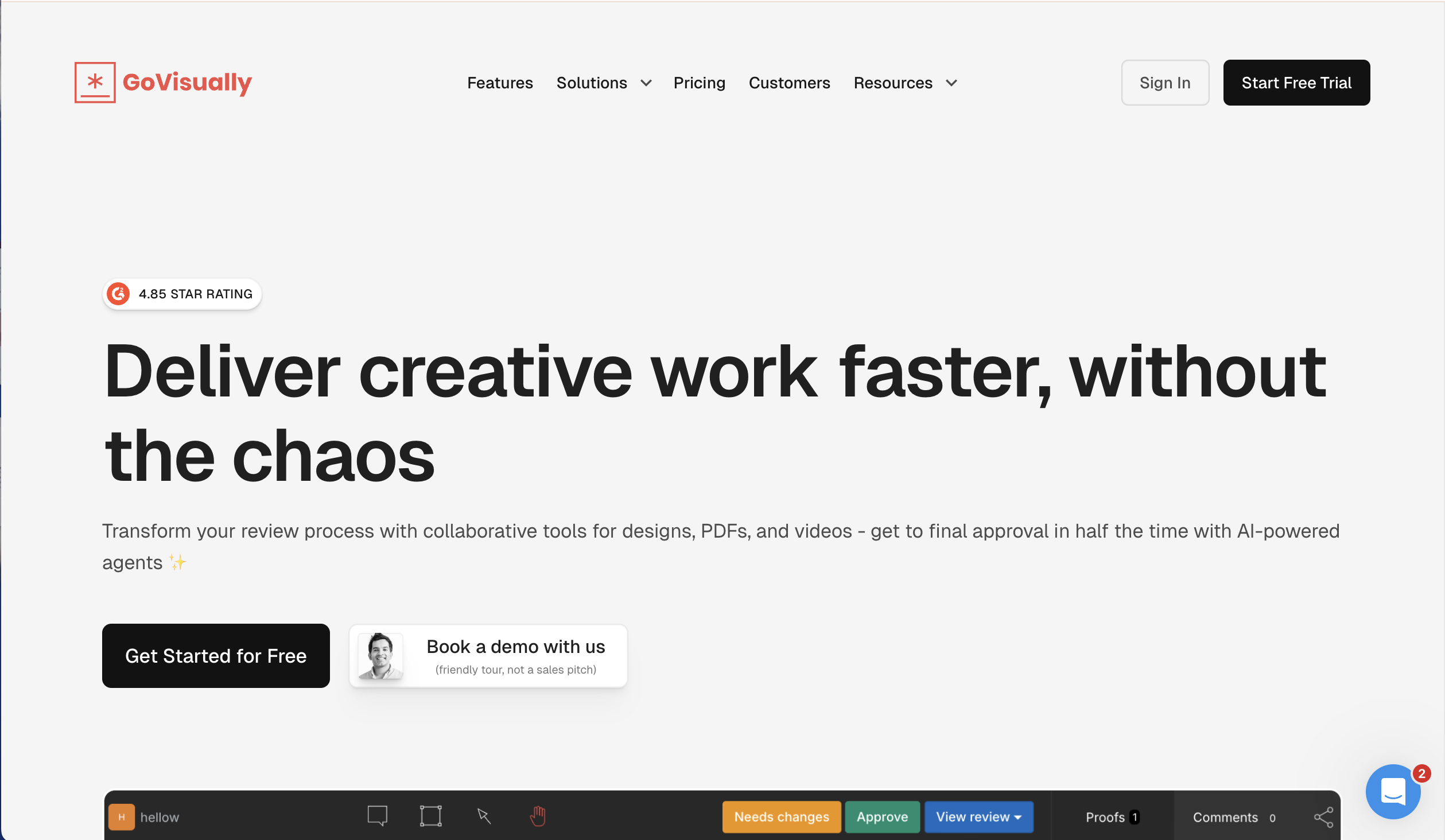
GoVisually is best for reviewing websites alongside other visual assets, because teams can annotate, comment, and approve content in one place. It’s less suited to website-specific workflows, as it’s designed for broader creative proofing.
Who is GoVisually designed for?
GoVisually is designed for creative teams that need to review and approve websites, designs, and other visual assets.
What are the key features of GoVisually?
- Annotation for websites and files
- Approval workflows
- Version control
What are the Pros and Cons of GoVisually?
GoVisually Pros:
- Multi-format support
- Strong approval workflows
GoVisually Cons:
- Not purely website-focused
- Limited dev features
How much does GoVisually cost?
- Lite: $20/user/month
- Starter: $40/user/month
- Compliance AI Suite: Starting from $1,500/month
Does GoVisually offer a free trial?
Yes, GoVisually offers a free trial.
#14. ReviseFlow
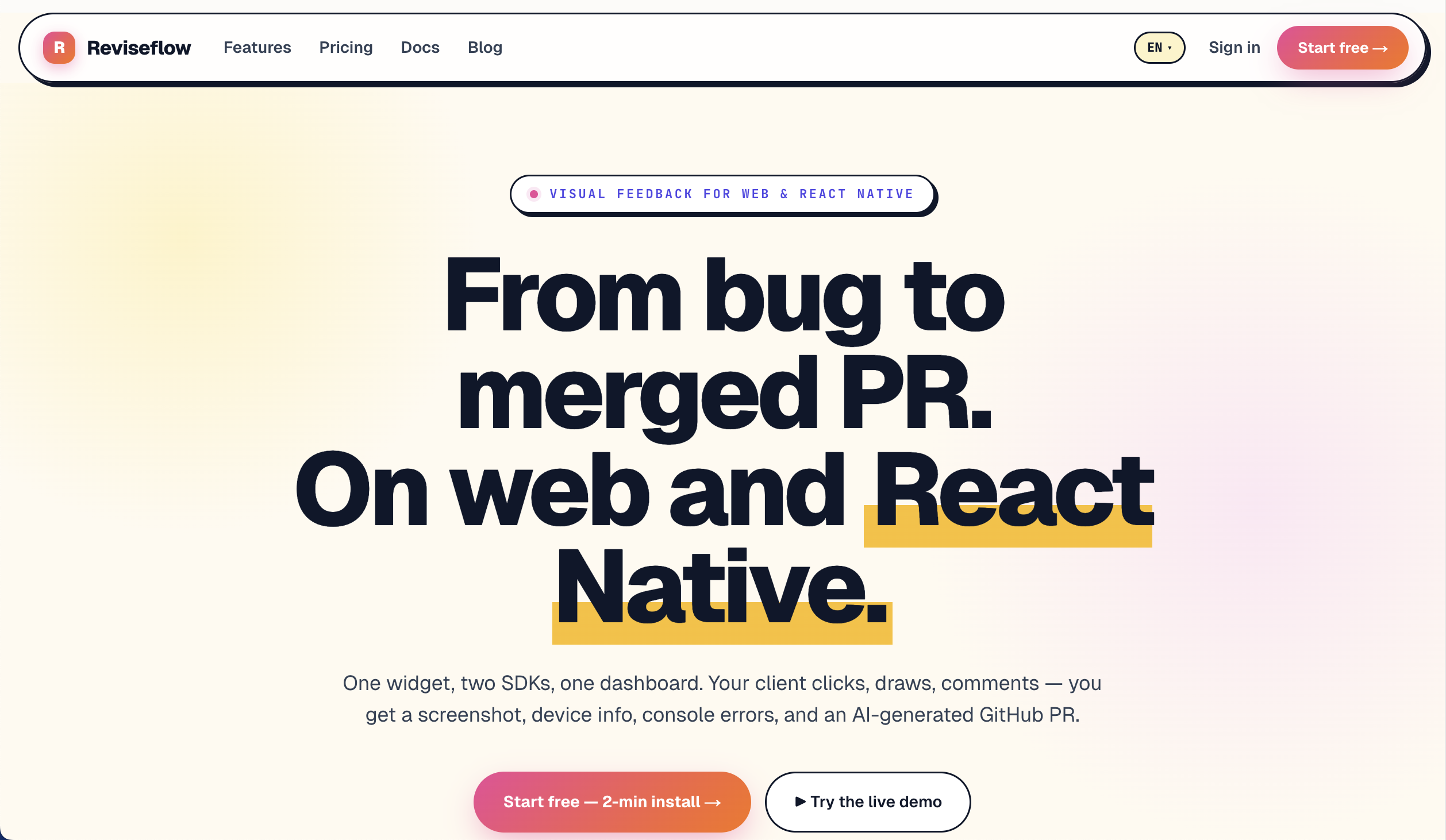
ReviseFlow is best for developer-focused website annotation and debugging, because it captures annotations alongside technical data like console logs and session details. It’s less suited to non-technical users, as it focuses more on debugging than collaboration.
Who is ReviseFlow designed for?
ReviseFlow is designed for development teams that need deeper technical insight alongside website feedback.
What are the key features of ReviseFlow?
- Console logs and network data capture
- Session tracking
What are the Pros and Cons of ReviseFlow?
ReviseFlow Pros:
- Solid debugging capabilities
ReviseFlow Cons:
- Not client-friendly
- More technical setup required
How much does ReviseFlow cost?
- Free: $0 (limited)
- Pro: $49.99/month
- Agency: $149.99/month
Does ReviseFlow offer a free trial?
ReviseFlow offers a free plan.
#15. Diigo

Diigo is best for annotating and saving web content for research, because users can highlight and add notes directly to web pages. It’s less suited to website feedback workflows, as it lacks collaboration and task management features.
Who is Diigo designed for?
Diigo is designed for individuals and research teams that want to organize, annotate, and revisit web content over time.
What are the key features of Diigo?
- Highlighting and annotation on web pages
- Bookmarking and tagging
- Notes and knowledge organization
What are the Pros and Cons of Diigo?
Diigo Pros:
- Good for research
- Simple and affordable
Diigo Cons:
- Not built for team workflows
- No task management
How much does Diigo cost?
- Free: $0 (limited)
- Standard: $40/year
- Professional: $59/year
- Business: $10/user/month
Does Diigo offer a free trial?
Diigo offers a free plan.
Which Website Annotation Tool is Best for Web Dev Agencies and Teams?
For web development agencies and teams, the best website annotation tool is one that fits seamlessly into their workflow, making it easy to mark up live websites, manage feedback as tasks, and collaborate with both technical and non-technical users.
There are several strong options depending on your use case, but ultimately the best tool is the one that makes it quick and easy for clients to provide feedback, and just as easy for web dev teams to manage and action that feedback.
This is where BugHerd stands out as the best website annotation tool. It’s designed specifically for client-facing workflows, allowing users to annotate websites visually while automatically capturing the technical context developers need. Every annotation becomes a task in a built-in Kanban board, helping teams manage feedback, improve collaboration, and keep projects moving.
If your team regularly handles website reviews, QA, and client feedback, BugHerd offers the most complete solution for managing annotations at scale.
Start a free 7-day trial of BugHerd and see how much faster your website feedback process can be. You can also book a 1:1 demo with a BugHerd product specialist to see exactly how it fits into your agency's specific workflow.
“BugHerd excels at simplifying feedback loops between technical teams and non-technical stakeholders.” - ToolStack
Frequently Asked Questions About Website Annotation Tools
What is a website annotation tool?
A website annotation tool is a type of annotation tool that lets users click directly on a live or staging website to leave comments pinned to specific elements. These annotations are added in context, making it easier for teams to collaborate and manage feedback without time-consuming screenshots or emails. Unlike general annotation tools used to annotate data, website tools are built specifically for real-world workflows on live sites.
What’s the best website annotation tool for agencies?
BugHerd is one of the best website annotation tools for agencies because it simplifies collaboration between technical and non-technical users. Clients can annotate websites instantly, while teams manage feedback as tasks in a built-in workflow. This makes it easier to scale projects, improve quality control, and keep annotation workflows organized.
How is a website annotation tool different from an image annotation tool?
An image annotation tool is typically used to annotate images for machine learning, data labeling, and computer vision use cases like object detection, segmentation tasks, or drawing bounding boxes. These tools help teams label images and create training data for AI models. In contrast, a website annotation tool is designed for live websites, capturing context like browser, URL, and screen size to help teams fix issues in real-world environments.
Can clients annotate a website without installing anything?
Yes — most modern website annotation tools are built for ease of use, allowing users to annotate websites without installing software. Clients simply receive a link and can start leaving annotations immediately, improving collaboration and speeding up feedback across projects.
What website annotation tools integrate with Jira and Asana?
Most website annotation tools support integration with project management and collaboration tools like Jira, Asana, ClickUp, and Trello. These integrations allow annotations to automatically become tasks, streamlining workflows and improving how teams track, manage, and resolve feedback across projects.
What's the difference between object detection tools, labeling tools, and a labeling platform?
Object detection tools are used to find and mark objects in images or videos, usually by drawing bounding boxes around things like people or cars. Labeling tools are broader—they let you annotate data in different formats, like images, text, or audio, to create training data for machine learning. A labeling platform goes a step further by managing the whole process at scale, including workflows, collaboration, and quality control across teams.
What is auto annotation?
Auto annotation is when a tool automatically adds annotations using AI instead of requiring users to do everything manually. It’s commonly used in data labeling and machine learning, but most website annotation tools focus on manual, in-context feedback.
Do website annotation tools work with HTML files?
Yes, website annotation tools work directly on live websites and staging environments built with HTML files. Users can annotate elements on the page without needing to edit the underlying code.
Can you annotate videos with website annotation tools?
Some advanced tools support video annotation, allowing users to record or upload videos and leave feedback. However, most website annotation tools are focused on annotating live web pages rather than full video workflows.
What are labeling workflows?
Labeling workflows are structured processes used to annotate data, review it, and ensure quality. They are commonly used in data labeling platforms, while website annotation tools use simpler workflows focused on feedback and collaboration.
Are website annotation tools the same as an open source tool?
Most website annotation tools are not open source tools—they are hosted platforms with built-in collaboration, integrations, and support. Open source tools are usually more technical and require setup and maintenance.
How do website annotation tools compare to tools used with large language models or foundation models?
Tools used with large language models and foundation models are designed to annotate data, perform text analysis, or handle sequence labeling for AI training. Website annotation tools are different—they focus on helping teams collaborate and give feedback on live websites.
Do website annotation tools support Google Cloud Storage?
Some advanced tools and platforms offer integrations with services like Google Cloud Storage, but most website annotation tools focus on managing feedback and annotations rather than storing large datasets.
What is sequence labeling?
Sequence labeling is a type of text annotation used in machine learning, where each word in a sentence is tagged (for example, for text analysis or classification). This is different from website annotation, which focuses on visual feedback on web pages.
What website annotation tool automatically captures browser and device information with each comment?
BugHerd is a website annotation tool that automatically captures browser, device, URL, and screen size with every annotation, giving developers the context they need to fix issues faster.
How do I annotate a staging site for client review without asking them to install a browser extension?
You can use a website annotation tool like BugHerd to share a link to your staging site, allowing clients to annotate pages directly in their browser without installing anything.
What website annotation tool converts comments directly into project management tasks?
BugHerd converts annotations into tasks automatically, helping teams manage feedback and streamline annotation workflows within one platform.
How do I get clients to annotate a live website without needing a login?
Use a website annotation tool that supports guest access. Tools like BugHerd let users annotate websites via a shared link, so clients can leave annotations without creating an account.
What is the best website annotation tool for non-technical clients?
BugHerd is one of the best website annotation tools for non-technical users because it makes it easy to annotate websites visually, without needing technical knowledge or training.
What tool lets you annotate a live website and push comments straight to Jira?
BugHerd allows users to annotate live websites and automatically send those annotations as tasks to Jira, improving collaboration and integration between teams.

Marina Domoney
Marina Domoney is Marketing Communications Lead at BugHerd and a senior B2B marketer with 20+ years’ experience in SaaS and website delivery workflows. She’s worked closely with agencies, creative teams, and developers across countless web projects, giving her practical expertise in design and website feedback, approvals, and client collaboration.
Try BugHerd on your site
See feedback in context
Click anywhere to leave feedback directly on your website.








But don't just take our word for it.
BugHerd is loved by 10,000+ companies,
350,000+ users across 172 countries.
4.8/5
4.7/5
4.5/5
5/5
8.7/10
Sam Duncan 📱📏 🌱
@SamWPaquet
"@bugherd where have you been all my life??
We just migrated our bug tracking over from Asana and have at least halved our software testing time🪳👏📈. "
Ashley Groenveld
Project Manager
“I use BugHerd all day every day. It has sped up our implementation tenfold.”
Sasha Shevelev
Webcoda Co-founder
"Before Bugherd, clients would try to send screenshots with scribbles we couldn't decipher or dozens of emails with issues we were often unable to recreate."
Mark B
Developer
“A no-brainer purchase for any agency or development team.”
Kate L
Director of Operations
"Vital tool for our digital marketing agency.”
Paul Tegall
Delivery Manager
"Loving BugHerd! It's making collecting feedback from non-tech users so much easier."
Daniel Billingham
Senior Product Designer
“The ideal feedback and collaboration tool that supports the needs of clients, designers, project managers, and developers.”
Chris S
CEO & Creative Director
“Our clients LOVE it”
Emily VonSydow
Web Development Director
“BugHerd probably saves us
at least 3-4hrs per week.”