


Table of Contents
- Who is this Website Commenting Guide for?
- What is Website Commenting?
- What is a Website Commenting Tool?
- Why Should I Use a Website Commenting Tool to Manage Website Feedback?
- What’s the Easiest Way to Get Website Feedback Quickly?
- What Features Does a Good Website Commenting Tool Have?
- What are the Best Website Commenting Tools in 2026?
- What are the Common Mistakes in Website Commenting Workflows?
- Which Website Commenting Tool is Best for Agencies and Web Development Teams?
- FAQs About Website Commenting
Key Takeaways
- Website feedback is often the biggest bottleneck in web projects, not development.
- Website commenting replaces messy emails and spreadsheets with one clear workflow.
- Clients can point, click, and leave visual feedback directly on a live site.
- Contextual feedback removes guesswork and speeds up website revisions.
- Good tools automatically capture screenshots, browser, and device details.
- A built-in task board helps teams manage feedback and track progress easily.
- Removing login barriers makes it easier for clients to leave comments quickly.
- Structured review processes reduce delays and endless feedback loops.
- Website commenting helps identify usability issues and improve user experience.
- Better feedback leads to faster approvals, smoother projects, and happier customers.
Who is this Website Commenting Guide for?
If you build, manage, review, or approve website projects and need to make it easier for your clients to leave feedback, and for you and your team to action it, then this guide is for you. It is specifically for:
- Digital agencies juggling multiple client websites.
- Project managers trying to consolidate client comments from a dozen different channels into one clear, actionable task list.
- Web developers who need exact technical context (eg. browser and screen resolution) captured with every piece of feedback.
- Web designers looking to reduce the back-and-forth review loops on live staging sites.
- Non-technical clients and stakeholders who just want an easy, point-and-click way to leave a comment right on the webpage.
- Content and marketing teams reviewing website copy, layouts, and image assets before pushing a site live.
If your current website feedback process involves cryptic email threads, clients pasting heavily cropped screenshots into a document, or marked-up PDFs, you’re definitely in the right place.
What is Website Commenting?
Website commenting is a method that allows clients and stakeholders to give feedback directly on a website by interacting with the page itself. Rather than providing feedback through separate channels like email or documents, users can click on specific elements (such as text, images, or buttons) and leave comments tied to those exact locations. This makes the feedback more precise and easier to understand, as it’s clearly linked to the part of the site being discussed.
It improves the feedback process during web development by making communication more visual, organized, and efficient. It helps reduce misunderstandings, keeps all input in one place, and enables smoother collaboration between stakeholders and development teams, ultimately speeding up revisions and approvals.
What is a Website Commenting Tool?
A website commenting tool is a platform that lets users provide feedback directly on a live or staging website by pointing, clicking, and leaving an attached note.
Users interact directly with the page and:
- Click the specific element they want to comment on.
- Leave a pinned comment right on top of where an issue occurs.
- Attach annotated screenshots or video recordings to explain the problem clearly.
- Automatically submit feedback that includes crucial technical metadata (like browser, OS, and screen resolution) needed to understand the issue.
Some website commenting tools can be integrated into your site by simply pasting a code snippet, making them compatible with various CMS and frameworks.
Many website commenting tools also connect directly to your existing project management tools, turning those simple client comments into actionable tasks with a quick overview of what’s open, assigned, and resolved.
Why Should I Use a Website Commenting Tool to Manage Website Feedback?
You should use a website commenting tool because it makes collecting customer feedback easier and way faster. Instead of chasing comments across five different places, you get one clear source of truth for what needs to be actioned.
Most teams still rely on:
- Email threads and forwarded chains
- Slack/Teams messages with “see screenshot”
- Screenshots with no link, no device info, and no real context
- Spreadsheet “review lists” that go out of date immediately
- Random “quick notes” that never make it into the actual workflow
That usually creates:
- Follow-up questions (and more follow-up questions)
- Duplicate issues (“I already mentioned that last week…”)
- Lost context (which page? which breakpoint? which browser?)
- Slower approvals and more rework
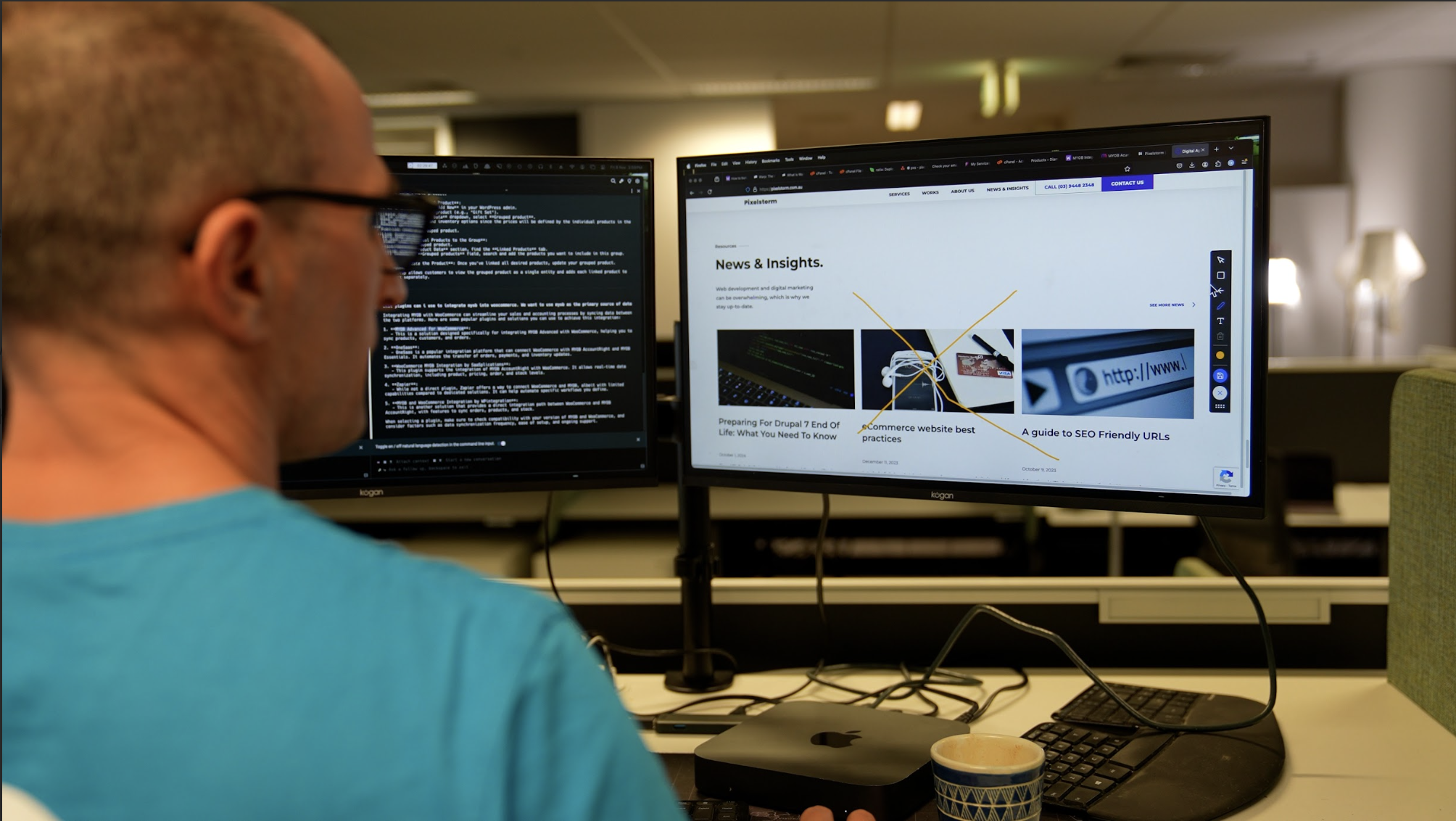
Website commenting tools fix this by keeping feedback tied to the exact spot on the page, and capturing the context you need. Tools like BugHerd are built for this point‑and‑click workflow, where clients can comment directly on a live website and the tool automatically grabs a screenshot and technical details, then turns it into a trackable task for your team.
Here’s what a website commenting tool improves straight away:
- It keeps feedback in context as users click the exact element and leave a comment
- It cuts the back-and-forth
- It stops feedback from getting scattered
- It speeds up review rounds
- It’s easier for clients
- It helps customers navigate your site more easily, which can improve conversions and user experience
What’s the Easiest Way to Get Website Feedback Quickly?
The easiest way to get website feedback quickly is to align your review process upfront and use a website commenting tool that keeps comments pinned to the exact spot on the page with the right context attached. The best tools provide quick ways to gather feedback and invite team members or clients to participate, often without registration required, making collaboration seamless and efficient.
Step 1: Align before anyone starts building
- Define goals and success criteria
- Confirm reviewers and approvers early
- Decide where feedback lives (one source of truth)
- Pick your commenting tool early so you’re not changing the workflow halfway through
Step 2: Map the site and rough in the layout
- Lock in the structure and key pages
- Create wireframes or a rough layout of the website
- Call out what needs to stay consistent (buttons, spacing, typography)
Step 3: Start getting feedback early (before staging)
- Review key pages and components while they’re still easy to change
- Keep feedback specific to elements, not vague “overall vibe” notes
Step 4: Use a staging site for fast, clean review rounds
This is where website feedback tools shine: reviewers open the staging site, click the exact element, and leave a pinned comment (instead of writing paragraphs trying to describe an issue).
Step 5: Keep the feedback loop open after launch
Have an agreed way to collect ongoing suggestions and fixes without letting them spill back into random emails and DMs.
What Features Does a Good Website Commenting Tool Have?
A good website feedback tool should make it effortless for clients to leave their thoughts, and just as easy for your team to turn those thoughts into an actual to-do list.
Here are the key features to look for when choosing your workflow:
1) Point-and-click comments on live web pages
The core of any good tool is letting users click exactly what they want to change. Comment pinning keeps feedback tied directly to the exact headline, image, or button being discussed.
2) Automatic screenshots with every comment
You shouldn't have to ask a client to use a separate snipping tool. The commenting tool should automatically grab a screenshot the second they click, preserving exactly what the user saw at that moment.
3) Technical details captured automatically
If a client says a section looks broken, your team needs to know how they are looking at it. Look for tools that automatically capture the URL, browser, operating system, and screen resolution.
4) A built-in task board
Getting the feedback is only half the battle. A good tool organizes those website comments into a clean, built-in Kanban board so your team knows exactly what needs to be worked on next.
5) Clear assignments and priorities
You need the ability to assign specific comments to specific team members and set urgency, so actionable feedback doesn’t end up sitting in limbo.
6) No mandatory login for clients
If you force a client to create an account, remember a password, and learn a new dashboard to leave a comment, they will just email you instead. The best tools remove this friction entirely.
7) Support beyond just HTML
Real projects aren’t just code. A versatile tool will also let teams leave comments on design files, images, and PDFs before the site is even built.
8) Integrations with your current stack
Your developers probably don't want to leave Jira, Trello, or Asana. A great commenting tool will sync directly with the project management platforms your team already lives in.
What are the Best Website Commenting Tools in 2026?
Here are the top 10 website commenting tools, with a quick overview of what they’re best for and why teams choose them.
What are the Common Mistakes in Website Commenting Workflows?
Even the best website feedback process can quickly unravel if you rely on the wrong methods. Here are the most common workflow mistakes teams make (and how to avoid them):
1. Lacking a structured review process
If your client comments aren’t organized into a clear list, prioritized, and assigned to a specific developer or designer, you’ll end up with endless revision cycles and duplicate comments. Use a structured tool, so feedback instantly becomes an actionable task, rather than just noise in a spreadsheet.
2. Relying on Google Docs or Word for visual changes
Docs are perfectly fine for writing the initial copy drafts, but they are a nightmare for communicating about UI and layout. Reviewers can’t precisely reference which button or image they are talking about, and your team wastes hours just trying to interpret their intent.
3. Making it hard for clients to leave a comment
If your feedback workflow requires clients to install a complicated extension, create a new login, or read a manual just to tell you the logo is too small, your client feedback rate will plummet, and your launch timeline will slip.
4. Using the wrong feedback tool
If you are forcing non-technical clients to use complex developer software like Jira or splitting feedback across three different apps, you create massive friction. Choose a dedicated website commenting tool built specifically for this purpose.
5. Ignoring devices, browsers, and screen sizes
Responsive websites and mobile views are exactly where the trickiest issues hide. If your client says "the menu is broken," but you don't know they are using an outdated version of Safari on an iPad, you'll be playing a guessing game. Use a tool that automatically captures this context to avoid the classic “well, it works on my machine” argument.
Which Website Commenting Tool is Best for Agencies and Web Development Teams?
BugHerd is the best website commenting tool for agencies and web development teams because it makes collecting feedback on live websites and staging environments incredibly easy for clients, and for web teams to manage and action that feedback. Clients can literally point, click, and drop a comment directly on a web page. While they do that, BugHerd automatically grabs a screenshot, captures exactly what browser, operating system, and screen size they are using, and turns that comment into a trackable task on a Kanban board. It’s ideal for agencies and web development teams who want to stop relying on messy spreadsheets and want faster approvals with fewer review rounds.
BugHerd also has deep two-way integrations with leading project management tools such as ClickUp, monday.com, Asana, Trello, Jira, and more; as well as supporting integrations with collaboration tools like Slack & Microsoft Teams, and developer tools like GitHub.
With no client login required, customers love BugHerd for its ease of use and familiar interface, making website commenting feel as intuitive as leaving comments in Google Docs.
Who is BugHerd designed for?
BugHerd is designed for agencies, creative teams, and web development teams managing multiple client websites. It's also built for project managers who desperately need a client‑friendly system that turns vague feedback straight into organized tasks so that developers can actually action them without having to chase up information.
What are the key features of BugHerd?
The key features of BugHerd are:
- Visual point-and-click website feedback and bug reports
- Feedback captured via video
- Automatic screenshot & user tech details captured
- Task tracking
- Deep two-way integrations
- No client login
- Ongoing public feedback
How much does BugHerd cost?
- Standard: $50/month
- Studio: $80/month
- Premium: $150/month
- Custom pricing for larger teams
Find out more about what's included in each of the BugHerd pricing plans.
Does BugHerd offer a free trial?
BugHerd offers a free 7-day trial where you can check out all of the features. No credit card is required.
You can also book a 1:1 demo with a BugHerd product specialist to get all of your website workflow questions answered on the spot.
Wondering what BugHerd could save your agency? If your team is still chasing feedback across emails and screenshots, you're losing real hours every week. BugHerd's ROI calculator estimates exactly how much time and money that's costing, and what you could get back. 👉 Calculate your savings
"I use BugHerd for collecting client feedback during website development. Instead of long email chains or vague feedback, clients can click directly on their website and leave clear comments exactly where the change is needed. Each comment captures important details like the URL, browser, and screen size, saving us a lot of back and forth. I love how it keeps everything organized in one place, integrates smoothly into our workflow, and makes managing revisions faster and less stressful." - Nikki B., G2 Review
FAQs About Website Commenting
What’s the difference between website commenting and user feedback?
The difference between website commenting and user feedback is that user feedback covers a broad range of ways to collect thoughts. Surveys, including Net Promoter Score (NPS), Customer Effort Score (CES), and Customer Satisfaction Score (CSAT), are key methods for collecting user feedback, helping you measure loyalty, effort, and satisfaction. Website commenting specifically refers to feedback that is anchored to visual elements on a webpage, so development teams can act on exactly what they see.
How do I collect website comments from clients?
To collect website comments from clients, use a website feedback tool that lets them simply point, click, and drop a comment directly on a live or staging webpage (eg. BugHerd). The best method removes friction by automatically capturing screenshots and technical details (like browser and OS) without requiring the client to create an account or learn a complex dashboard. Targeted feedback questions and open text feedback can provide deeper insights, including emotional context, while star ratings offer a quick way to measure customer satisfaction and highlight areas for improvement.
What types of website surveys can I use to collect feedback?
There are several types of website surveys you can use to collect website feedback: on-site pop-up surveys capture quick reactions while users browse a live website; exit surveys help you understand why visitors leave or drop off during key moments like the checkout experience; and embedded forms allow users to share more detailed customer feedback directly on a webpage. Each format helps gather different types of insights to support your review process and improve user experience.
To implement these, website feedback tools like Hotjar, Survicate, and Qualaroo offer targeted, behavior-based surveys, while tools like Typeform and SurveyMonkey are useful for collecting more structured feedback at scale. The right feedback tool depends on whether you want quick, contextual feedback or deeper insights to guide website revisions.
Do I need a video recording for website comments?
You will need a video recording if you’re dealing with dynamic or multi-step interactions. Video capture is essential for showing broken hover states, scroll animations, or checkout flows that are difficult to explain in writing, reducing guesswork and speeding up the fix. Capturing the checkout experience and specific tasks today can help identify friction points and improve user satisfaction.
Can website commenting tools connect to my project manager?
Yes, good website feedback tools integrate directly into the workflows your team already uses. Instead of copying and pasting comments from a tool into Jira, Asana, or Trello, the commenting tool should automatically push the annotated screenshot, client note, and technical metadata straight into your existing Kanban boards and task lists. Bug reports captured on-site let you act fast, cut down on angry support tickets, and protect revenue.
Do website commenting tools offer browser extension support?
Yes, many website commenting tools include browser extension support, which makes it incredibly easy for teams and clients to leave comments, capture automatic screenshots, and report issues directly on a live website without needing to inject code into the site itself. Check out BugHerd’s Chrome extension as a prime example.
How does website commenting improve the review process?
Website commenting improves the review process by allowing clients and teams to leave visual feedback directly on a live website or webpage. Instead of long email threads, stakeholders can point to specific elements, add comments, and attach screenshots or images, making it easier to communicate what matters. This streamlined process helps teams manage feedback more effectively, reduce confusion, and move through website revisions faster.
Can website commenting help identify usability issues?
Yes, website commenting is highly effective for identifying usability issues because it captures contextual feedback directly from users as they navigate a site. Whether it’s confusion during the checkout experience or friction in a web app or mobile apps, stakeholders can highlight exact problem areas. This leads to more meaningful insights that help teams improve user experience and overall customer experience.
Do website commenting tools require users to create an account?
Many modern website feedback tools are designed to minimise friction, so users can leave comments without registration required or creating an account. This makes it easier to collect feedback from clients and visitors quickly. Some tools may still offer optional accounts for managing feedback, tracking progress, or accessing past projects, but the best tools prioritise ease of use to encourage more participation.
Can website commenting help improve business outcomes like conversions?
Yes, collecting website feedback through commenting tools can directly help improve conversions by highlighting friction points that affect user experience. When teams act on contextual feedback—such as unclear messaging, confusing layouts, or broken flows—they can make data-informed website revisions that better support customers. Over time, this process helps businesses create smoother journeys, increase satisfaction, and drive better results from their website.
"BugHerd is a life saver. We use this with our customers to help make the process of identifying bugs easier for us and for them. It works every single time, even our less tech-savvy clients are able to use this with ease!" - Adam S., BugHerd Capterra Review

Marina Domoney
Marina Domoney is Marketing Communications Lead at BugHerd and a senior B2B marketer with 20+ years’ experience in SaaS and website delivery workflows. She’s worked closely with agencies, creative teams, and developers across countless web projects, giving her practical expertise in design and website feedback, approvals, and client collaboration.
Try BugHerd on your site
See feedback in context
Click anywhere to leave feedback directly on your website.







But don't just take our word for it.
BugHerd is loved by 10,000+ companies,
350,000+ users across 172 countries.
4.8/5
4.7/5
4.5/5
5/5
8.7/10
Sam Duncan 📱📏 🌱
@SamWPaquet
"@bugherd where have you been all my life??
We just migrated our bug tracking over from Asana and have at least halved our software testing time🪳👏📈. "
Ashley Groenveld
Project Manager
“I use BugHerd all day every day. It has sped up our implementation tenfold.”
Sasha Shevelev
Webcoda Co-founder
"Before Bugherd, clients would try to send screenshots with scribbles we couldn't decipher or dozens of emails with issues we were often unable to recreate."
Mark B
Developer
“A no-brainer purchase for any agency or development team.”
Kate L
Director of Operations
"Vital tool for our digital marketing agency.”
Paul Tegall
Delivery Manager
"Loving BugHerd! It's making collecting feedback from non-tech users so much easier."
Daniel Billingham
Senior Product Designer
“The ideal feedback and collaboration tool that supports the needs of clients, designers, project managers, and developers.”
Chris S
CEO & Creative Director
“Our clients LOVE it”
Emily VonSydow
Web Development Director
“BugHerd probably saves us
at least 3-4hrs per week.”