

Contents
- What is Image Annotation?
- What is an Image Annotation Tool?
- How do you Choose the Right Image Annotation Tool?
- How do the Top Image Annotation Tools in 2026 Compare?
- What are the Best Image Annotation Tools in 2026?
- What's the Best Way to Manage Feedback from Clients?
- Which Image Annotation Tool is best for Agencies and Creative Teams?
- Frequently Asked Questions About Image Annotation Tools
Key Takeaways
- Image annotation tools remove the guesswork from feedback by letting clients mark up the exact spot on an image or design so that there are no more vague emails or messy threads.
- The 'best' tool depends on your purpose and workflow. If you’re an agency collecting client feedback, choose something simple, browser-based, and built for approvals. If you’re training AI models, you’ll need advanced labeling features like bounding boxes, polygons, segmentation, and export formats like COCO.
- For agencies and creative teams, BugHerd is the standout choice because it makes it incredibly easy for clients to leave feedback and turns every comment into a trackable task; speeding up approvals and reducing revision cycles.
- Creative proofing tools (like Filestage, GoVisually, and MarkUp.io) work best when you need versioning, approvals, and structured reviews across files like images, PDFs, and videos.
- AI labeling tools (like Labelbox, V7, CVAT, Encord, and Label Studio) are built for dataset creation and computer vision projects. They are powerful tools, but often too technical for everyday client feedback workflows.
- For AI labeling tools, the smartest move is to do a quick test run with a real project before committing, so you know the tool feels easy for clients and efficient for your team to manage.
What is Image Annotation?
Image annotation is when you add notes, comments, or markups on an image or design to explain what needs attention. For example, you might highlight a button, draw an arrow to a section, or leave a comment like “change this colour” or “move this text.”
It’s often used to give clear feedback, spot issues, and make changes faster, especially when working with clients or teams.
It’s also used in AI and computer visioning, where image annotation refers to adding labels to help machines understand what’s in an image. For example, you might draw bounding boxes around objects (like cars or people), trace polygons around shapes, or tag images for classification. This labelled data is then used to train AI models to recognize and detect objects automatically.
What is an Image Annotation Tool?
An image annotation tool is a software or app that lets you leave feedback directly on an image.
Instead of describing changes in a long message, you can click on a spot on the image, add a comment, and even draw or highlight areas to make your point clear.
It’s a simple way to reduce confusion, speed up approvals, and keep everyone on the same page. It's an invaluable tool for agencies and designers.
In AI workflows, an image annotation tool is used less for 'feedback' and more for turning images into training-ready data. Instead of leaving comments, users label what the AI should learn — like drawing boxes around objects, outlining shapes, or tagging images with categories. The tool then helps organize and export those labels so they can be used to train computer vision models.
How do you Choose the Right Image Annotation Tool?
To choose the right image annotation tool, start by getting clear on your purpose and workflow. If you’re collecting feedback on images and designs, you’ll want something simple and intuitive for clients to use in a browser (click-to-comment, highlight, draw, and collaborate).
But if you’re building a computer vision dataset (ie, a large set of images) so that you can train AI models to detect objects within the images (eg. cars, people, plants, etc), then you’ll need tools built for labeling tasks like bounding boxes, polygons, segmentation, classification, and even object detection; plus the ability to export data in formats like COCO format.
Once you've determined your purpose, pick a tool that fits how your team works day-to-day: look for smooth collaboration, easy project management, integrations, and (if you’re working at scale) strong enterprise support.
How do the Top Image Annotation Tools in 2026 Compare?
The table below compares the top 15 image annotation tools based on G2 rating, best-for use case, key features, pros and cons, pricing, and free trial availability so you can quickly narrow down your options. Use it to identify the tools that best match your workflow; whether you need faster client approvals, clearer feedback in context, or smoother collaboration across teams.
What are the Best Image Annotation Tools in 2026?
The best image annotation tools in 2026 are designed to do different things. Some are great for fast, visual feedback on images and designs, while others are designed for detailed labeling used in AI and computer vision projects. Below, we’ve rounded up the best image annotation tools this year, so you can find the right fit for your workflow, team, and goals.
#1. BugHerd
BugHerd is the best tool for collecting feedback on images and designs because clients can pin comments directly on the spot where an issue occurs. It’s ideal for agencies and marketing teams who want to make it easy for their clients to provide feedback, reduce confusion, and speed up approvals. It’s less suited for computer vision teams doing AI training tasks like bounding boxes, segmentation, or COCO-format exports.
Who is BugHerd designed for?
BugHerd is designed for agencies, creative teams, and web development teams that produce creative assets that require review and approval from clients, including images, PDFs, websites, etc. It's also designed for project managers who want a client‑friendly project management system that turns client feedback straight into tasks so that they can be easily managed and actioned.
What are the key features of BugHerd?
The key features of BugHerd are:
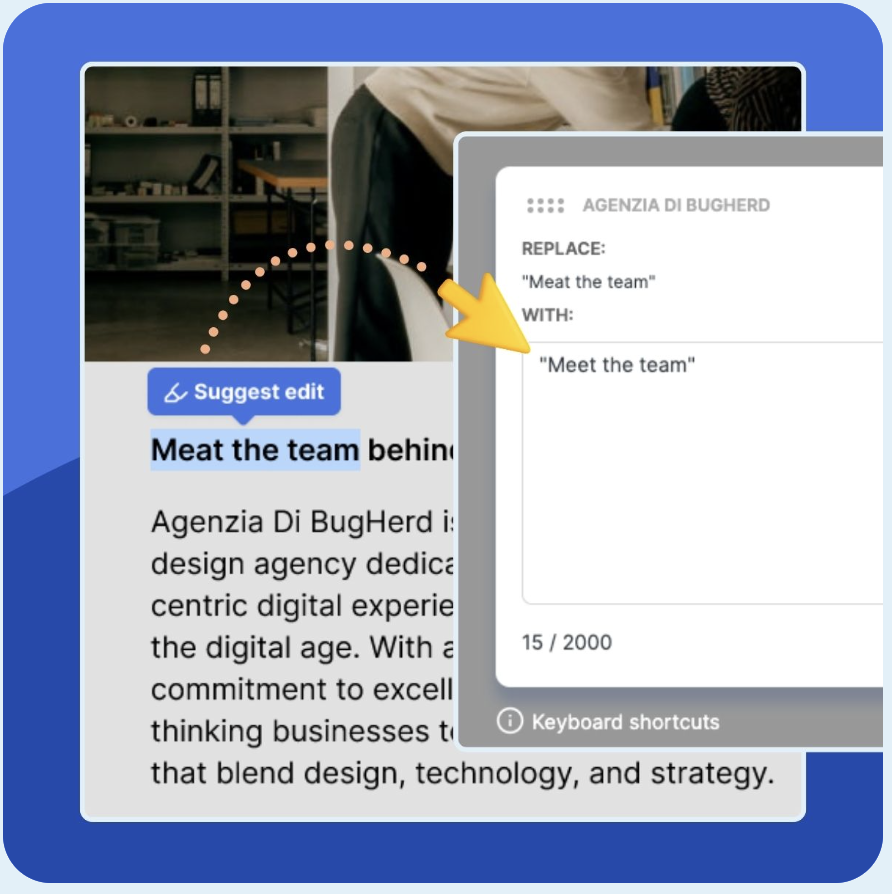
- Visual point‑and‑click feedback tied to exact elements on an image, PDF, Figma file, website, etc. Clients and stakeholders simply use the arrow icon to click directly on any element and drop a pin/comment (like sticky notes on a page).
- Capture feedback via video and leave feedback on multi-step interactions, animations, and anything else that’s difficult-to-describe with written words alone.
- Automatic screenshot & tech details captured with browser, OS, URL, screen size, resolution, etc.
- Task tracking via a built‑in Kanban board to assess, assign, prioritize, and action feedback. BugHerd also keeps clients updated by allowing them access to the task board (you determine the level of access), for real time visibility, especially on critical issues.
- BugHerd has deep two-way integrations with all project management tools such as ClickUp, monday.com, Asana, Trello, Jira and more; as well as supporting integrations with collaboration tools like Slack & Microsoft Teams, and developer tools like GitHub. BugHerd also has a fully featured API and Webhook support enabling custom integrations with any application.
- No client login required. Clients and stakeholders are sent a link and they can start leaving feedback right away without having to set up a login.
What are the Pros and Cons of BugHerd?
BugHerd Pros:
- Super easy for clients: Anyone can click and leave feedback without training or logins getting in the way.
- Pin-point comments: Users can drop comments directly on the exact spot in an image or visual.
- Clear context every time: Automatically captures a screenshot + useful details (like browser/device info), so feedback is less vague.
- Keeps feedback organized: Comments turn into trackable tasks, so nothing gets lost in email threads.
- Great for team collaboration: Reply to feedback, assign tasks, and move work forward without switching tools.
- Fits agency workflows well: Speeds up approvals and reduces back-and-forth with clients.
BugHerd Cons:
- Not built for AI data labeling: No support for computer vision tasks like bounding boxes, polygons, or segmentation.
- No COCO-format exports: If you’re building datasets for AI models, BugHerd isn’t designed for that workflow.
- Not for large-scale annotation projects: It’s made for feedback and QA, not managing thousands of labeled images across multiple annotators.
- Not built for AI data labeling
- Not for large-scale annotation projects
How much does BugHerd cost?
- Standard: $42/month (5 members - unlimited projects - unlimited guests)
- Studio: $67/month (10 members - unlimited projects - unlimited guests)
- Premium: $125/month (25 members - unlimited projects - unlimited guests)
- Custom: Custom pricing available for large teams
Find out more about what's included in each of the BugHerd pricing plans.
Does BugHerd offer a free trial?
BugHerd offers a free 7-day trial where you can check out all of the features. No credit card is required.
You can also book a 1:1 demo with a BugHerd product specialist where all of your questions will be answered on the spot.
"Our clients love to be able to see the progress of their feedback and it's great that it's in real time." - Michael G, BugHerd G2 Reviews
#2. Filestage
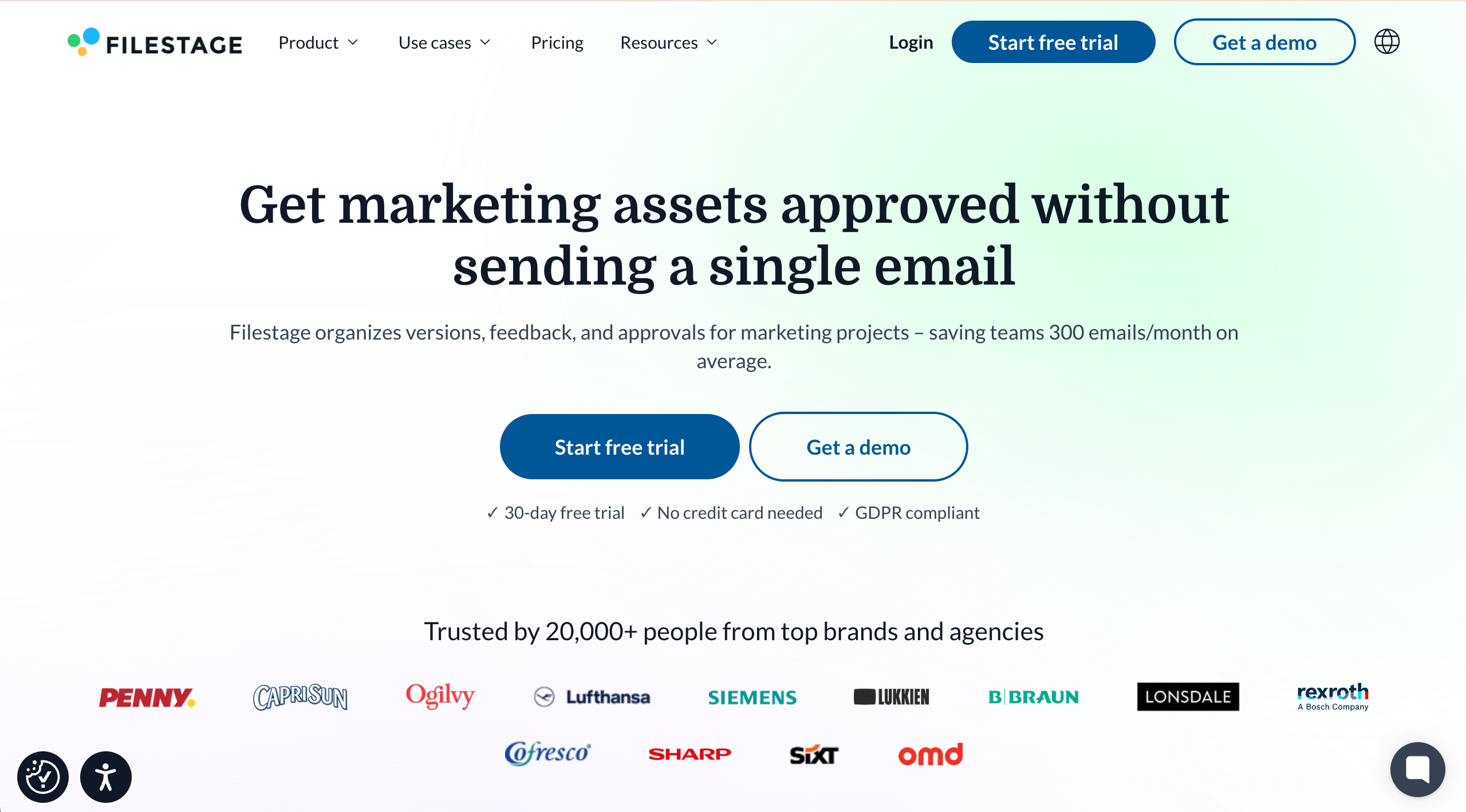
Filestage is best for structured content reviews and approvals because it centralizes feedback, versioning, and sign-off across files and stakeholders. It works well when teams need clear approval stages and audit trails for creative or marketing assets.
Who is Filestage designed for?
Filestage is designed for creative agencies managing campaign assets, video producers, brand teams, and marketing team members who require formal approvals.
What are the key features of Filestage?
- Multi‑format review across video, images, PDFs, and documents.
- Time‑stamped video comments for feedback on motion and edits.
- Branded client portals for professional approvals at scale.
What are the Pros and Cons of Filestage?
Filestage Pros:
- Works for multiple file types
- Easy to use for teams & clients
- Centralizes feedback & approvals
Filestage Cons:
- Steeper onboarding for new reviewers
- Some UI parts not intuitive
- Limits on project structure in certain plans
How much does Filestage cost?
- Free Forever Plan (very limited)
- Basic: $129/month
- Professional: $369/month
- Enterprise: Custom pricing
Find out more about what's included in each of the Filestage pricing plans.
Does Filestage offer a free trial?
Filestage offers a free 30-day trial.
#3. Markup.io
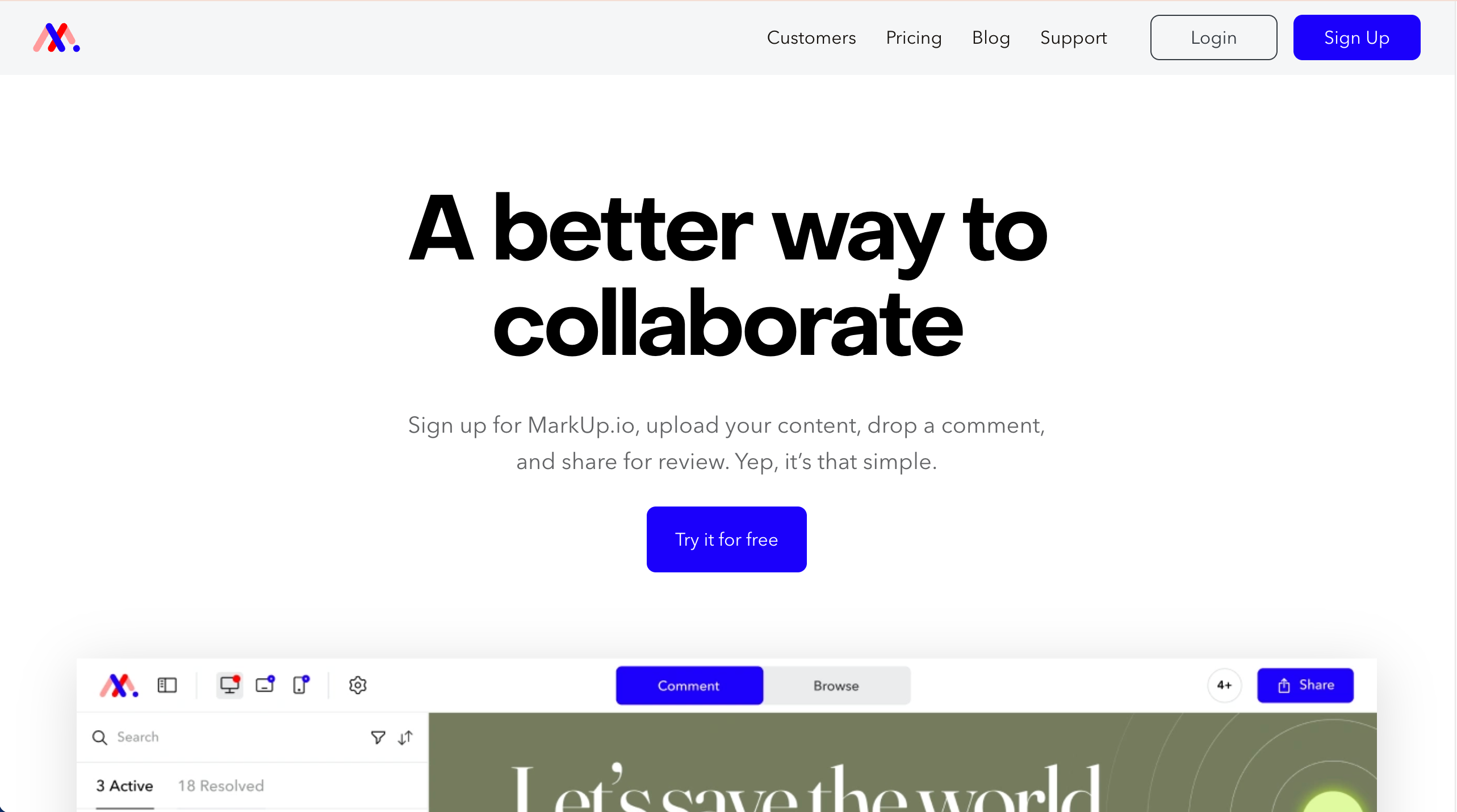
MarkUp.io is best for collecting visual feedback on websites and images through simple annotation and sharing links. It suits teams that need a very lightweight, browser-based feedback without complex workflows.
Who is MarkUp.io designed for?
MarkUp.io is designed for freelancers and small teams who want simple, visual feedback. For agency‑scale work or dev workflows, tools like BugHerd fit better.
What are the key features of MarkUp.io?
- Basic annotations: draw, highlight, and text comments on static and web captures
- Lightweight notifications to keep threads moving
- Mobile‑responsive reviewing for quick checks on any device.
What are the Pros and Cons of MarkUp.io?
MarkUp.io Pros:
- Relatively easy to use
- Works across file types
- Fast client feedback
MarkUp.io Cons:
- Limited project management
- Pricing is expensive compared to similar tools
- Not built for large teams
How much does MarkUp.io cost?
- Pro: $79/month
- Custom pricing: Get in touch with the MarkUp.io team
Find out more about what's included in each of the MarkUp.io pricing plans.
Does MarkUp.io offer a free trial?
Yes, MarkUp.io offers a 30-day free trial.
#4. Pastel
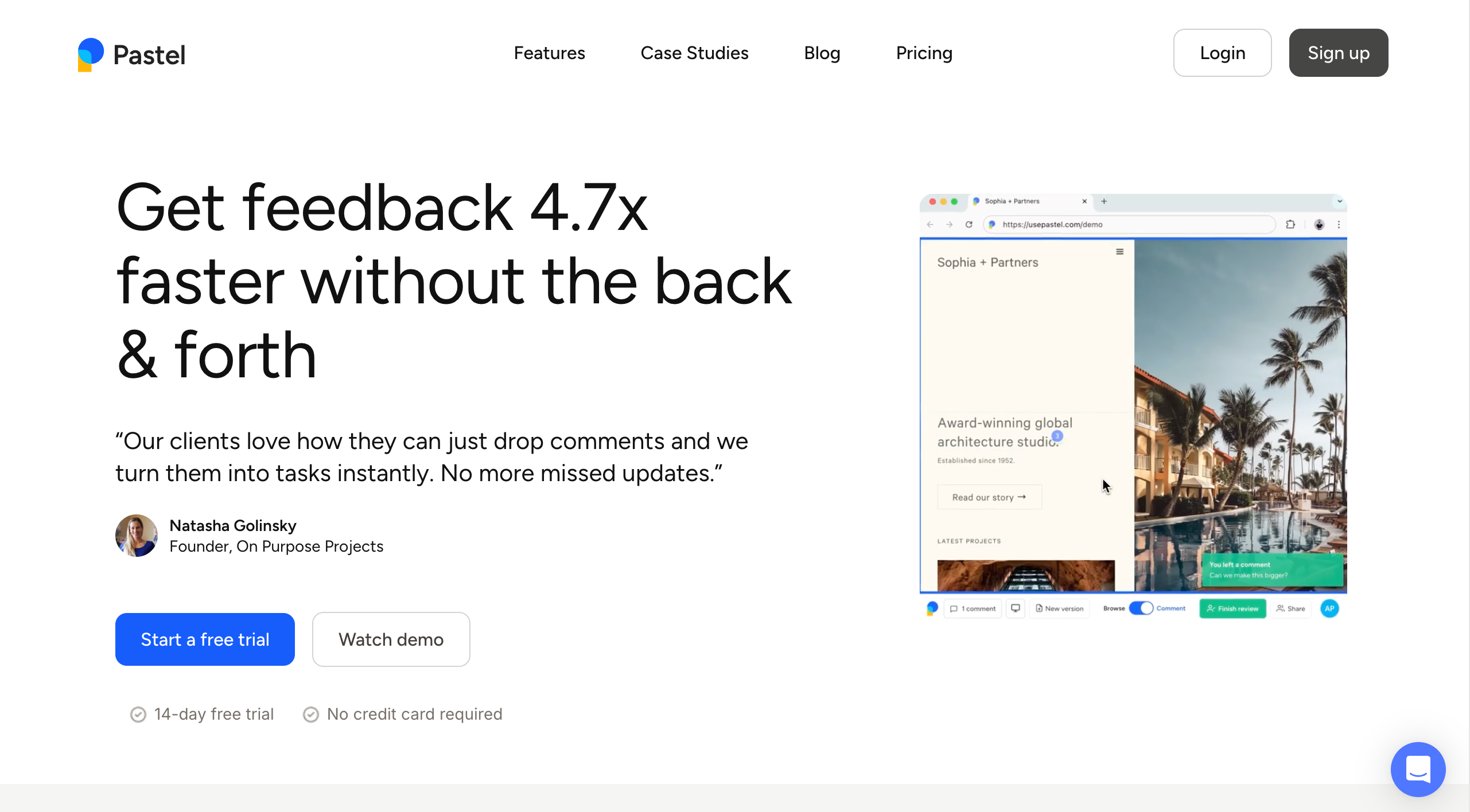
Pastel is best for visual feedback on live websites because comments can be pinned directly to page elements. It’s a good fit for designers and agencies sharing staging sites with clients.
Who is Pastel designed for?
Pastel is designed for small agencies that want fast, low-friction feedback. Upgrade to BugHerd when volume and complexity grow, and you want everything in a single platform.
What are the key features of Pastel?
- On-page comments
- Sticky-note style feedback
- Shareable review links
What are the Pros and Cons of Pastel?
Pastel Pros:
- Client-friendly
- Quick to set up
- Lightweight tool
Pastel Cons:
- Limited technical context
- Basic reporting
- Not ideal for complex projects
How much does Pastel cost?
- Free Forever Plan (very limited)
- Pro: $35/month
- Team: $119/month
- Enterprise: $450/month
Find out more about what's included in each of the Pastel pricing plans.
Does Pastel offer a free trial?
Yes, Pastel offers a free 14-day trial in to a free plan.
#5. Ziflow
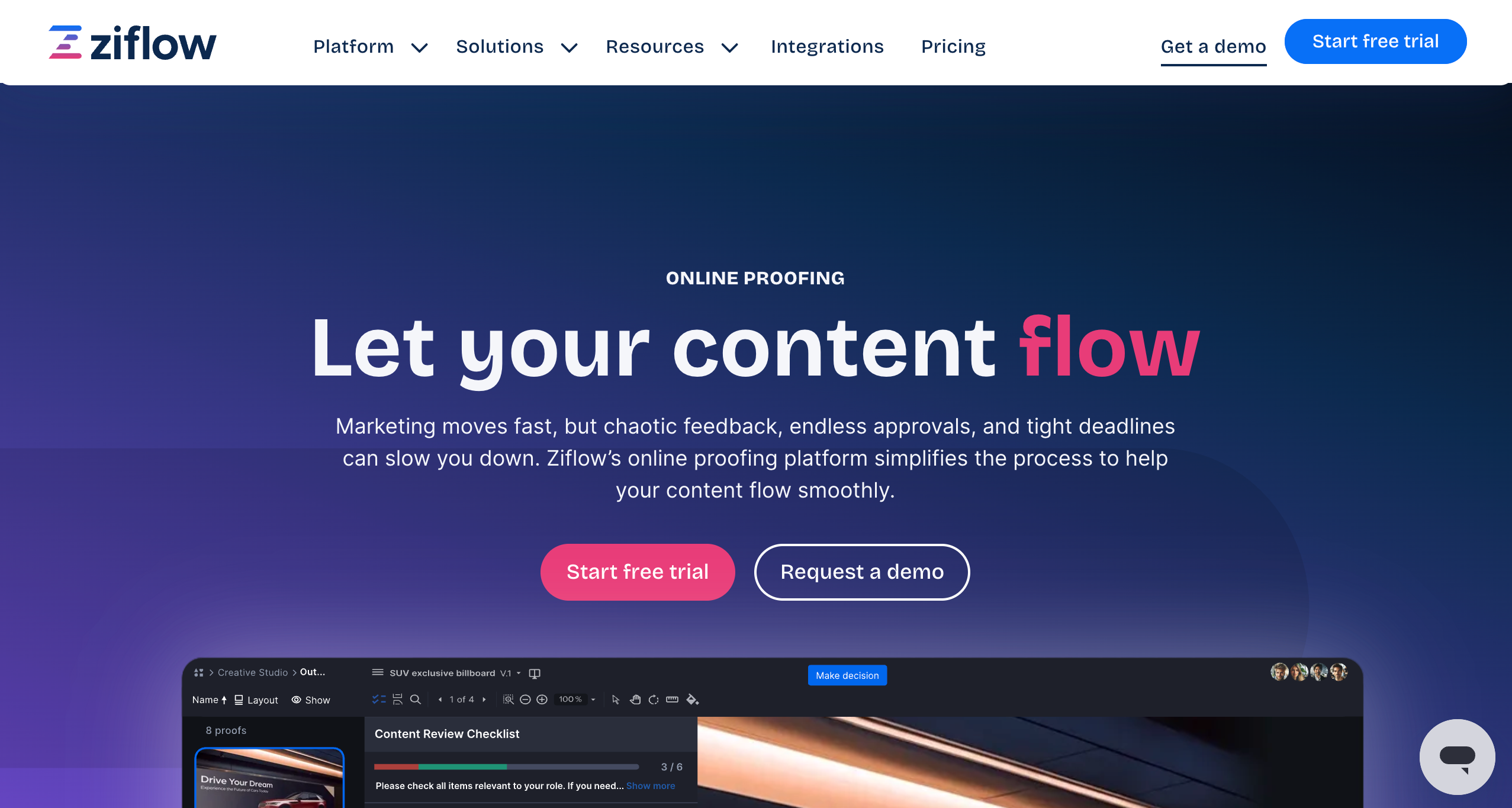
Ziflow is best for enterprise-grade creative approvals because it supports complex review workflows, permissions, and compliance needs. It’s commonly used by large teams managing regulated or high-volume content reviews.
Who is Ziflow designed for?
Ziflow is designed for enterprise teams with complex review workflows.
What are the key features of Ziflow?
- Versioned proofing
- Multi-stage approvals
- Audit trails
- Workflow automation
What are the Pros and Cons of Ziflow?
Ziflow Pros:
- Strong approval control
- Enterprise-ready
- Handles large volumes
Ziflow Cons:
- Expensive for small teams
- Steep learning curve
- Not design-first
How much does Ziflow cost?
- Free Forever Plan (very limited)
- Standard: $249/month
- Pro: $399/month
- Enterprise: Custom pricing
Find out more about what's included in each of the Ziflow pricing plans.
Does Ziflow offer a free trial?
Yes, Ziflow offers a free 14-day trial as well as a free plan.
#6. Figma
Figma is best for real-time design collaboration because teams can comment, iterate, and version designs inside a shared file. It’s ideal for design-first workflows but less suited for collecting feedback on live websites.
Who is Figma designed for?
Figma is designed for designers, product teams, and stakeholders who need fast, collaborative feedback during the design process.
What are the key features of Figma?
- Real-time collaboration
- Comments on designs
- Interactive prototypes
- Version history
What are the Pros and Cons of Figma?
Figma Pros:
- Feedback stays in context
- Great for collaboration
- No files to manage
Figma Cons:
- Not ideal for live websites
- Can overwhelm non-designers
- Limited approval workflows
How much does Figma cost?
- Starter: $0
- Professional: Plans range from $5 to $20/month
- Organization: Plans range from $5 to $55/month
- Enterprise: Plans range from $5 to $90/month
Find out more about what's included in each of the Figma pricing plans.
Does Figma offer a free trial?
Figma doesn't offer a free trial as a free plan is available.
#7. Marker.io
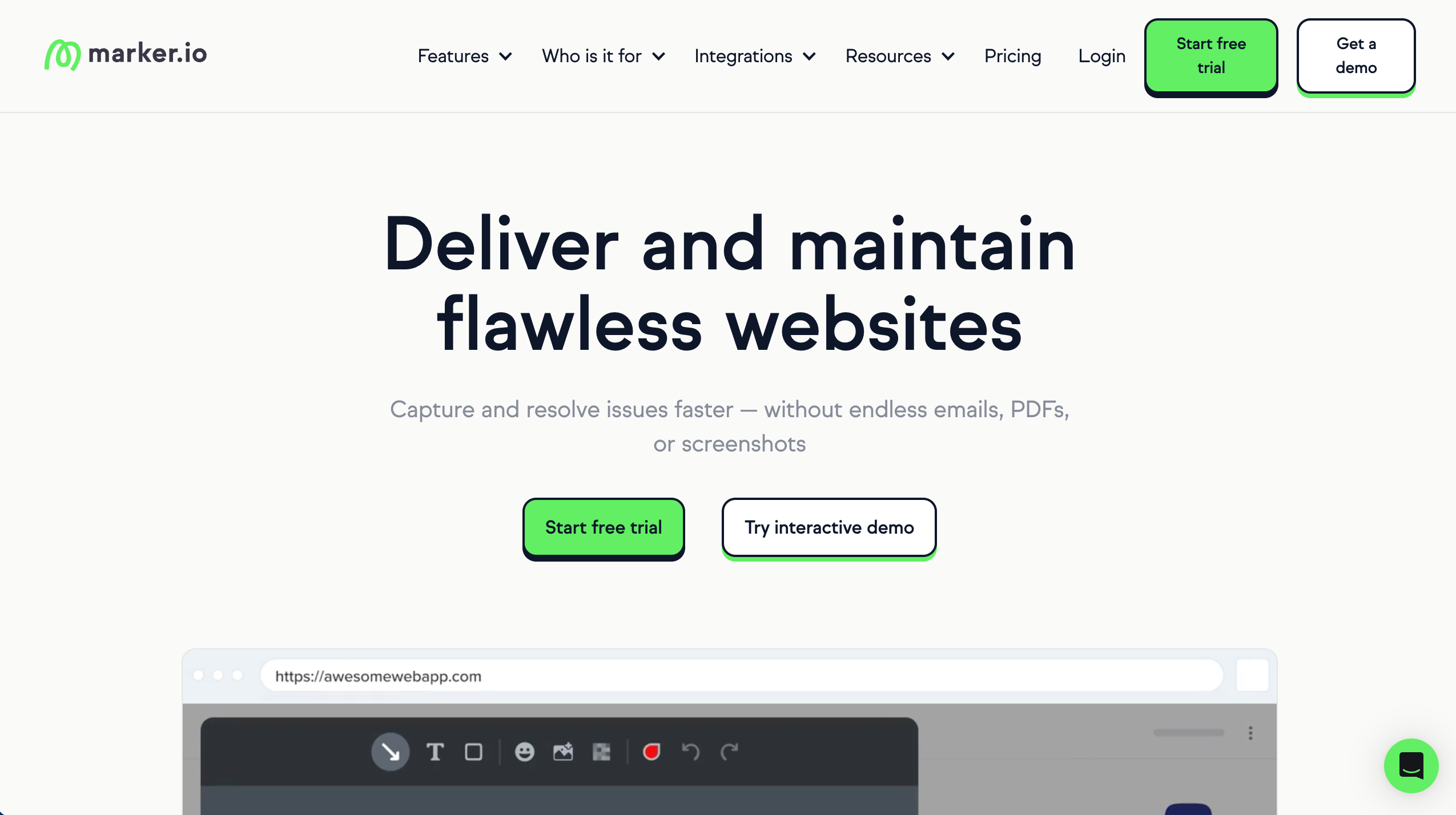
Marker.io is best for capturing website bugs and visual feedback and sending them directly into development tools. It’s designed for teams that want client-reported issues to become structured tickets quickly.
Who is Marker.io designed for?
Marker.io is designed for dev teams and agencies that work inside issue trackers.
What are the key features of Marker.io?
- One‑click capture with console logs, environment data, and repro context for devs
- Custom fields and routing rules to fit existing issue templates
- Browser overlays for visual annotation on live sites or apps
What are the Pros and Cons of Marker.io?
Marker.io Pros:
- Strong dev workflow fit
- Reduces back-and-forth
- Feedback includes context
Marker.io Cons:
- Less client-friendly
- Not design-first
- Can get expensive
How much does Marker.io cost?
- Starter: $59/month
- Team: $199/month
- Business: Custom pricing paid yearly
Find out more about what's included in each of the Marker.io pricing plans.
Does Marker.io offer a free trial?
Yes, Marker.io offers a 15-day free trial.
#8. Droplr
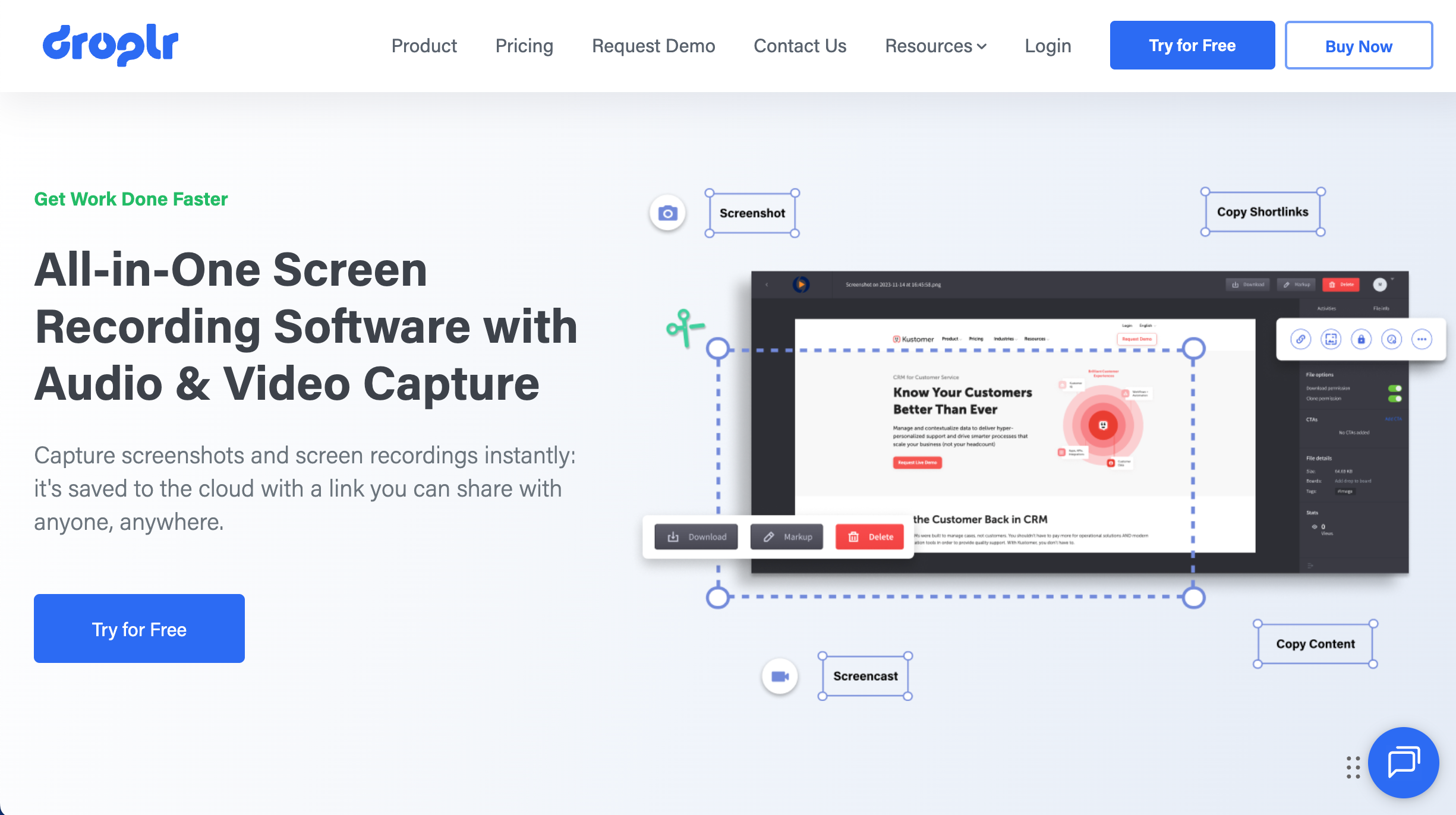
Droplr is best for quick visual feedback because it makes it easy to capture a screenshot, mark it up, and share it instantly with a link. It’s ideal for teams who want fast, lightweight image annotation without complex workflows or approvals.
Who is Droplr designed for?
Droplr is designed for individuals and teams who need a basic way to capture, annotate, and share screenshots or screen recordings to improve communication at work. It’s especially useful for remote teams, customer support, marketing, design, and product teams who want to explain issues visually and share feedback instantly via a link, without dealing with file uploads or long written instructions.
What are the key features of Droplr?
- Screenshot markup
- Screen recording
- Shared links
What are the Pros and Cons of Droplr?
Droplr Pros:
- Super lightweight
- Fast visual feedback
Droplr Cons:
- Not structured for larger projects
How much does Droplr cost?
- Pro Plus: $8/month
- Team: $9/user/month
- Enterprise: Request a quote
Find out more about what's included in each of the Droplr pricing plans.
Does Droplr offer a free trial?
Droplr offers a free 3-day trial.
#9. Userback
Userback is best for collecting in-app user feedback across websites and applications.
It’s useful when teams want a mix of visual feedback, surveys, and feature requests in one tool.
Who is Userback designed for?
Userback is designed for product teams and QA who need structured feedback in‑app, with a balance of visual capture and developer context.
What are the key features of Userback?
- Visual bug reporting, video feedback, and console capture for web apps
- Ready‑made integrations
- Widget customization and segmenting for in‑app feedback
What are the Pros and Cons of Userback?
Userback Pros:
- Rich feedback detail
- Multiple feedback types
- Flexible integrations
Userback Cons:
- Setup is not simple
- The platform can feel complex
How much does Userback cost?
- Free Forever Plan (very limited)
- Team: $9/seat/month
- Business: $19/seat/month
- Business Plus $29/seat/month
- Feature Portal add-on: $39/month
Find out more about what's included in each of the Userback pricing plans.
Does Userback offer a free trial?
A free plan is available.
Top Tools for Computer Vision & ML Training
#10. GoVisually
GoVisually is best for creative reviews because it lets clients and teams annotate designs, PDFs, and videos with clear comments and approvals in one place. It’s ideal for creative teams who want fewer revision cycles, but it’s not suited for AI dataset labeling like bounding boxes, segmentation, or COCO exports.
Who is GoVisually designed for?
GoVisually is designed for creative teams, freelancers/solo designers, design studios, marketing agencies, and in-house design teams who need a simple way to collect feedback and approvals on creative assets (like designs, PDFs, magazines, and videos) without a steep learning curve for reviewers.
What are the key features of GoVisually?
- Image and PDF proofing
- Comments & approvals
- Version tracking
What are the Pros and Cons of GoVisually?
GoVisually Pros:
- Simple review workflow
- Easy client access
GoVisually Cons:
- Not for AI annotation
How much does GoVisually cost?
- Lite: $16/user/month
- Pro: $33/user/month
- Enterprise: Contact sales for pricing
Find out more about what's included in each of the GoVisually pricing plans.
Does GoVisually offer a free trial?
Yes, GoVisually offers a free trial.
#11. Labelbox
Labelbox is best for large-scale AI data labeling because it helps teams annotate images and video with structured workflows, quality control, and collaboration tools. It works well when machine learning teams need consistent, high-quality labels for tasks like object detection and segmentation.
Who is Labelbox designed for?
Labelbox is designed for ML and computer vision teams, data labeling teams, and organizations building training datasets for AI models.
What are the key features of Labelbox?
- Bounding boxes
- Segmentation
- Review pipelines
- Model-assisted labeling
What are the Pros and Cons of Labelbox?
Labelbox Pros:
- Strong for large teams
- Built for CV workflows
Labelbox Cons:
- Can feel complex
- Pricing better for scale
How much does Labelbox cost?
- Software subscription: Contact Labelbox for pricing
- Labelbox services: Contact Labelbox for pricing
Find out more about what's included in each of the Labelbox pricing plans.
Does Labelbox offer a free trial?
Yes, Labelbox offers a free trial.
#12. V7 (Darwin)
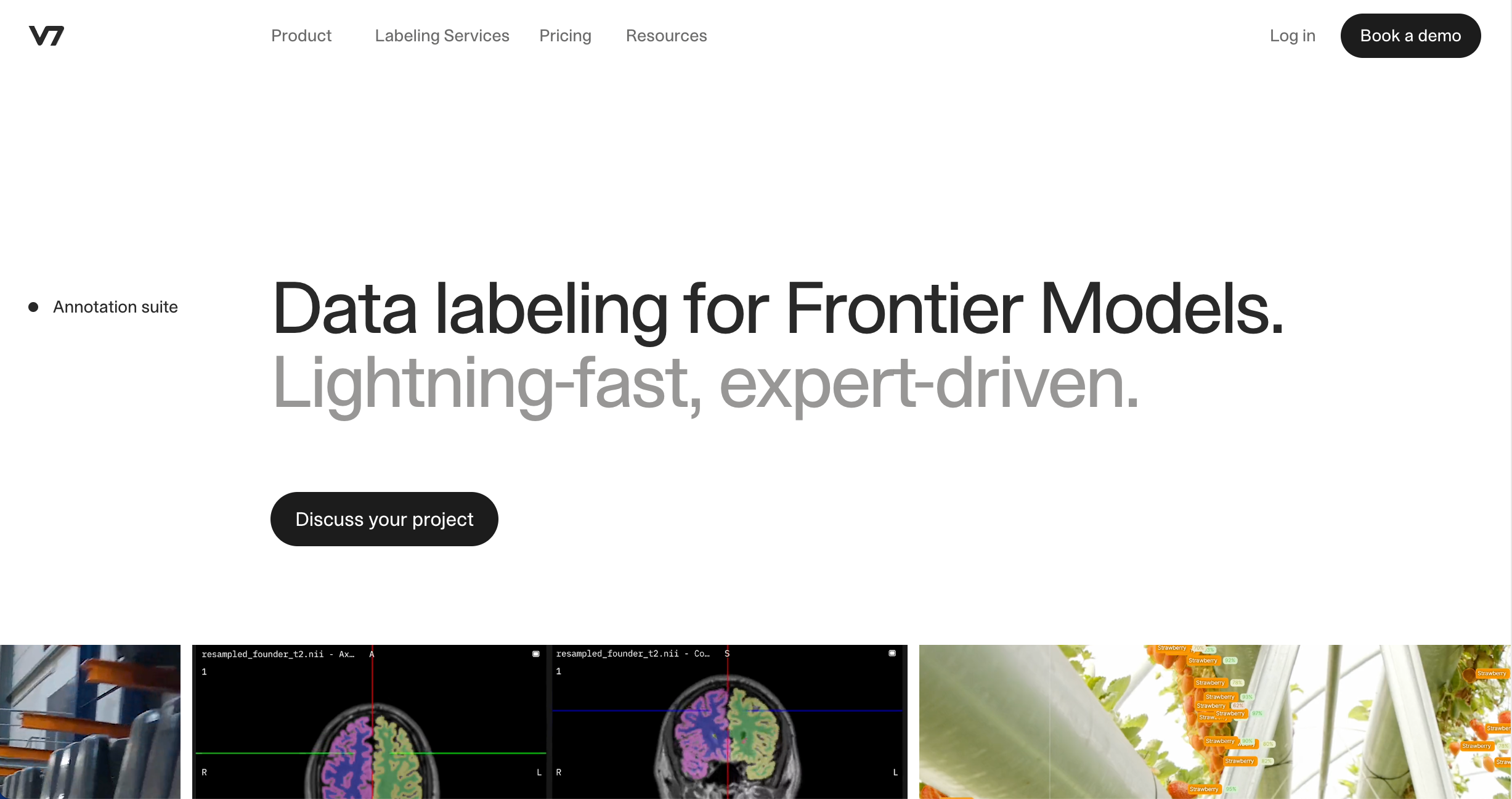
V7 (Darwin) is best for fast, efficient computer vision annotation because it combines powerful labeling tools with automation to speed up dataset creation. It works well when teams want to scale image and video labeling while improving consistency and reducing manual effort.
Who is V7 designed for?
V7 is designed for computer vision teams, ML engineers, and data teams who need an end-to-end platform for managing and annotating training data.
What are the key features of V7?
- Auto-label tools
- Polygons and boxes
- Dataset management
- Export formats
What are the Pros and Cons of V7?
V7 Pros:
- Speeds up labeling
- Great UI
V7 Cons:
- Not for client approvals
How much does V7 cost?
- Contact V7 for pricing.
Find out more about what's included in each of the V7 pricing plans.
Does V7 offer a free trial?
No, V7 does not offer a free trial.
#13. CVAT
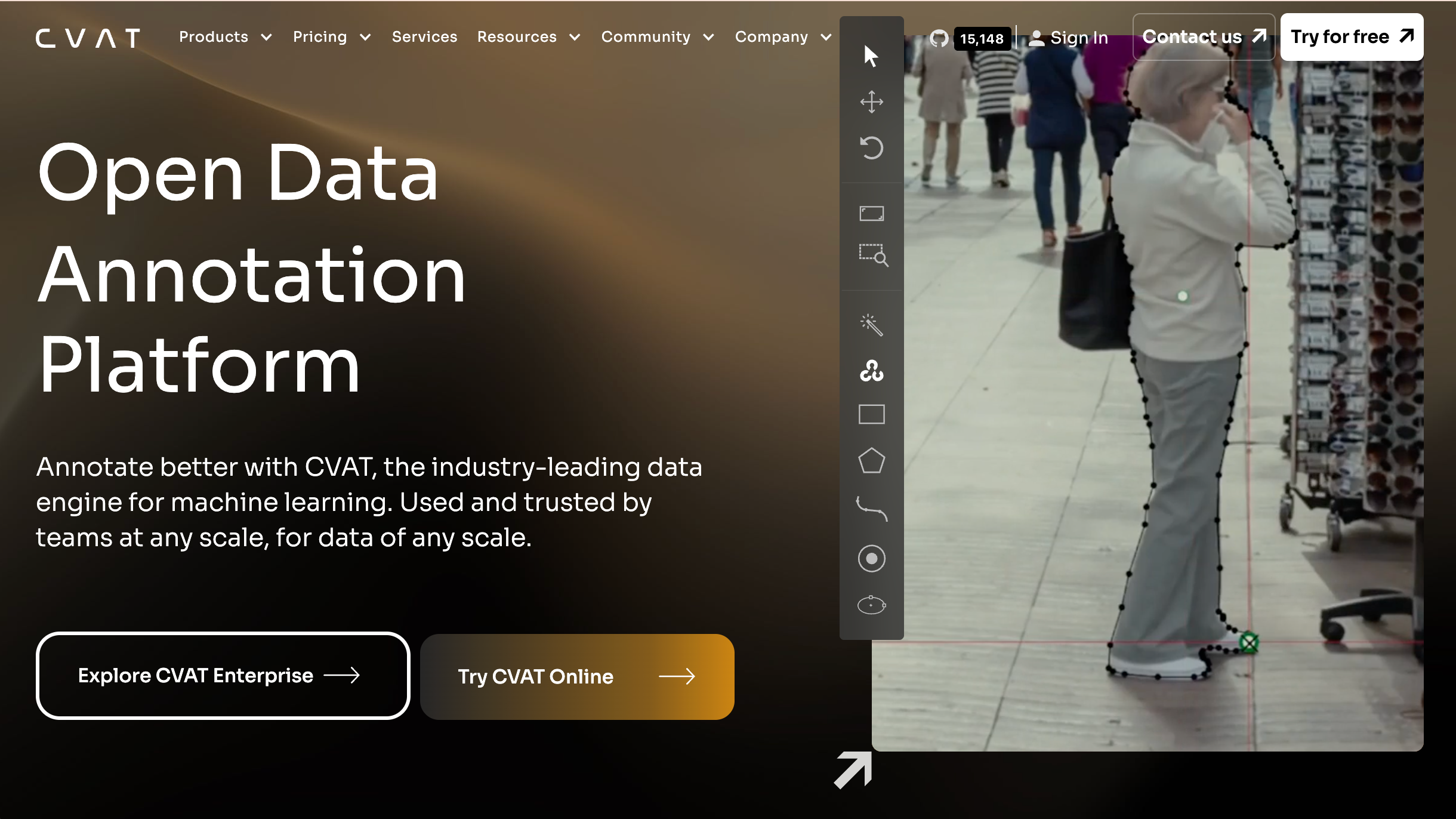
CVAT is best for open-source computer vision annotation because it supports a wide range of labeling tasks like bounding boxes, polygons, and segmentation across images and video. It works well when technical teams need flexibility, control, and a cost-effective tool for building training datasets.
Who is CVAT designed for?
CVAT is designed for developers, researchers, and annotation teams who want a flexible (often self-hosted) labeling platform for AI training data.
What are the key features of CVAT?
- Boxes and polygons
- Segmentation
- Video annotation
What are the Pros and Cons of CVAT?
CVAT Pros:
- Powerful & flexible
- Great for technical team
CVAT Cons:
- Requires setup
- UI not as polished
How much does CVAT cost?
CVAT Online:
- Solo: $33/month
- Team: $66/month
Enterprise Plans:
- Community: $0
- Enterprise Basic: $12,000
- Enterprise Premium: Custom pricing
Find out more about what's included in each of the CVAT pricing plans.
Does CVAT offer a free trial?
Yes, CVAT offers a free trial.
#14. Encord
Encord is best for enterprise-scale dataset annotation because it supports complex labeling workflows, quality review processes, and data management for production AI. It works well when teams need to annotate high volumes of data while keeping accuracy and governance tight.
Who is Encord designed for?
Encord is designed for enterprise ML teams and organizations building AI systems that require high-quality labeled data at scale
What are the key features of Encord?
- Image/video labeling
- Review workflows
- Model-assisted labeling
What are the Pros and Cons of Encord?
Encord Pros:
- Strong for scale
- Enterprise-grade
Encord Cons:
- Heavier setup
- More technical
How much does Encord cost?
- Starter: Contact Encord
- Team: Contact Encord
- Enterprise: Contact Encord
Find out more about what's included in each of the Encord pricing plans.
Does Encord offer a free trial?
No, Encord doesn't offer a free trial.
#15. Label Studio
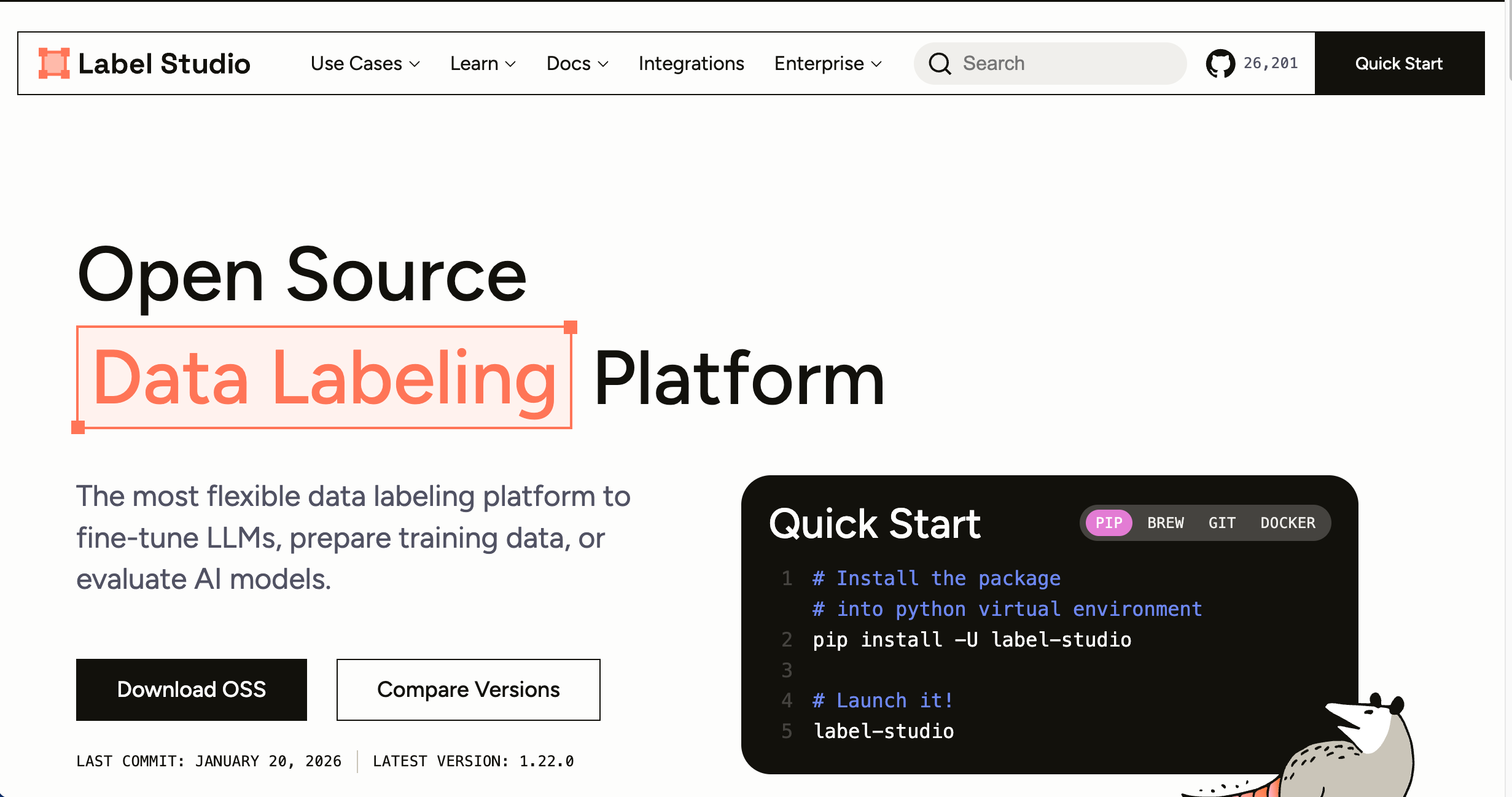
Label Studio is best for flexible, custom annotation workflows because it supports many data types and lets teams tailor labeling setups to their needs. It works well when ML teams or researchers want an adaptable tool for creating training data without being locked into one platform.
Who is Label Studio designed for?
Label Studio is designed for data scientists, ML engineers, and research teams who want a configurable labeling tool for a wide range of machine learning projects.
What are the key features of Label Studio?
- Image/video labeling
- Custom templates
- Export formats
What are the Pros and Cons of Label Studio?
Label Studio Pros:
- Flexible and open source
- Supports many use cases
Label Studio Cons:
- More technical
- Setup time required
How much does Label Studio cost?
- Label Studio is an open source platform and is free to use.
Does Label Studio offer a free trial?
Label Studio is a free tool.
What's the Best Way to Manage Feedback from Clients?
- Centralize all feedback: Use one tool to avoid scattered emails/spreadsheets. For example, BugHerd's Kanban board organizes feedback as actionable tasks.
- Assign and prioritize: Tag team members, set priorities for easy progress tracking.
- Facilitate communication: Enable threaded comments on annotations.
- Document processes: Create templates for recurring projects to standardize and speed iterations.
- Leverage auto-features: Capture screenshots and user metadata (eg. device, URL, OS, etc) automatically. BugHerd does this natively, slashing reproduction time.
- Integrate with tools that you already use: Sync tasks to Trello, Asana, Slack, etc.
- Train non-technical users: Provide your clients with short demos on how to leave feedback.
- Iterate with analytics: Review resolution times to ensure client timelines are being met.
Which Image Annotation Tool is best for Agencies and Creative Teams?
BugHerd is the best image annotation tool for agencies and creatives teams because it lets clients pin feedback directly on an image and other design assets while automatically capturing technical context, and turning all feedback into actionable tasks on a built-in Kanban board. BugHerd also has deep two-way integrations with tools such as ClickUp, Asana, Trello, etc, as well as integrations with Slack, MS Teams, and many more.
Choosing the right image annotation tool is about removing friction between people and workflows. For agencies, BugHerd is the strongest option. It's easy for clients to give clear feedback and for teams to act on it so they can deliver web projects on time and to budget.
BugHerd offers a free 7-day trial where you can check out all of the features. No credit card is required.
You can also book a 1:1 demo with a BugHerd product specialist where all of your questions will be answered on the spot.
"BugHerd probably saves us at least 3-4hrs per week." - Emily VonSydow, Bop Design, BugHerd Customer Reviews.
Frequently Asked Questions About Image Annotation Tools
What is the easiest image annotation tool for clients?
When it comes to annotating images, BugHerd is the easiest image annotation tool for clients because it offers intuitive point-and-click pinning on images without needing to creative an account or login, an it doesn't require a steep learning curve like many other tools do. It's simple to use and clients can get started quickly leaving annotations.
When it comes to AI labeling tools, V7 is one of the easiest for clients because it’s built with a modern, visual interface and uses automation (model-assisted labeling) to reduce the manual work people need to do. That makes it much easier for non-technical reviewers or external contributors to jump in and label data without feeling overwhelmed.
Do I need coding skills to use image annotation tools?
When using an image annotation tool such as BugHerd you do not need any coding skills at as its visual point-click-comment feedback method is simple to use, and BugHerd automatically captures a screenshot and the user's technical details with every annotation. However, if you're using an advanced ML platform like CVAT, you'll need to be able to script custom setups.
Can image annotation tools integrate with Slack or Microsoft Teams?
Yes, image annotation tools like BugHerd integrate seamlessly with Slack, Teams, and also have deep two-way integrations with project management tools such as Jira, Asana, ClickUp and many more; notifying teams of new annotations in real-time. See all BugHerd integrations.
Are there mobile apps for image annotation?
Mobile apps are limited for image annotation, but web-responsive platforms like BugHerd work effectively on phones for on-the-go pinning and feedback capture.
What does 'regions' mean in image annotation tools?
A region is the part of an image you label; like a box around an object or a highlighted area. Tools like Label Studio describe annotation as adding a “region” to mark the section you’re labeling.
Do image annotation tools support a variety of shapes?
Yes, image annotation tools support a variety of shapes because different jobs need different shapes. Bounding boxes are great for quick object detection, while polygons are better when you need to label a precise outline.
What shapes do AI annotation tools usually include?
Most AI-focused annotation tools include rectangles (bounding boxes), polygons, and other shape tools for different use cases. CVAT documents these shape options clearly in its annotation guide.
How do you annotate more efficiently?
To annotate more efficiently, use the simplest tool that makes sense for the job. If annotating an image or website, for example, BugHerd is the simplest tool to use. Users simply point-click-comment to leave feedback. BugHerd also offers features such as automatic capturing of screenshots and user technical data; as well as having an in-built Kanban task board enabling you to efficiently manage your annotations.
What does drag-and-drop mean in annotation tools?
Drag-and-drop relates to annotation tools that help you build a computer vision dataset (ie, a large set of images) so that you can train AI. Drag-and-drop usually means you can move or adjust an existing label (like a box or point) instead of redrawing it from scratch. This makes fine-tuning faster during labeling.
Can you do a test run before committing to an annotation tool?
Yes, you can definitely do a test run before committing to an annotation tool - and you should. A quick test run with a small batch of images helps you check if the workflow, export options, and labeling speed feel right for your team.
What are image annotation tools used for in computer vision?
In computer vision, image annotation tools are used to label images (like adding bounding boxes or segmentation) so AI models can learn to detect, recognise, and classify objects.

Marina Domoney
Marina Domoney is Marketing Communications Lead at BugHerd and a senior B2B marketer with 20+ years’ experience in SaaS and website delivery workflows. She’s worked closely with agencies, creative teams, and developers across countless web projects, giving her practical expertise in design and website feedback, approvals, and client collaboration.
Try BugHerd on your site
See feedback in context
Click anywhere to leave feedback directly on your website.








But don't just take our word for it.
BugHerd is loved by 10,000+ companies,
350,000+ users across 172 countries.
4.8/5
4.7/5
4.5/5
5/5
8.7/10
Sam Duncan 📱📏 🌱
@SamWPaquet
"@bugherd where have you been all my life??
We just migrated our bug tracking over from Asana and have at least halved our software testing time🪳👏📈. "
Ashley Groenveld
Project Manager
“I use BugHerd all day every day. It has sped up our implementation tenfold.”
Sasha Shevelev
Webcoda Co-founder
"Before Bugherd, clients would try to send screenshots with scribbles we couldn't decipher or dozens of emails with issues we were often unable to recreate."
Mark B
Developer
“A no-brainer purchase for any agency or development team.”
Kate L
Director of Operations
"Vital tool for our digital marketing agency.”
Paul Tegall
Delivery Manager
"Loving BugHerd! It's making collecting feedback from non-tech users so much easier."
Daniel Billingham
Senior Product Designer
“The ideal feedback and collaboration tool that supports the needs of clients, designers, project managers, and developers.”
Chris S
CEO & Creative Director
“Our clients LOVE it”
Emily VonSydow
Web Development Director
“BugHerd probably saves us
at least 3-4hrs per week.”